Diagnostics
Overview
Three tabs on the device page let you troubleshoot the connection from the customer's own router — without them lifting a finger: Ping and Trace Route run network tests from the device, and WLAN Host lists the gadgets connected to their Wi-Fi.
How diagnostics work: you submit the test, and the device runs it the next time it checks in — results are not instant. Submit, wait a moment, then click the tab's Refresh button to see the outcome. The Diagnostic State shows Requested while it's pending and Complete when the result is ready.
Ping
Tells the customer's router to ping an address, so you can test connectivity as their own device sees it.
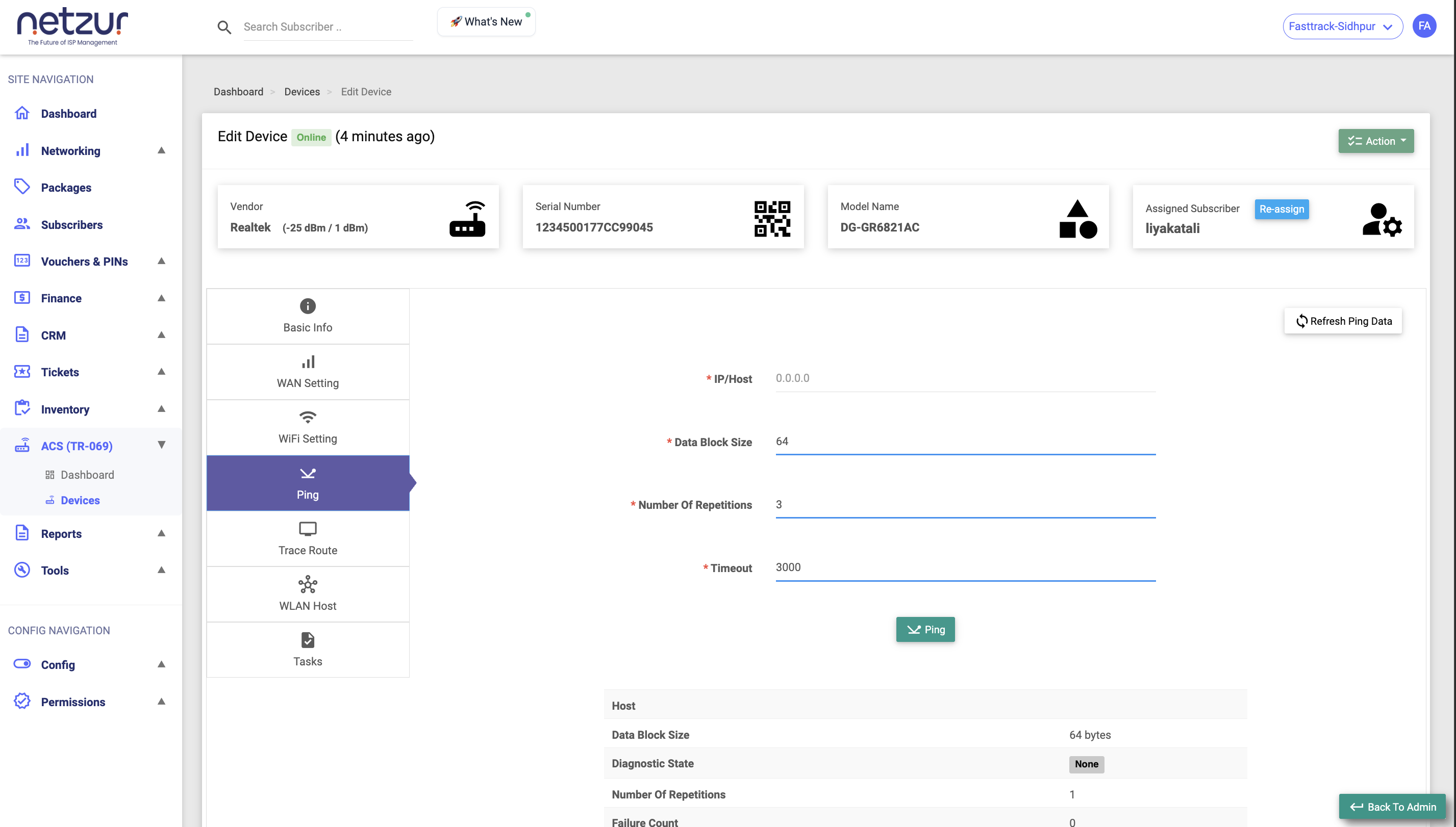
Fill in:
| Field | Meaning |
|---|---|
| IP/Host | The address or hostname to ping (e.g. 8.8.8.8). |
| Data Block Size | Packet size in bytes (default 64). |
| Number of Repetitions | How many pings to send (default 3). |
| Timeout | How long to wait per ping, in milliseconds (default 3000). |
Select Ping, then Refresh Ping Data after a moment. The results show the Diagnostic State, Success Count / Failure Count, and the Minimum / Maximum / Average Response Time — so you can see whether the device reaches the target and how fast.
Trace Route
Tells the router to trace the path to an address, listing every network hop between the customer and the destination — useful for spotting where a connection breaks down.
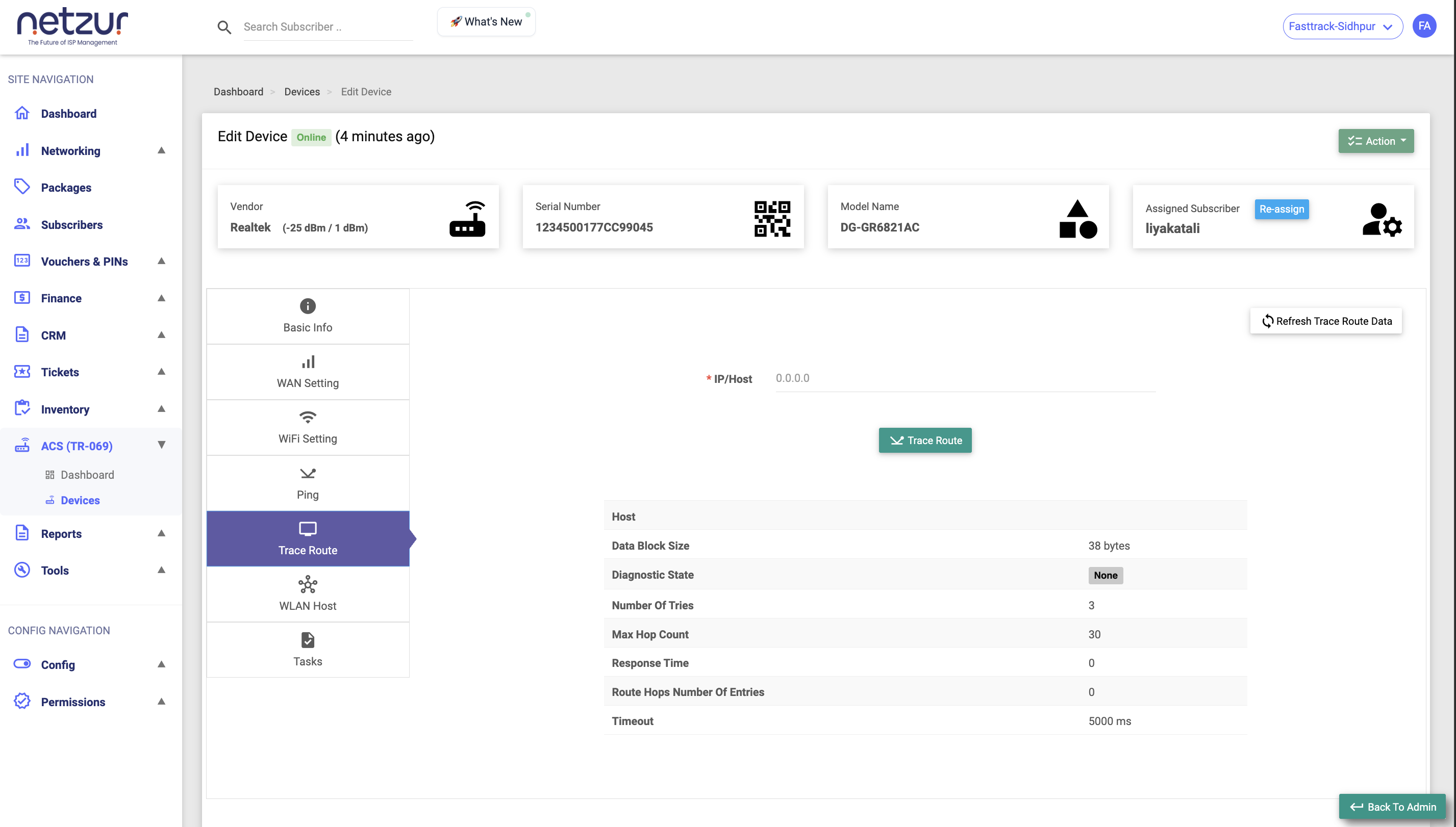
Enter the IP/Host, select Trace Route, then Refresh Trace Route Data after a moment. You'll see the Diagnostic State, a summary (hop count, response time), and the ordered list of hops with each hop's address and round-trip time.
WLAN Host
Lists the devices currently connected to the customer's Wi-Fi/LAN — their phones, laptops, TVs — as reported by the router. Handy for "how many devices are on my network?" questions.
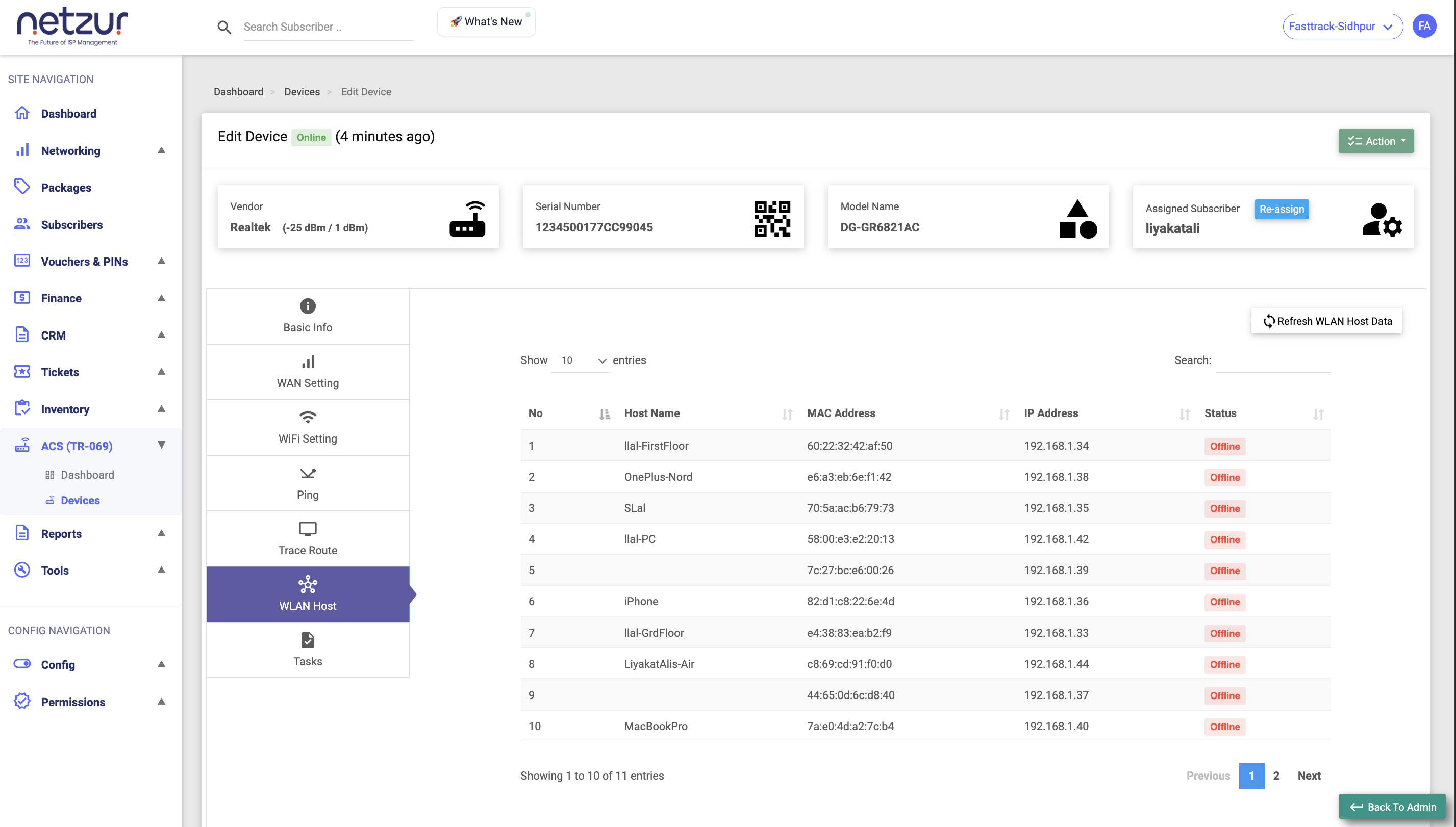
| Column | Meaning |
|---|---|
| No | Row number. |
| Hostname | The connected gadget's name. |
| MAC Address | Its hardware address. |
| IP Address | Its local IP on the customer's network. |
| Status | Online or offline (shown for gateway-type devices). |
Click Refresh WLAN Host Data to ask the router to re-report its currently connected clients. (There's no signal-strength column here — just name, MAC, IP and status.)
Important Notes
- All three tests run on the customer's device, not from your server — so they reflect the customer's real-world connectivity.
- If results don't appear, the device may be offline; the request waits on the Tasks tab until it next checks in. A test that errors shows up under Faults.