WAN & Wi-Fi Settings
Overview
Two tabs on the device page let you see and change the customer's internet and wireless settings remotely: WAN Setting (the internet connection) and Wi-Fi Setting (the wireless networks). Each has a Refresh button that re-reads the device, and an edit action that pushes changes to the live device.
Anything you change here reaches the real customer router the next time it checks in. Refreshing only re-reads values — it changes nothing.
WAN Setting
The device's internet (WAN) connection — how it gets online.
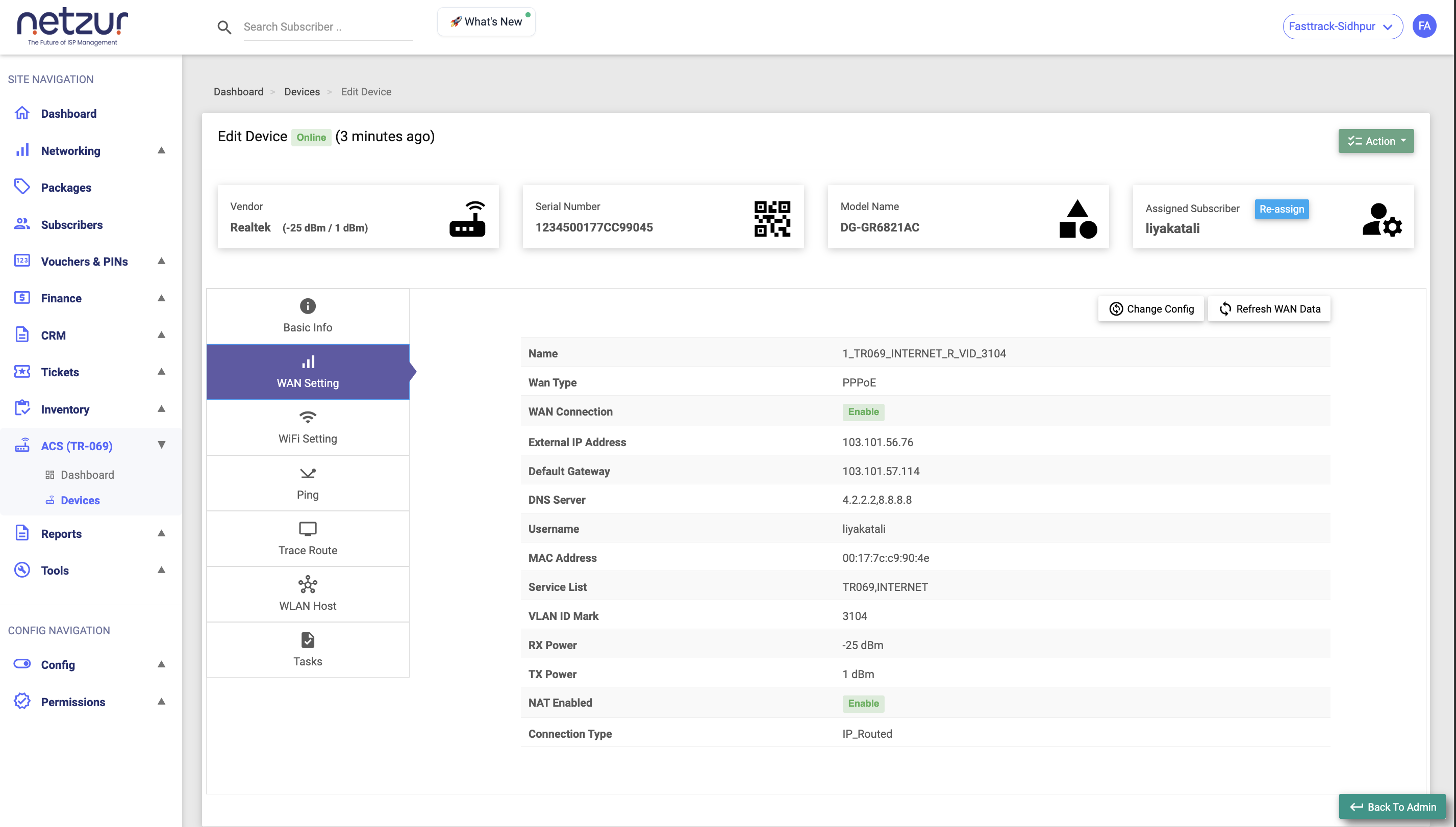
Two buttons top-right: Refresh Wan Data (re-read, always available) and Change Config (edit — needs the change-WAN permission).
What's shown
| Field | Meaning |
|---|---|
| Name | The WAN interface name. |
| Wan Type | PPPoE or IPoE. |
| Wan Connection | Enabled or disabled. |
| External IP Address | The device's public/WAN IP. |
| Subnet Mask / Default Gateway / DNS Server | The IP settings (mask shown for IPoE). |
| Username | The PPPoE/WAN username. |
| MAC Address | The WAN MAC address. |
| Service List / VLAN ID Mark | Service type and VLAN tag. |
| Rx Power / Tx Power | Optical signal levels (dBm) for fibre ONUs. |
| NAT Enabled / Connection Type / Connection Status | Whether NAT is on, and the connection state. |
Change WAN Config
Change Config opens a form that pushes new WAN settings to the device:
- WAN Type — PPPoE or IPoE.
- For PPPoE — Username and Password (with a show/hide toggle).
- For IPoE — IP Address, Subnet Mask, Gateway.
- VLAN ID and a NAT Enable toggle.
Save to send the change. The device applies it on its next check-in; use Refresh Wan Data afterwards to confirm.
Wi-Fi Setting
The wireless networks (SSIDs) the device broadcasts.
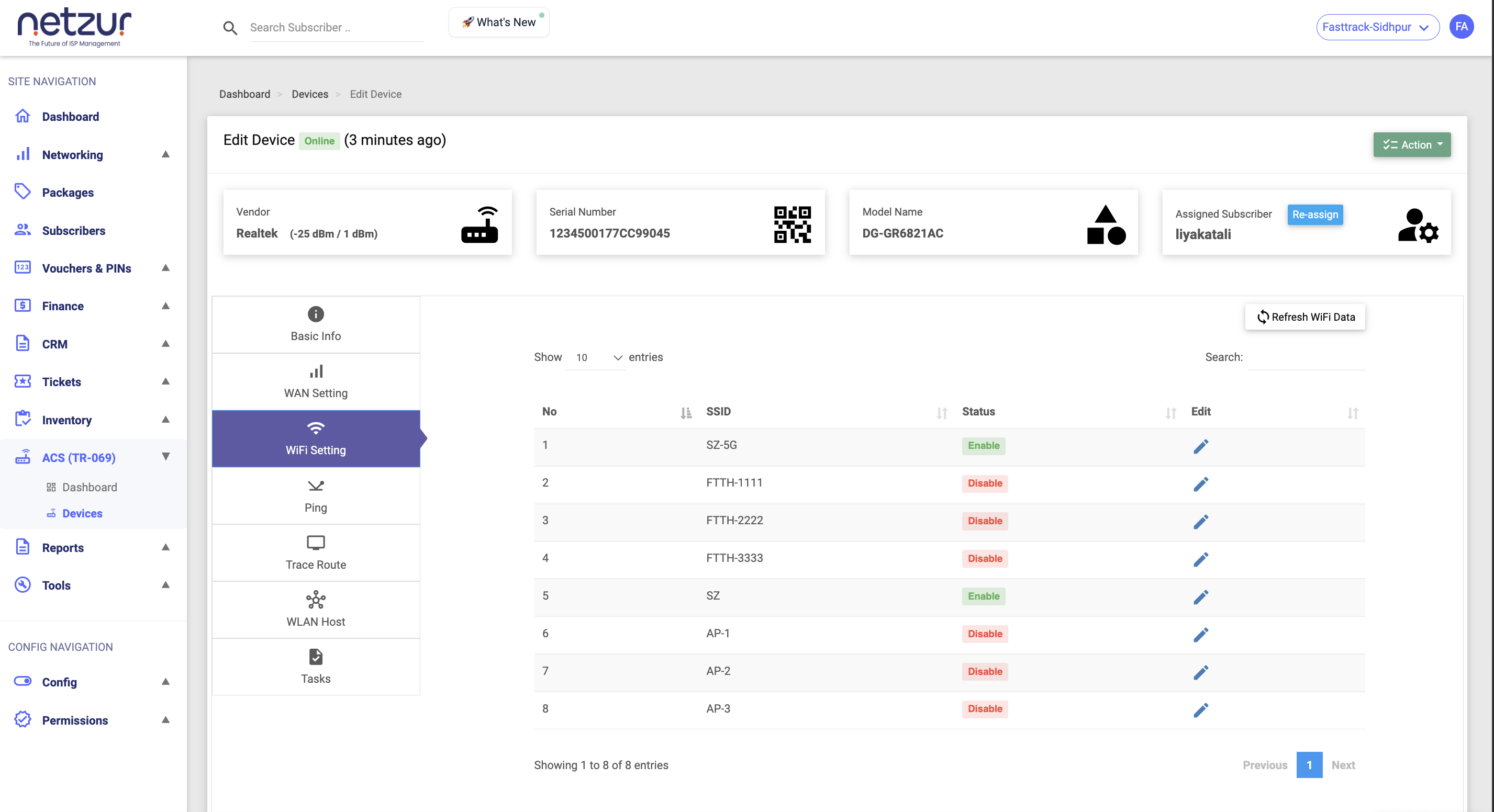
A Refresh Wifi Data button re-reads the list. The table shows each network:
| Column | Meaning |
|---|---|
| No | The wireless network's index. |
| SSID | The network name customers see. |
| Status | Enabled or disabled. |
| Edit | A pencil icon to change this network. |
Edit an SSID
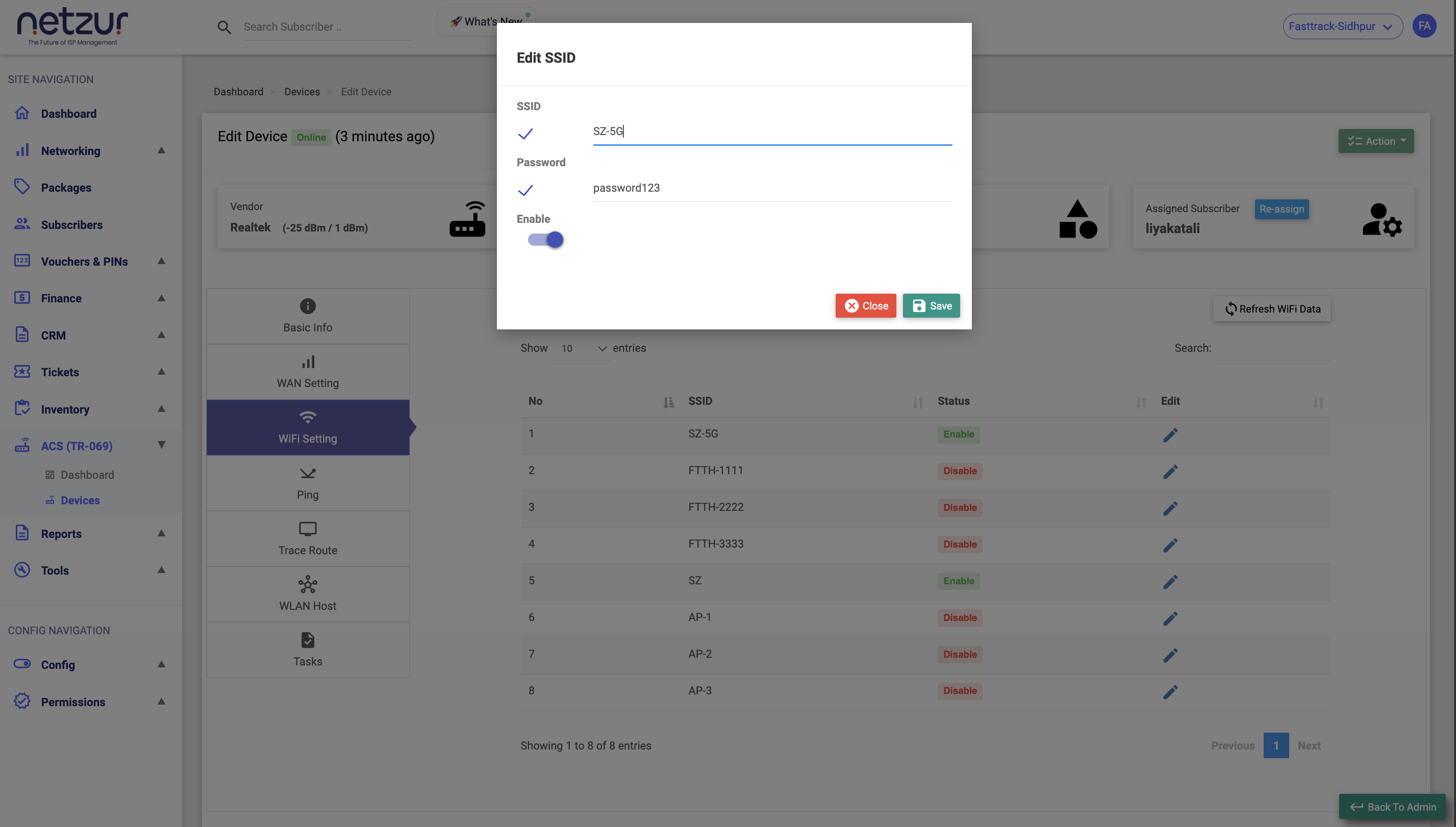
The pencil opens an Edit SSID form that pushes the change to the device:
- SSID — the network name. Tick its checkbox to enable the field, then edit.
- Password — the Wi-Fi password. Tick its checkbox to enable it; it must be at least 8 characters.
- Enable — turn this network on or off.
Save to send it. The customer's Wi-Fi name/password change once the device applies it.
The opt-in checkboxes mean you can change just the name, just the password, or both — you won't accidentally overwrite the one you didn't touch. Band and channel are not editable here.
Important Notes
- Changing the Wi-Fi password will disconnect every device currently on that network until they reconnect with the new password — tell the customer first.
- If a change doesn't appear, the device may be offline; the command waits on the Tasks tab until it checks in.