KYC Setting
Overview
The KYC page controls how customer identity verification works for your site — both manual document KYC and, in India, optional electronic eKYC. You use it to decide which documents are mandatory, whether verification must happen before a subscriber can be added, how strict matching is, and which CAF (Customer Application Form) template is used.
Navigation: Config → KYC
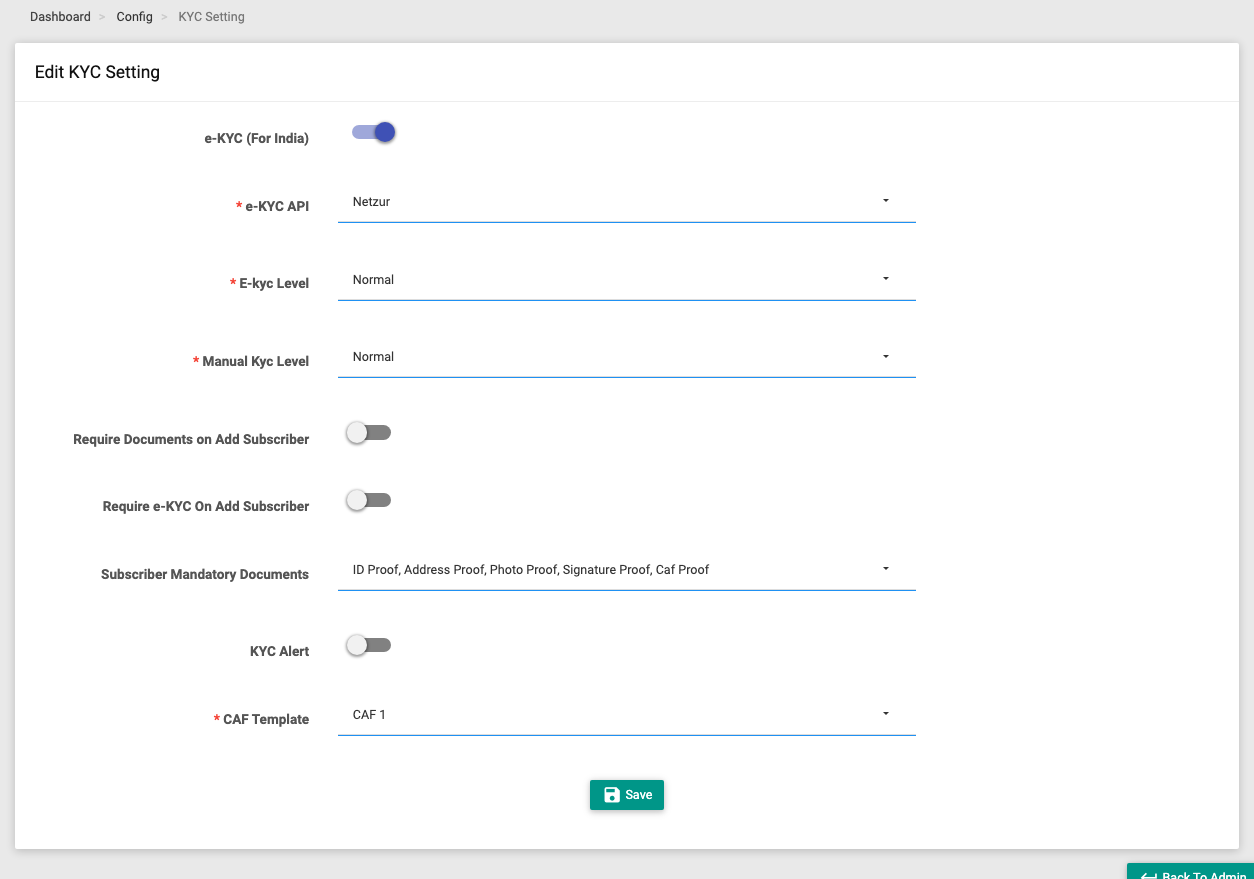
Fields
eKYC (India only)
Shown when the eKYC module is enabled for your site.
| Field | What it does |
|---|---|
| e-KYC | Master toggle — turn electronic KYC on and reveal the options below. |
| e-KYC API | Own (use your own eKYC vendor account — reveals Vendor, Merchant ID, App ID and API Key fields) or Netzur (use the provider's shared eKYC). |
| E-kyc Level | Normal or Strict — how strictly eKYC matches are enforced. |
The eKYC API Key is a credential — keep it private.
Manual KYC (always shown)
| Field | What it does |
|---|---|
| Manual Kyc Level | Normal or Strict — strictness of manual (document) verification. |
| Require Documents on Add Subscriber | Capture documents when adding a subscriber. |
| Require e-KYC On Add Subscriber | eKYC must be completed before a subscriber can be added. |
| Subscriber Mandatory Documents | Which documents are required: ID Proof, Address Proof, Photo Proof, Signature Proof, CAF Proof. |
| KYC Alert | Staff get reminders about incomplete KYC. |
| CAF Template | The Customer Application Form layout. |
Click Save to apply.
note
Strict verification rejects borderline matches. Require e-KYC On Add Subscriber will stop staff creating a customer until eKYC passes — enable it deliberately.