Notifications Setting
Overview
The Notifications page is where you set up the channels your site uses to message customers — Mail, SMS, WhatsApp, Telegram and Push — and the General timing rules for automated alerts. It's a tabbed page; each tab configures one channel, plus a General tab for thresholds.
Navigation: Config → Notifications
Once a channel is enabled here, it becomes available when you send an Announcement and for the system's automatic messages. To see what was actually sent and whether it succeeded, use the Notifications report.
General tab
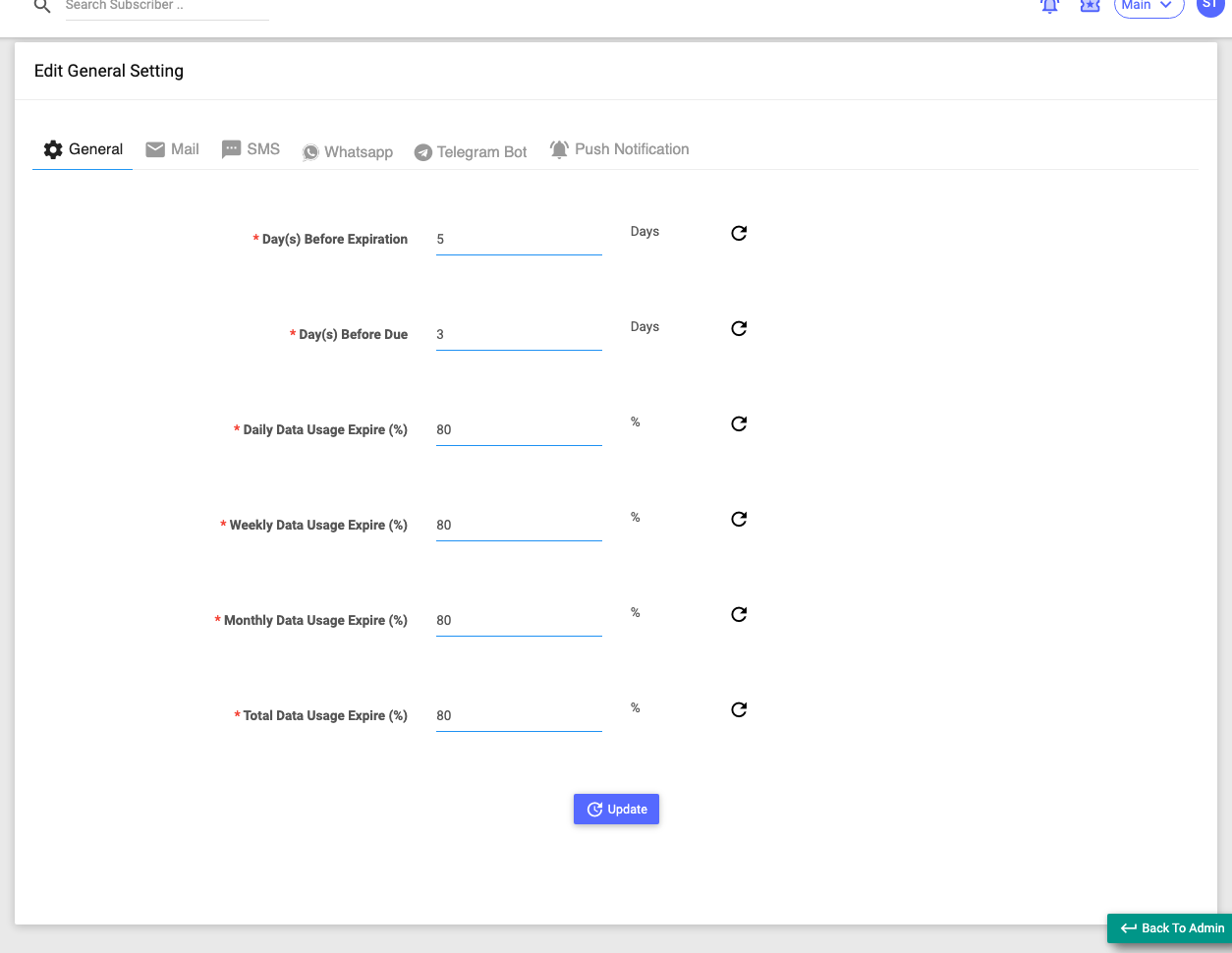
Sets when automated expiry and usage alerts fire (across all channels). All values are numbers:
| Field | What it does |
|---|---|
| Day(s) Before Expiration | How many days before a plan expires the "expiring soon" alert is sent. |
| Day(s) Before Due | How many days before a due date the payment reminder is sent. |
| Daily / Weekly / Monthly / Total Data Usage Expire (%) | The % of each data quota that, when reached, triggers a usage alert. |
Each field has a small refresh icon that resets it to the system default. Click Update to save. These thresholds only decide timing — the per-channel tabs decide whether alerts actually go out.
The channel tabs
Every channel tab has the same two parts: a Settings panel (turn the channel on and enter its connection details) and a Template panel (edit the per-event message for that channel). Each channel has its own Update and, where relevant, a Test button to send yourself a test message. Each tab is described below.
Mail
The outgoing email (SMTP) account for all system emails.
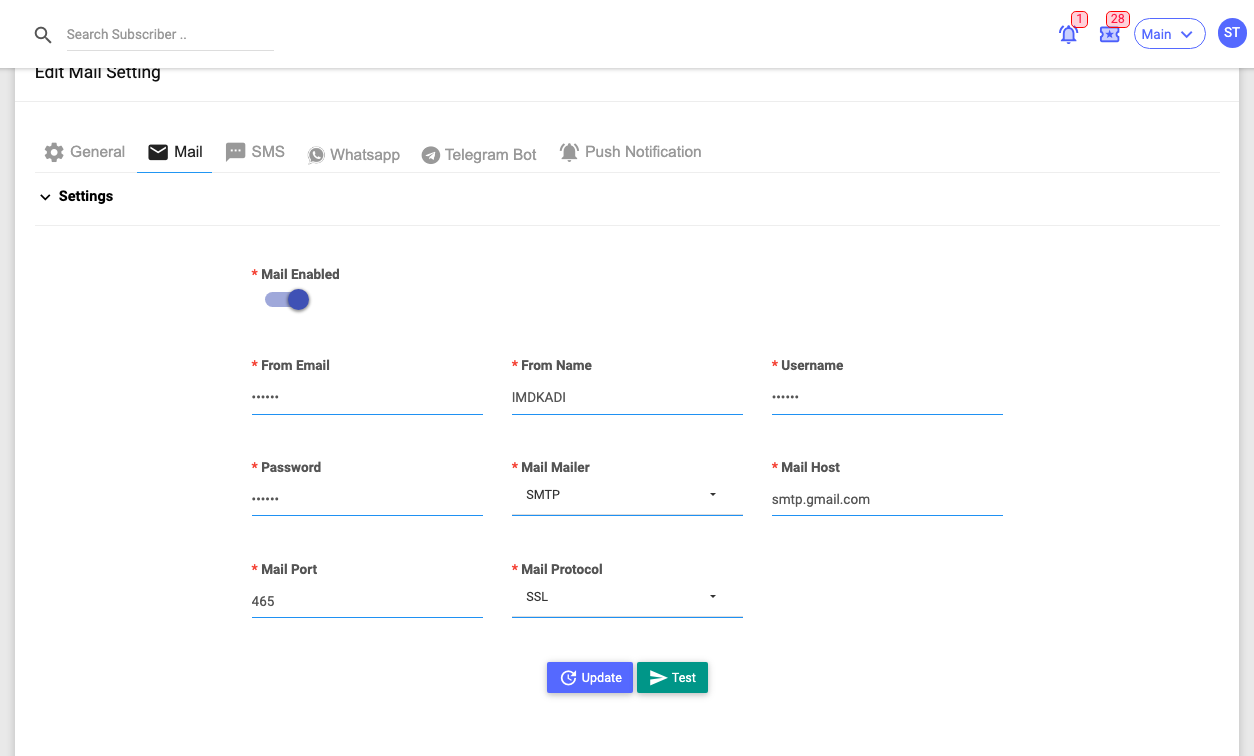
- Mail Enabled — master switch.
- From Email / From Name — the sender shown to recipients.
- Username / Password — your SMTP login. (Credentials — keep private.)
- Mailer (None / SMTP), Mail Host, Mail Port, Mail Protocol (SSL / TLS).
- Test sends a test email to an address you enter.
SMS
The SMS gateway for all text messages.
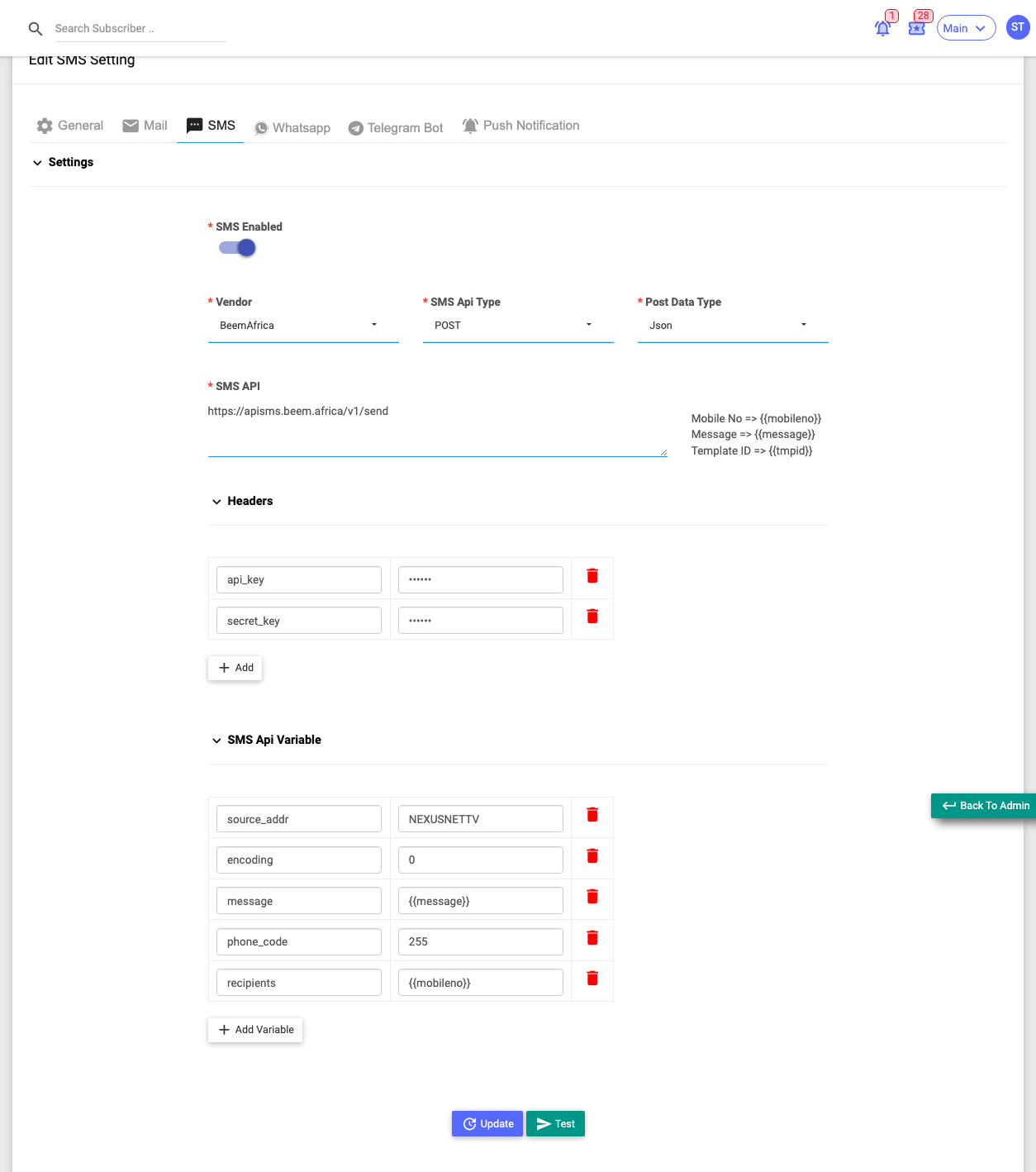
- SMS Enabled — master switch.
- Vendor — choose your gateway: Custom (you supply the request URL, headers and variables), Built-In (the platform's own SMS service, if enabled for your site), or a supported provider such as BeemAfrica.
- For a Custom vendor: SMS API Type (GET/POST), Post Data Type (Array/Json), SMS API URL (supports placeholders like
{{mobileno}},{{message}}), Headers and SMS API Vars (add/remove key–value rows — this is where an authorization key would go). (Anything holding a key is a credential — keep private.) - Test sends a test SMS to a number you enter. An In-Built Transactions Report shows monthly message counts.
WhatsApp
The WhatsApp provider.
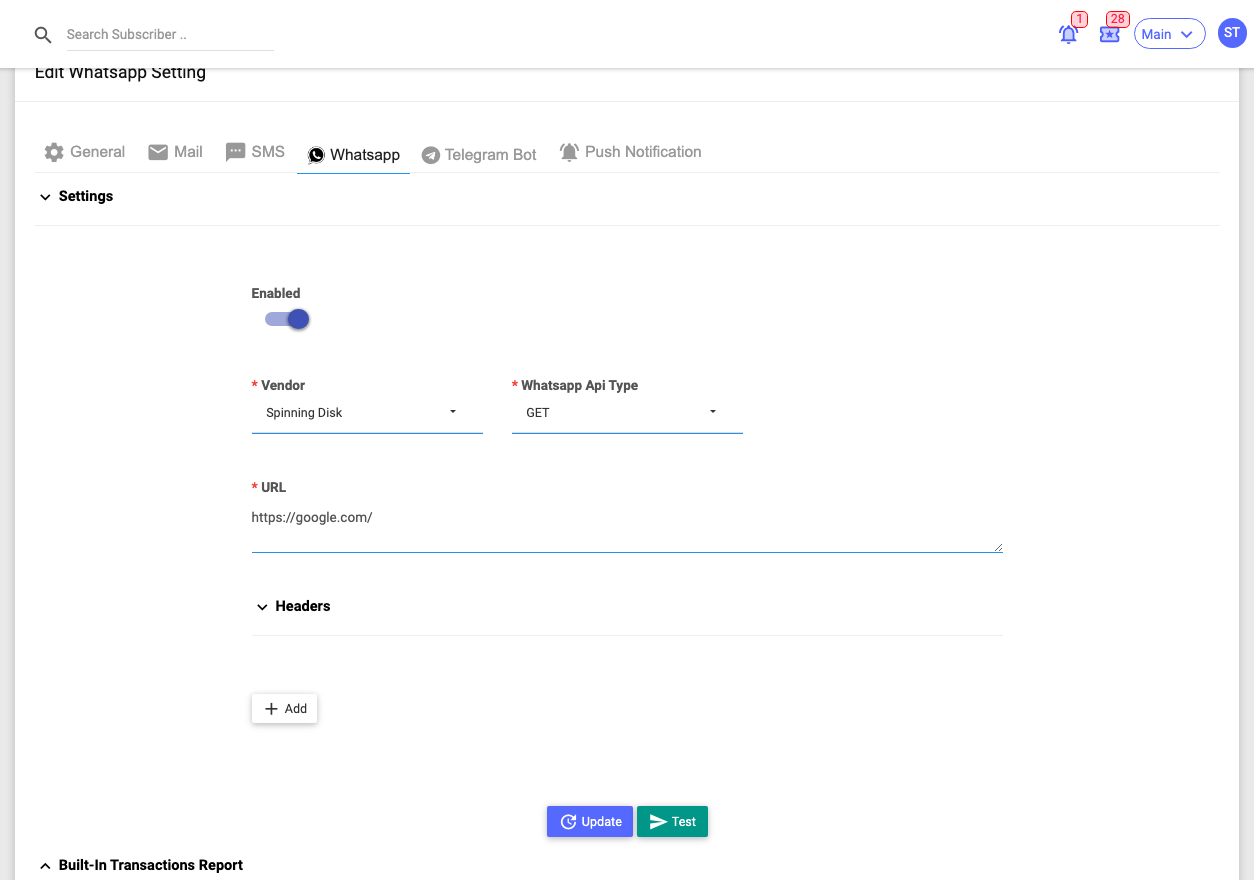
- Enabled — master switch.
- Vendor — Custom, Built-In (uses a QR/login connection instead of typed credentials), or a provider such as WATI, ABCM, MSGCLUB, Spinning Disk.
- Custom vendors take a request URL, Headers and Vars, like SMS. The Built-In vendor shows a connection block (connected number and status) with Login / Logout / Refresh.
- Test sends a test WhatsApp message.
Telegram Bot
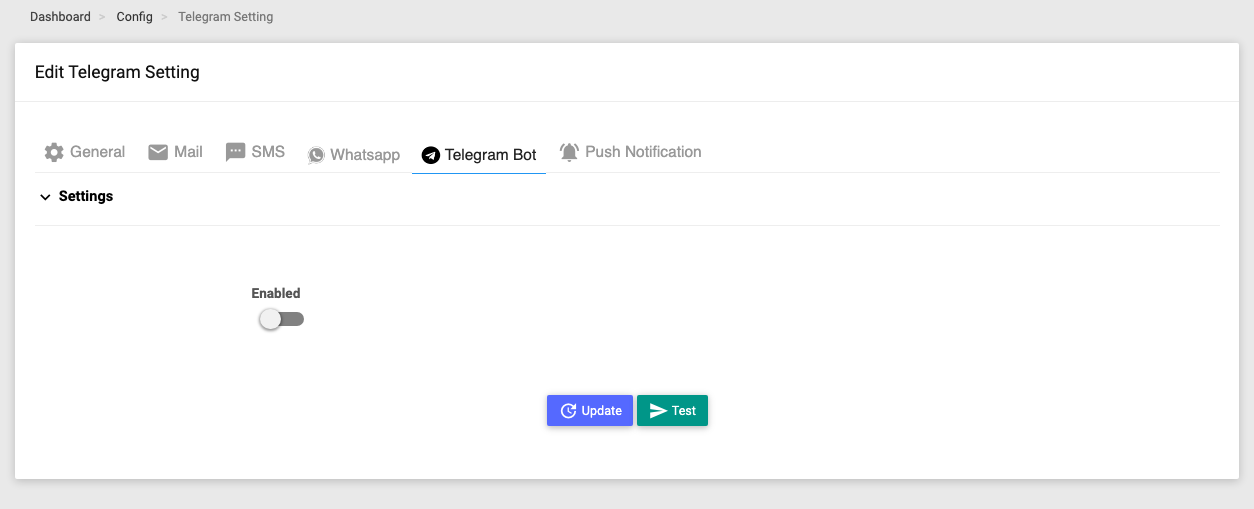
- Enabled — master switch.
- Bot Name and Key (the bot API token, shown once enabled). (Credential — keep private.)
- Test sends a test Telegram message.
Push Notification
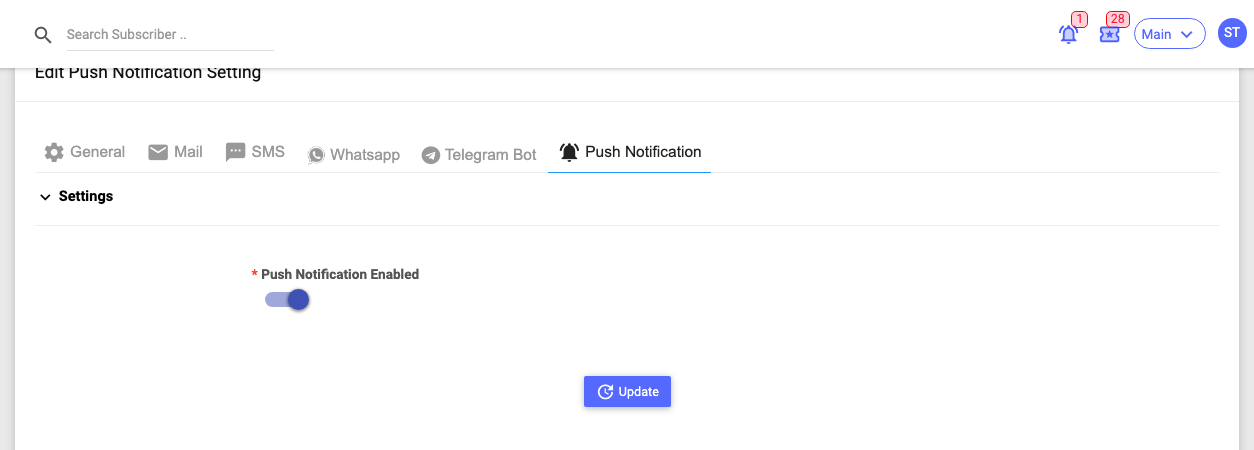
- Push Notification Enabled — master switch. Delivery uses your mobile app's push service, so there are no credential fields here — just the switch and the templates.
Message templates
Below the Settings panel, every channel tab has a Template panel with one editable block per event. Each block has:
- an enable toggle (send this message for this event, on this channel, or not),
- the message body (and a Subject/Title for Mail and Push), using placeholders like
{{fullname}},{{package}},{{amount}}that the system fills in per subscriber, - a refresh icon to reset the text to the system default,
- for transactional emails/WhatsApp, an Attach File toggle to attach the invoice/receipt PDF.
The panel is split into two parts — the subscriber templates (messages sent to your customers) and, at the bottom, an ISP's Template section (alerts sent to your own staff). The full set of templates on the Mail tab looks like this:

Subscriber templates cover events such as: Subscriber Create, Add Recharge, Activate Account, Add Top-Up, Add Invoice, Add/Cancel/On Advance Recharge, Auto Renew, Payment Notification, Due Payment, OTP, Change Username, Change Password, Add Package, Override Bandwidth, e-KYC Verified, the Ticket events (Add / Resolve / Comment / OTP / Close / Re-open / Assign), Before Expiration, the Daily/Weekly/Monthly/Total Data Usage alerts, Recharged By PIN, and e-KYC Request Link.
ISP's Template (staff alerts) covers the ISP-side ticket events and the Zone Up / Zone Down / Node Up / Node Down network alerts.
The same set of events appears on every channel (Mail, SMS, WhatsApp, Telegram, Push) — you edit each channel's wording independently. The Template panel has its own Update button, separate from the Settings panel.
The Test button warns and does nothing if that channel is disabled. Template panels stay hidden until the channel's master switch is on.