Leads Overview
Overview
A lead is a prospective customer captured before they become a paying subscriber. You record their contact details and interest, then walk them through a step-by-step onboarding pipeline — feasibility, quotation, connection, account creation, KYC and activation — until they're a live subscriber.
Who Can Use This Feature
Sales and onboarding staff.
Required Permissions
- Lead → List to view; plus Add, Show, Update, Delete for the individual actions.
Navigation
CRM → Leads
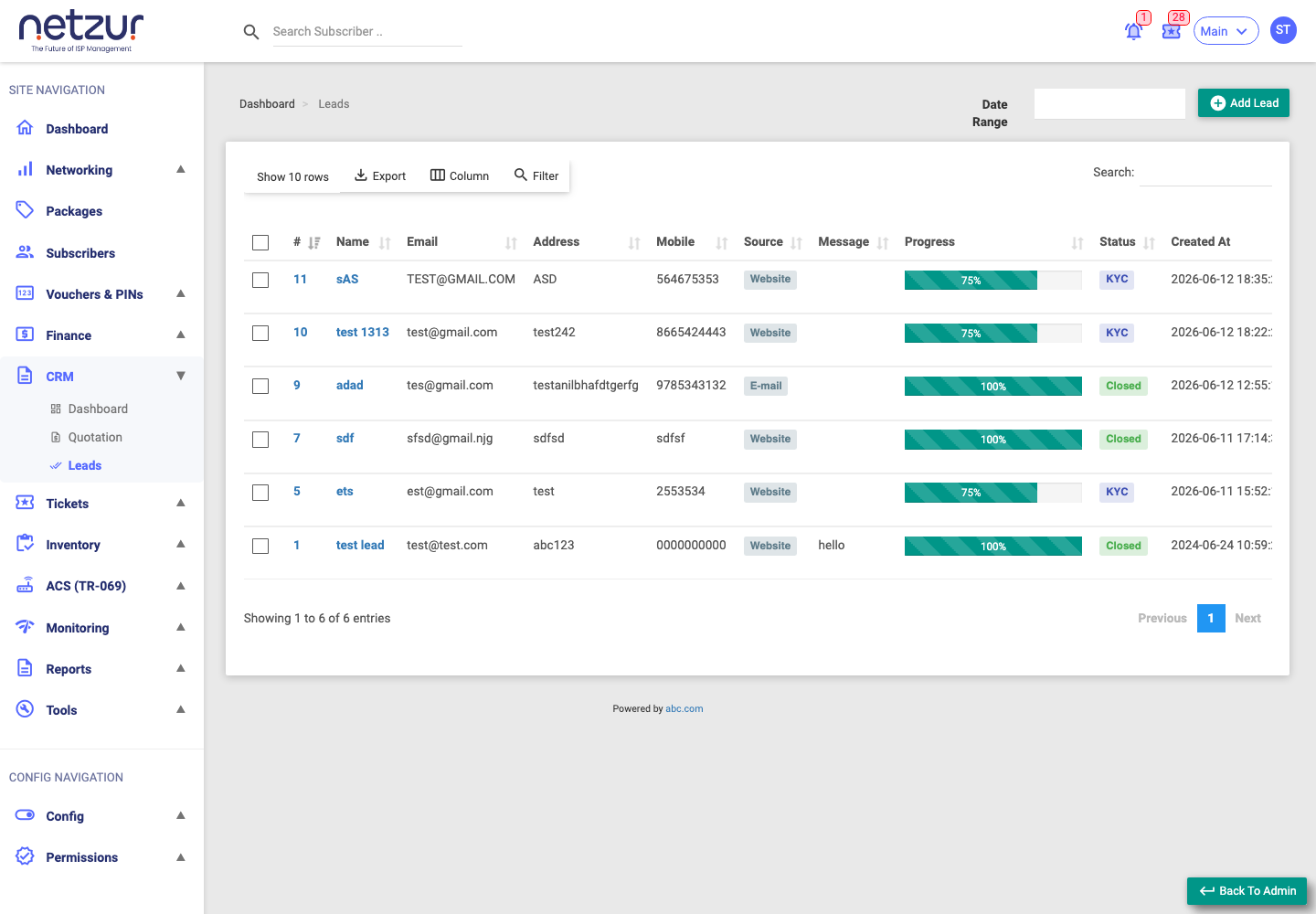
The list columns
| Column | Meaning |
|---|---|
| # / Name | The lead (click to open it). |
| Email / Address / Mobile | Contact details. |
| Source | Where the lead came from (Website, WhatsApp, Call, etc.). |
| Message | The lead's enquiry. |
| Progress | A bar showing how far through onboarding they are. |
| Status | The current stage — Feasibility, Quotation, Connection, Account Create, KYC, Account Activation, or Closed (won) / Cancelled. |
| Created At | When the lead was captured. |
Above the list: Add Lead, a Date Range filter, and the usual Export / Column / Filter / Search controls. Tick rows to reveal the bulk Delete action.
Adding a lead
CRM → Leads → Add Lead
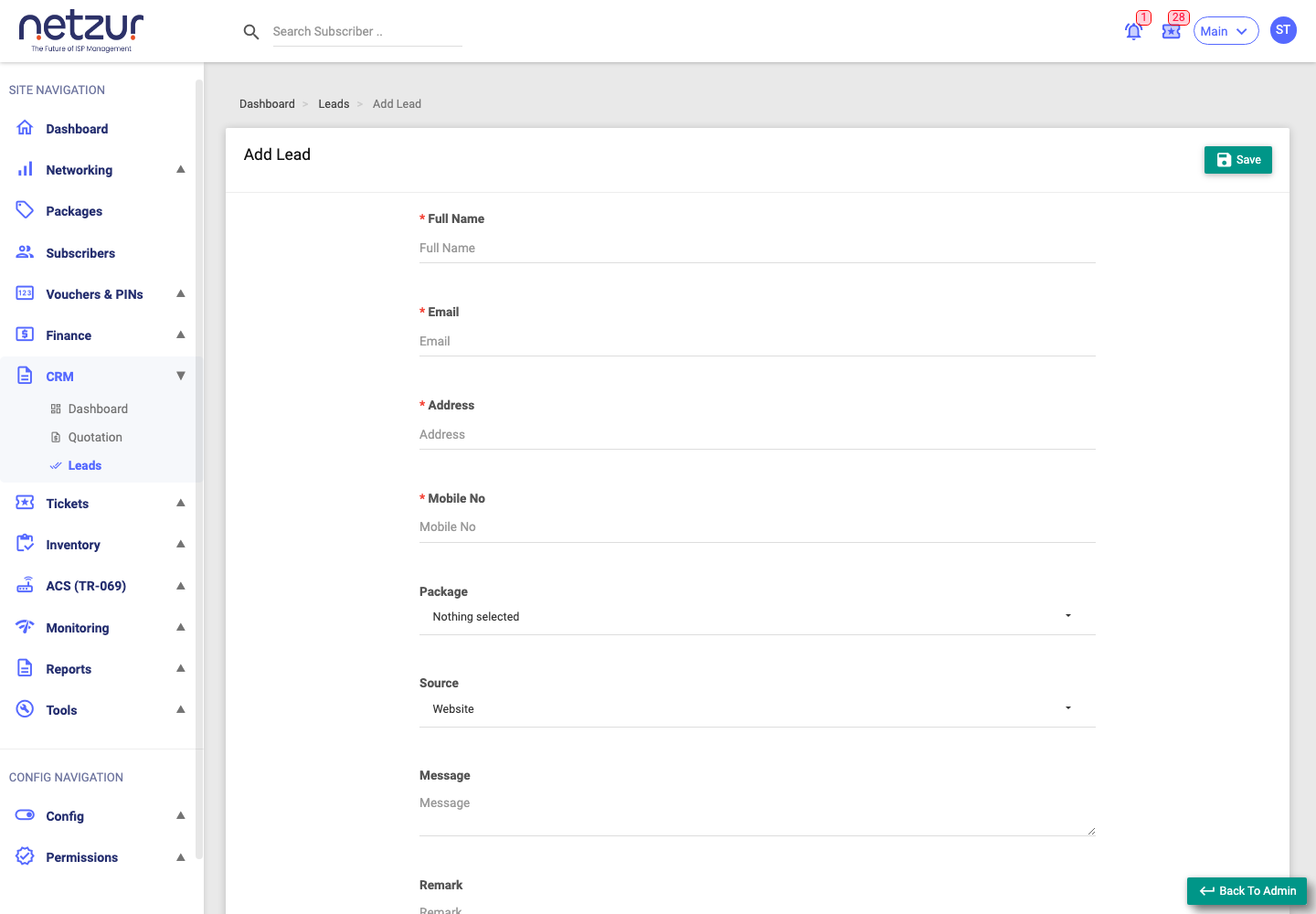
| Field | Required | Description |
|---|---|---|
| Full Name | Yes | The prospect's name. |
| Yes | Their email. | |
| Address | Yes | Their address. |
| Mobile No | Yes | Their mobile number (digits only). |
| Package | No | The package they're interested in. |
| Source | No | How they found you — Website, WhatsApp, Facebook, Instagram, LinkedIn, Google, Other Social Media, Referral, E-mail, Call. |
| Message | No | Their enquiry. |
| Remark | No | An internal note. |
Select Save. The lead is created and you land on its page, where the onboarding pipeline begins.
Cancelling vs deleting a lead
| Action | Effect |
|---|---|
| Cancel Lead | Stops the lead's onboarding but keeps it on record (status Cancelled, progress bar turns red, all fields locked). Also closes any open tickets on the lead. Done from the lead's page. |
| Delete | Removes the lead(s) from the list entirely (can't be recovered). A bulk action from the list — tick rows → Action → Delete. |
Important Notes
- A lead's Status column shows the stage it's currently at; the Progress bar shows the same as a percentage.
- There's no "assigned owner" field on the lead itself — staff are assigned per onboarding task (see the pipeline).