Creating a Quotation
Overview
The Add Quotation page builds a price quote: your company details, the recipient's details, the line items with prices, discount and taxes, and a note/terms block.
Required Permissions
- Quotation → Add.
Navigation
CRM → Quotation → Add Quotation
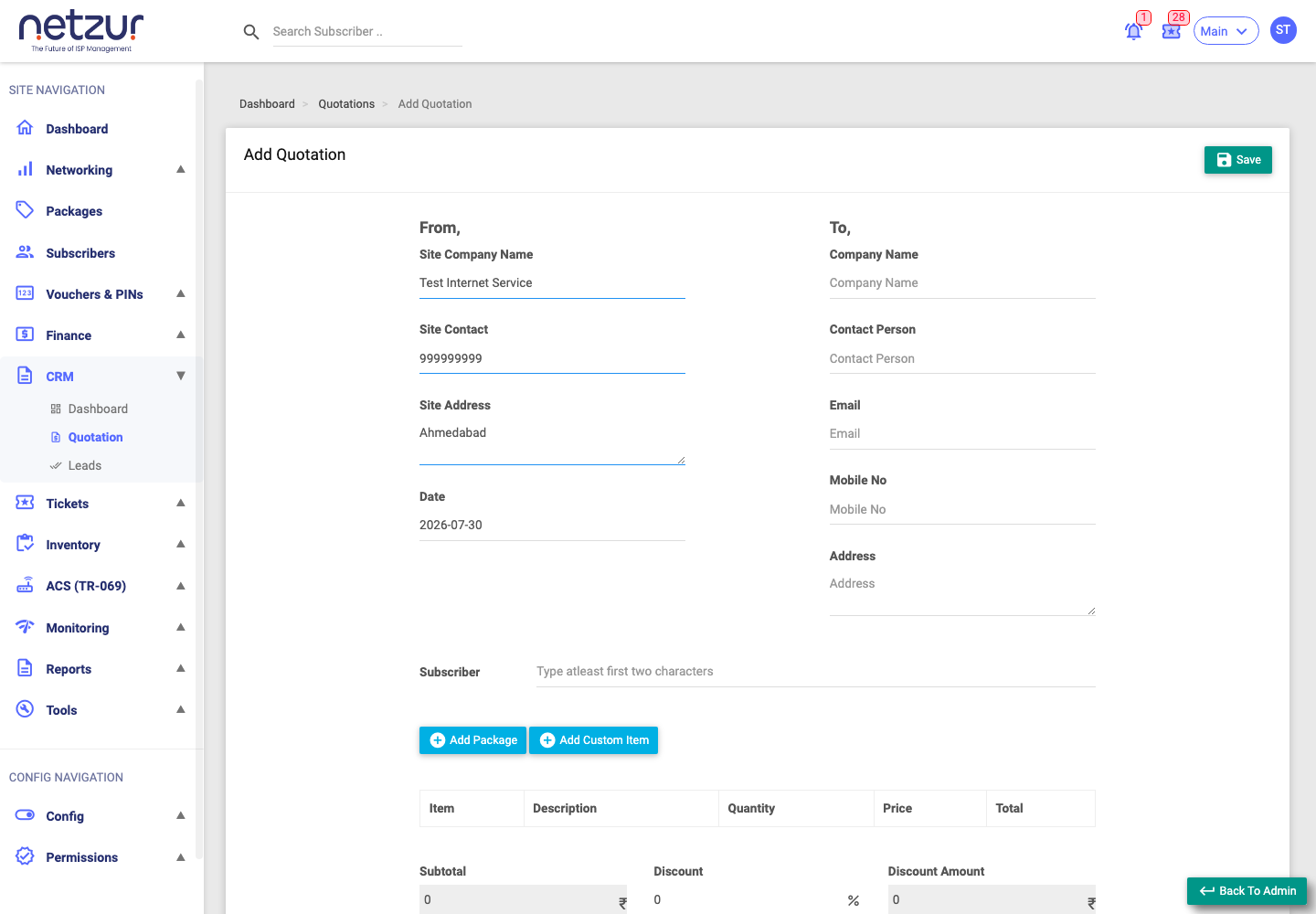
The form
From (your details)
Pre-filled from your site settings — Site Company Name, Site Contact, Site Address — plus the quotation Date. Edit if needed.
To (the recipient)
Company Name, Contact Person, Email, Mobile No and Address of the customer you're quoting.
Link to a customer
- Subscriber — start typing a username to attach the quote to an existing customer (optional; leave blank for a pure prospect).
Line items
Two buttons add rows:
- Add Package — a row where you pick one of your packages.
- Add Custom Item — a free-text row for anything else.
Each row has Item, Description, Quantity, Price and an auto-calculated Total.
Totals, discount & taxes
- Subtotal — the items total (auto).
- Discount — a percentage (standard sites only) with its computed Discount Amount.
- Taxable Amount — subtotal minus discount.
- Taxes — tick each tax that applies (from the taxes configured for your site); each shows its percentage and computed amount.
- Grand Total — the final figure, with an optional Round Off.
Notes
- Note — a rich-text block of terms/notes printed on the quotation for the customer.
- Remark — an internal note (saved as the quotation's Comment).
- For — the "for / signed by" line at the bottom (pre-filled with your company name).
Select Save. You'll see "Quotation added successfully" and land back on the Quotations list. The new quote opens on its view page, where you can convert, print, email, close or cancel it.
Important Notes
- Line items can be packages or custom items — mix as needed.
- Discount only appears on standard (postpaid) sites.