Viewing a Quotation
Overview
Clicking a quotation number opens its page, showing the same layout as the Add form (From/To blocks, line items, totals, notes) plus the actions you can take — editing, converting to an invoice, printing, and closing or cancelling.
Navigation
CRM → Quotation → (click a Quotation No)
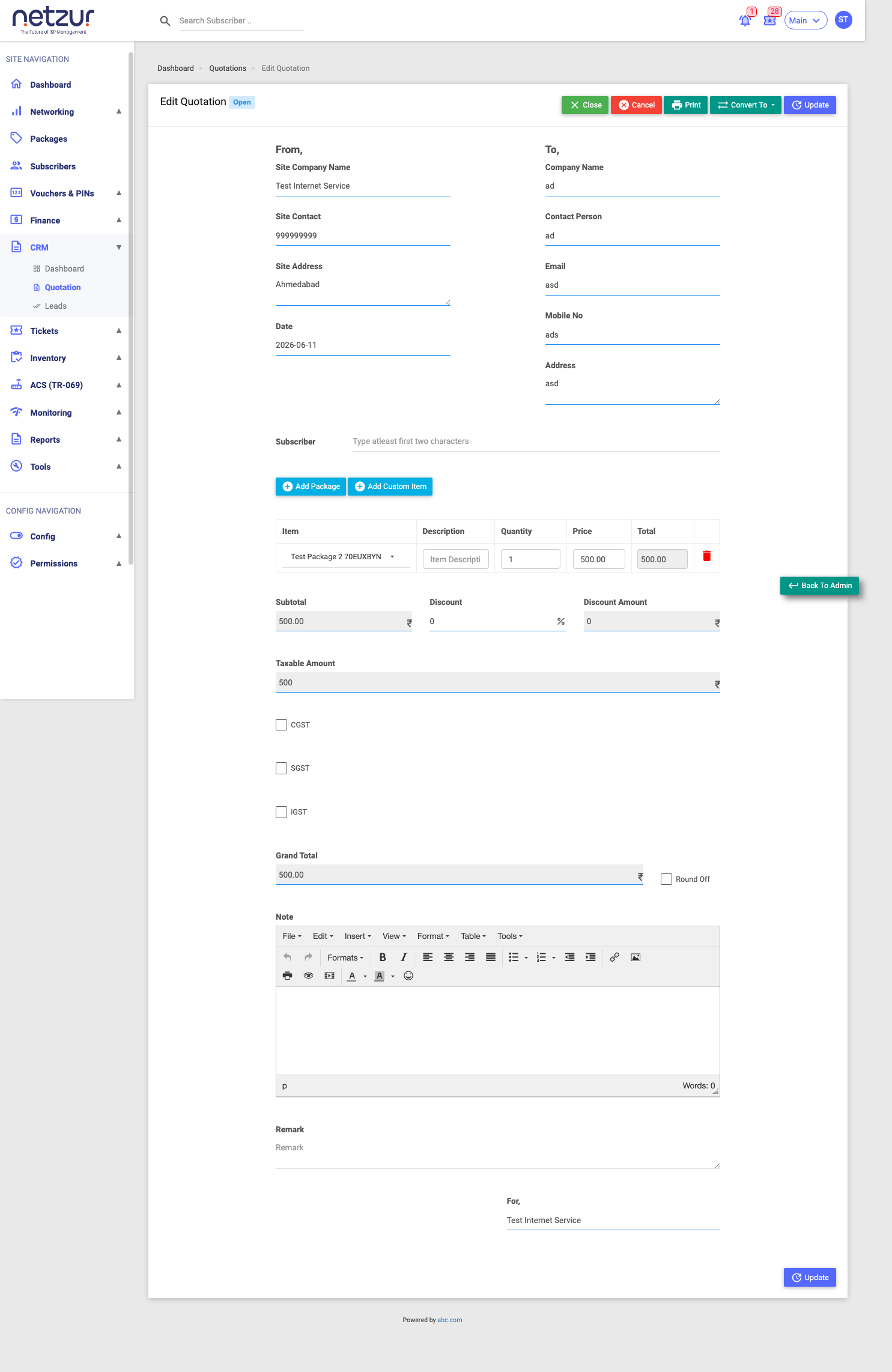
The action buttons
Which buttons appear depends on the quotation's status and your permissions:
| Button | What it does |
|---|---|
| Update | Save changes — only while the quotation is Open and not yet invoiced. |
| Open the quotation PDF (hidden for cancelled quotations). | |
| Convert To ▾ | Turn the quote into an invoice — Proforma Invoice or Tax Invoice (see below). |
| Close | Mark the quote concluded (e.g. won) without invoicing. |
| Cancel | Void the quote. |
| Go To Invoice | Appears once the quote has been converted — jumps to the created invoice. |
Once a quotation is invoiced, cancelled or closed, all its fields become read-only.
Converting to an invoice
Convert To ▾ offers two choices:
- Proforma Invoice — creates a draft/preliminary proforma.
- Tax Invoice — creates a final invoice the customer owes.
When you convert:
- A modal asks for the Subscriber (if the quote isn't already linked to one) and an optional Remark.
- Confirm — the system creates a new invoice copying the quote's line items, discount and taxes, sets a due date, and (for a Tax Invoice) records the amount as owed.
- The quotation is linked to that invoice and marked Closed.
Afterwards, use Go To Invoice to open it, or find it on the Invoices / Proformas page to receive payment.
For reseller/prepaid sites, conversion checks your site balance first; and the subscriber must have a billing profile set.
Cancel vs Close vs Delete
| Action | Effect |
|---|---|
| Cancel | Voids the quote (status Cancelled). It stays on record but can't be edited, printed, emailed or converted. Only from an Open quote. |
| Close | Marks the quote concluded (status Closed) without creating an invoice. It becomes read-only but can still be printed. Converting also closes it automatically. |
| Delete | Removes the quote(s) from the list — a bulk action on the list (tick rows → Action → Delete, with a remark). |
Important Notes
- Convert is the step that actually bills the customer (Tax Invoice) or drafts a bill (Proforma).
- Send Email for a quotation is the envelope icon on the list, not a button here.