Invoices Overview
Overview
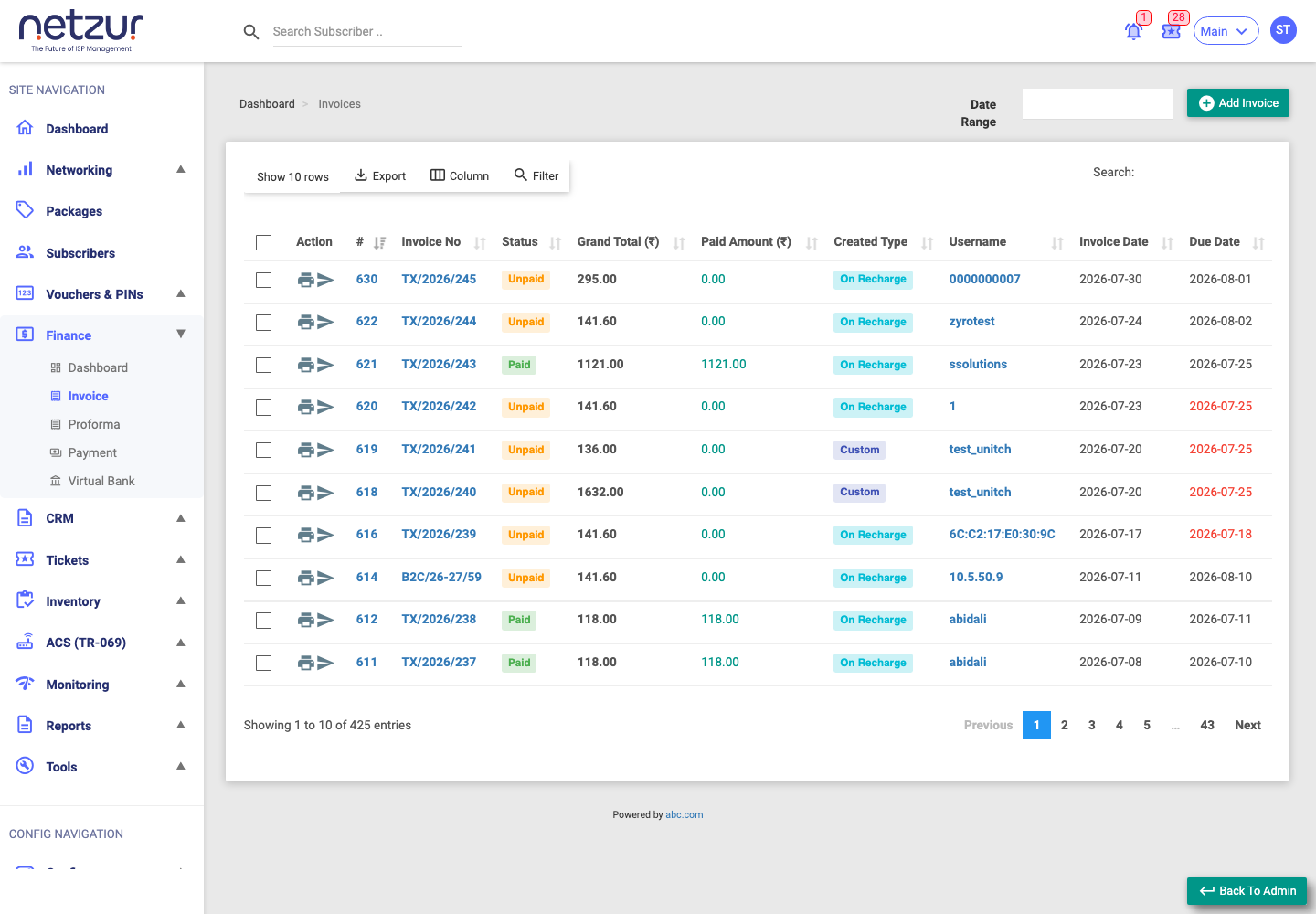
An invoice is a bill raised against a subscriber. It lists the items being charged (packages, inventory or custom lines), a subtotal, any discount, taxes, a grand total, and how much has been paid so far. The Invoices page lists every tax invoice (the real, final invoices) for your site.
Invoices are created two ways, shown in the Created Type column:
- On Recharge — generated automatically when a subscriber recharges or renews.
- Custom — created manually by you with the Add Invoice button.
Who Can Use This Feature
Billing and accounts staff.
Required Permissions
- Invoice → List to view; plus Show, Add, Update, Print, Rollback and the Payments permissions for the individual actions.
Navigation
Finance → Invoice
Invoice statuses
The Status badge tells you where each invoice stands:
| Status | Meaning |
|---|---|
| Unpaid (orange) | Nothing paid yet. |
| Partial Paid (cyan) | Some money received, a balance remains. |
| Paid (green) | Fully paid. |
| Rollbacked (blue) | The invoice was reversed (see Rolling back an invoice). |
An unpaid invoice whose Due Date has passed is overdue — its due date is shown in red in the list (and as an Overdue badge on the invoice page). Overdue isn't a separate status; it just means "unpaid and past due".
The list columns
| Column | Meaning |
|---|---|
| Action | Per-row icons: Download Invoice (print/PDF) and Send Email. |
| # / Invoice No | The invoice number — click to open the invoice. |
| Status | The badge above. |
| Subtotal | Items total before discount and tax. |
| Discount Amount | Discount applied. |
| Taxable Amount | Subtotal minus discount. |
| Total Tax Amount / Total Tax Percentage | Tax charged, as an amount and a combined percentage. |
| Grand Total | The final amount payable. |
| Paid Amount | How much has been received so far. |
| Created Type | On Recharge or Custom. |
| Username | The subscriber (links to their profile). |
| Company Name / Sub Tax No | The subscriber's company and tax number. |
| Invoice Date / Due Date | When raised and when due (red if overdue). |
| Comment / Rollback Comment | Notes on the invoice, and any rollback remark. |
| Created At / By, Updated By | Audit fields. |
Above the list: Add Invoice, a Date Range filter (filters by invoice date), and the usual Export / Column / Filter / Search controls.
Per-row actions
- Download Invoice (printer icon) — opens the invoice PDF in a new tab.
- Send Email (send icon) — emails the invoice PDF to the subscriber.
Bulk actions (tick rows)
Tick one or more rows to reveal the Action dropdown:
- Receive Payment — record a payment across the selected invoices (they must belong to the same subscriber and all be unpaid). See Receiving payment.
- Receive Bulk Payment — apply one payment across several selected unpaid invoices, filling each in turn.
- Rollback — reverse the selected unpaid invoices (see Rolling back an invoice).
- Download — download the selected invoices as separate PDFs.
- Download Combined — download all selected invoices as one combined document.
Adding a custom invoice
The Add Invoice button opens a form where you pick the subscriber, add line items (with quantity and price), apply a discount and taxes, and save. A checkbox — Do you want to generate a Proforma Invoice? — lets you raise a proforma instead of a final tax invoice (if you have permission).
Important Notes
- This page shows tax invoices only. Draft/preliminary bills live on the Proformas page.
- An invoice can only be edited or rolled back while it is unpaid.