Receiving Payment
Overview
Receiving payment records money a customer has paid against one or more of their invoices. You can do it from a single invoice (the Receive Payment button on the invoice page) or from the Invoices list by ticking invoices and choosing Receive Payment / Receive Bulk Payment.
The same money can also be recorded from the Payments page — the fields and behaviour are the same.
Required Permissions
- Payments → Add/Receive (the same permission covers receiving a payment on an invoice and the bulk-receive option).
The Receive Payment form
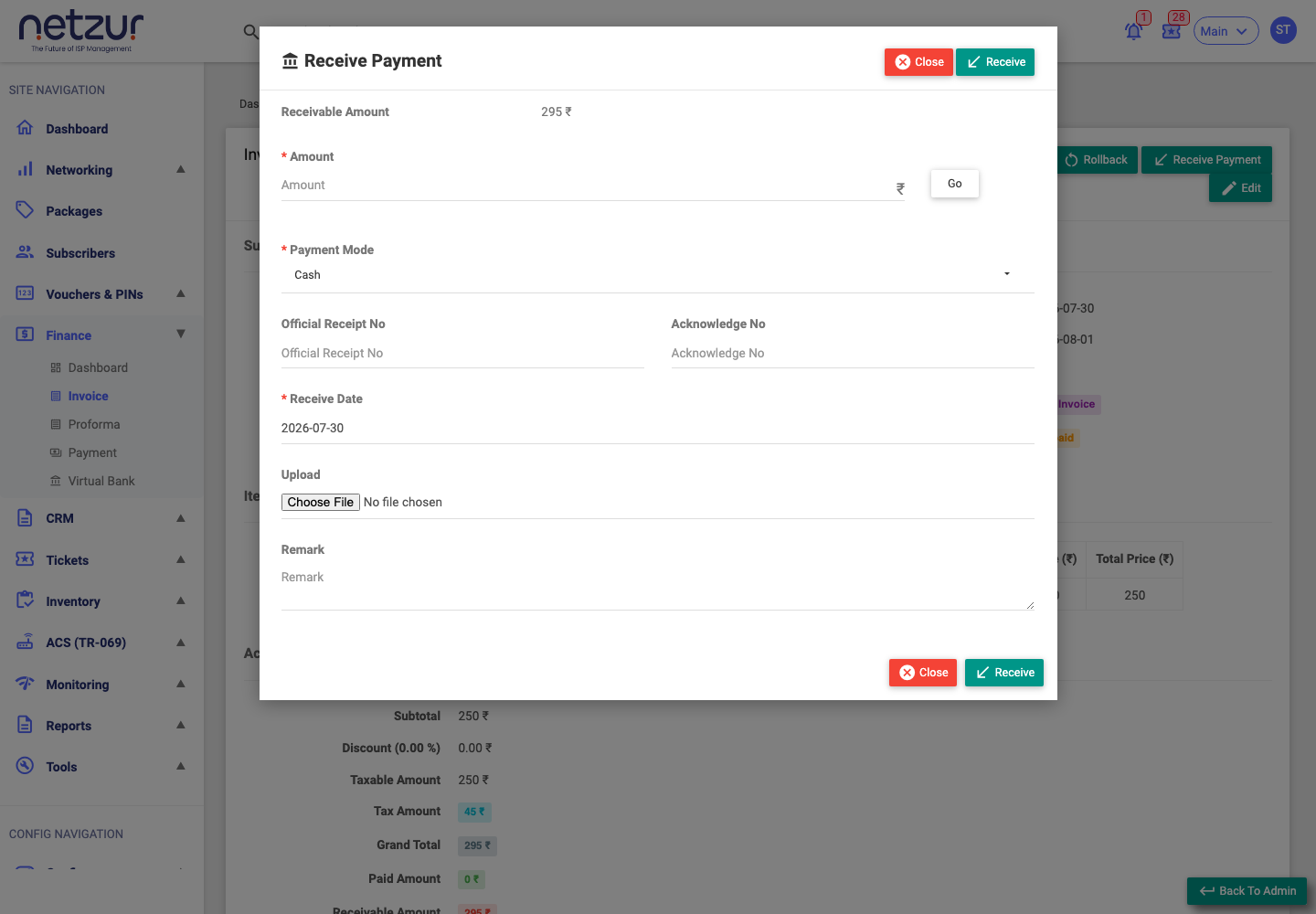
| Field | Description |
|---|---|
| Receivable Amount | Read-only — how much is still owed (grand total minus paid). |
| Do you want to pay from your wallet balance? | Appears only if the subscriber has wallet funds. Ticking it pays from their stored wallet balance instead of taking new money. |
| Amount (required) | How much you're receiving. The Go button shows how it will be applied. |
| Payment Mode (required) | How the money came in — see the modes below. |
| Account | The Virtual Bank the money landed in. Shown only for Direct Deposit Cash, Direct Deposit Cheque and Bank Transfer. |
| Cheque No / Payee Name | Shown (and required) for cheque modes. |
| Official Receipt No / Acknowledge No | Optional reference numbers. |
| Receive Date (required) | The date the payment was received. |
| Upload | Optional proof of payment (an image/file). |
| Remark | Optional note. |
Select Receive to save.
Payment modes
| Mode | Extra fields | Goes to a Virtual Bank? |
|---|---|---|
| Cash | — | No |
| Cheque | Cheque No, Payee Name | No |
| Direct Deposit Cash | Account | Yes |
| Direct Deposit Cheque | Account, Cheque No, Payee Name | Yes |
| Bank Transfer | Account | Yes |
Choosing a bank-linked mode (the last three) automatically records a matching credit in the Virtual Bank you pick, so the money shows up in that account's ledger.
Partial vs full payment
- If the amount you enter covers the full balance, the invoice becomes Paid.
- If it's less than the balance, the invoice becomes Partial Paid and keeps the remaining balance.
- If you enter more than is owed (an overpayment), the surplus is added to the subscriber's wallet for future use.
- For bulk receive, the amount fills the selected invoices one after another (oldest first) until it runs out.
When the payment is saved, a receipt is created and the customer can be notified (email/WhatsApp, per your site's settings), with the receipt attached.
Important Notes
- You can only receive payment on tax invoices that are unpaid. Bulk selections must be for the same subscriber and all unpaid.
- To reverse a payment later, use Cancel or Delete on the Payments page — rolling back the invoice won't work while a payment exists.