Rolling Back an Invoice
Overview
Rolling back an invoice reverses it — it zeroes the invoice's line prices, taxes, discount, grand total and paid amount, and marks it Rollbacked. Use it to undo an invoice that was raised in error, before any money has been taken against it.
Required Permissions
- Invoice → Rollback (with Full Rollback / Partial Rollback for those variants).
How to roll back
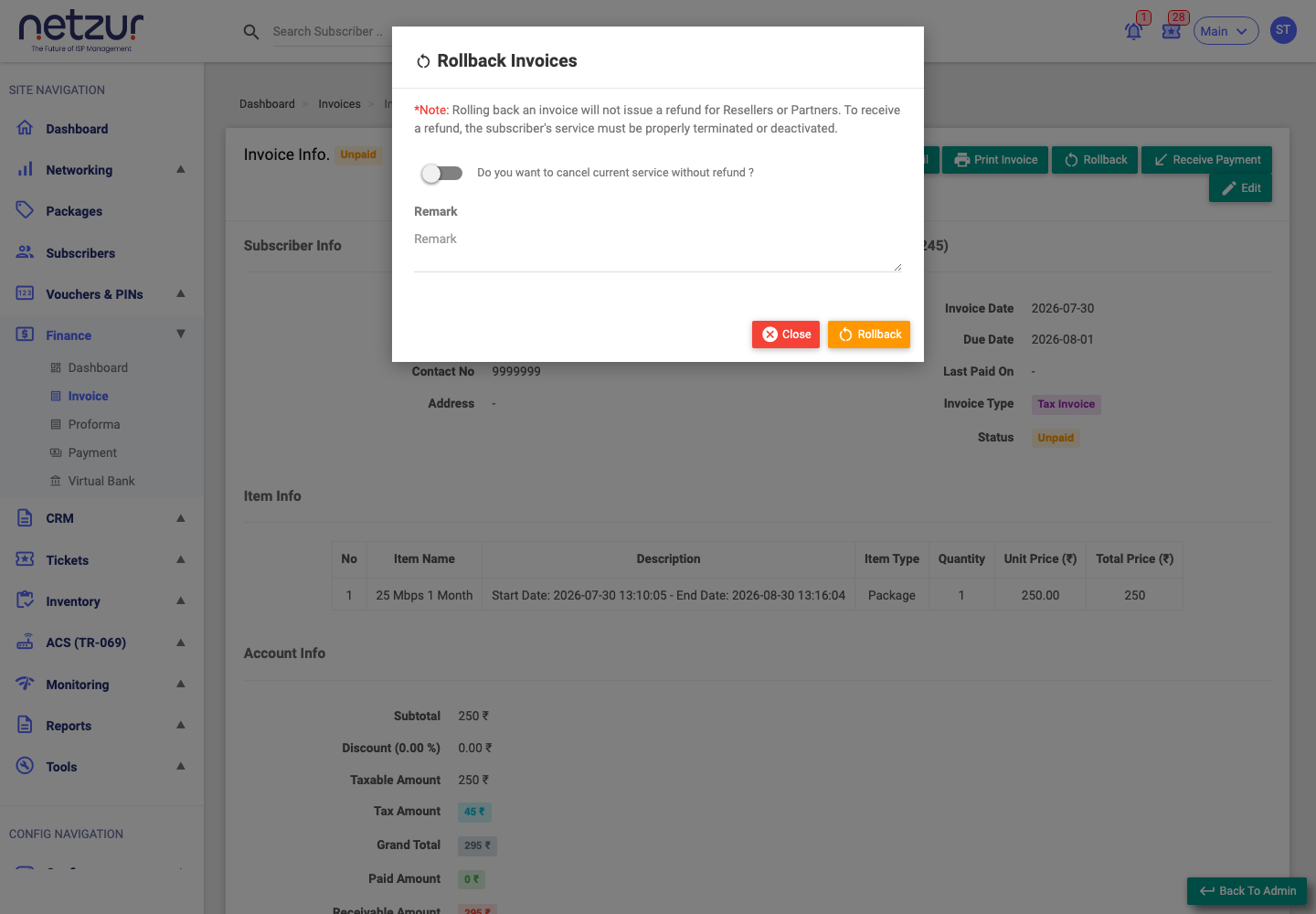
- Open the invoice (or tick it on the Invoices list) and choose Rollback.
- Enter a rollback comment (this is saved and shown in the list's Rollback Comment column).
- Optionally tick Do you want to cancel current service without refund? — if this invoice is the subscriber's most recent one, this also clears the service it provisioned (resets limits and expiry).
- Confirm.
Constraints
- Only an unpaid invoice with no payment can be rolled back. If any payment exists, you'll see: "You cannot rollback a partially or full paid invoice. Please cancel the payment first." — cancel the payment first on the Payments page.
- The button only appears when the invoice is unpaid and you have the Rollback permission.
Refunds
Rolling back does not issue a refund for resellers or partners. To give a customer their money back, the subscriber's service must be properly terminated or deactivated — see Terminating & refunds.
Important Notes
- A rolled-back invoice stays in the list marked Rollbacked, with your comment, for the audit trail.
- Partial rollback is not available in this version — rollback reverses the whole invoice.