Viewing an Invoice
Overview
Clicking an invoice number on the Invoices list opens the invoice's own page — Invoice Info — showing everything about that bill and the actions you can take on it.
Navigation
Finance → Invoice → (click an Invoice No)
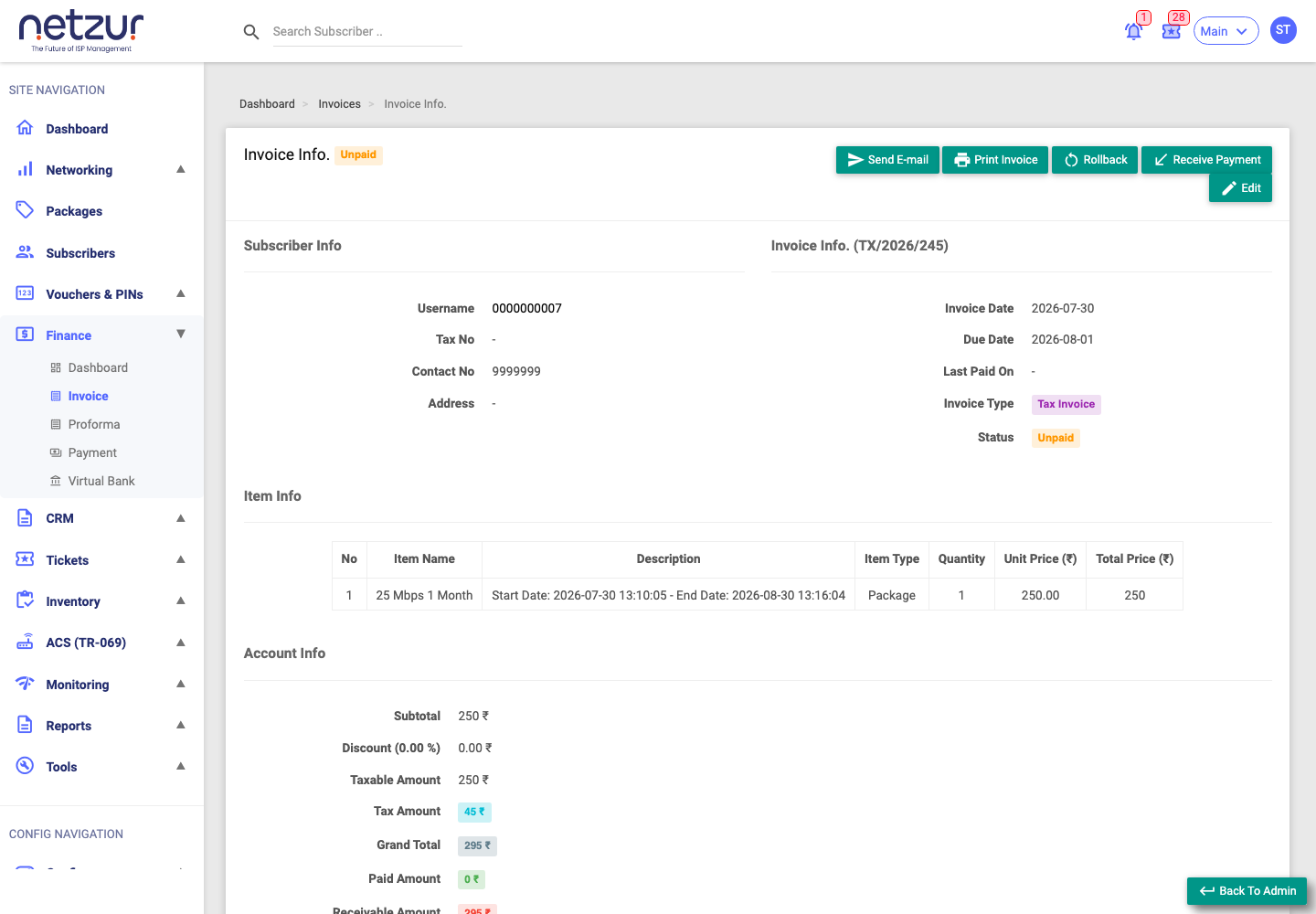
What's on the page
Header actions (top-right)
The buttons that appear depend on the invoice's status and your permissions:
| Button | What it does |
|---|---|
| Send E-mail | Emails the invoice PDF to the subscriber (needs email configured). |
| Print Invoice | Opens the invoice PDF in a new tab. |
| Rollback | Reverses the invoice — only for an unpaid invoice with no payment. See Rolling back an invoice. |
| Receive Payment | Records a payment against this invoice. See Receiving payment. |
| Edit | Opens the Edit Invoice form — only while the invoice is unpaid. |
Subscriber Info
The customer's Username (links to their profile), Tax No, Contact No and Address.
Invoice Info
Invoice Date, Due Date, Last Paid On, Invoice Type (Tax Invoice or Proforma Invoice) and the Status badge.
Item Info
The line items being billed:
| Column | Meaning |
|---|---|
| No | Row number. |
| Item Name | What is being charged. |
| Description | Details (e.g. the plan's start/end dates). |
| Item Type | Package, Inventory or Custom Item. |
| Quantity | How many. |
| Unit Price | Price each. |
| Total Price | Quantity × unit price. |
Account Info (the totals)
- Subtotal — items before discount/tax.
- Discount (x %) — the discount amount (with its percentage in the label).
- Taxable Amount — subtotal minus discount.
- Tax Amount — total tax; hover it to see each tax line (name, % and amount).
- Grand Total — the final amount payable.
- Paid Amount — received so far; hover it to see the individual payments.
- Receivable Amount — the balance still owed (shown only when something is outstanding).
Quick Info (timeline)
A running log of everything that has happened to this invoice — created, edited, paid, emailed, rolled back — for accountability.
Editing an invoice
The Edit button (unpaid invoices only) lets you adjust the line items, quantities and prices (unit-price editing needs the Manual Unit Price permission), change the invoice/due dates, set a Discount, tick which taxes apply, and toggle Round Off. A Remark is required to save.
Guardrails:
- You cannot set a grand total lower than what has already been paid.
- If the new grand total equals the paid amount (for example, you discount the remaining balance to zero), the invoice becomes Paid.
- Automatically-generated invoices that already have a payment are mostly locked.
Important Notes
- Edit, Rollback and Receive Payment only appear when they're valid for the invoice's current status.
- Tax lines come from the taxes configured for your site; whether you can change them on an invoice depends on the Allow Tax Changes permission.