Adding a Payment
Overview
Add Payment records money a customer has handed over. The amount is applied to their unpaid invoices (oldest first); anything left over becomes wallet credit for future bills.
Required Permissions
- Payments → Add/Receive.
Navigation
Finance → Payment → Add Payment
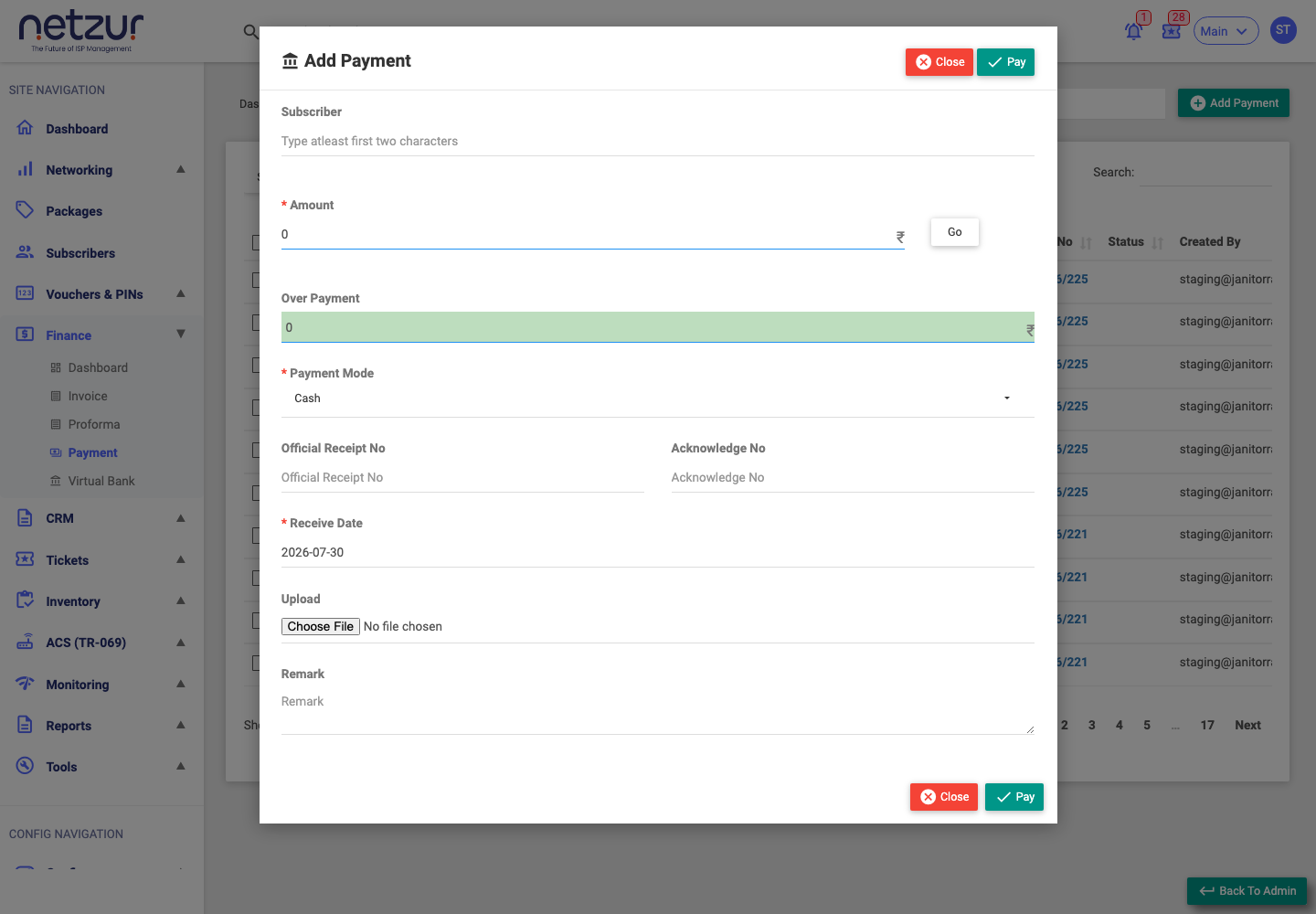
The form
| Field | Description |
|---|---|
| Subscriber (required) | Start typing a username (at least two characters) and pick the customer. |
| Receivable Amount | Read-only — the total they currently owe (appears once a subscriber is chosen). |
| Do you want to pay from your wallet balance? | Appears only if the subscriber has wallet funds. Ticking it settles invoices from their stored wallet balance instead of taking new money. |
| Amount (required) | The amount received. The Go button lists their invoices and shows how the amount will be split. |
| Over Payment | Read-only — how much of the amount is more than everything owed (this surplus goes to the wallet). |
| Payment Mode (required) | How the money came in — see the modes below. |
| Account | The Virtual Bank the money landed in (shown only for direct-deposit / bank-transfer modes). |
| Cheque No / Payee Name | Shown and required for cheque modes. |
| Official Receipt No / Acknowledge No | Optional reference numbers. |
| Receive Date (required) | The date received. |
| Upload | Optional proof of payment (image/file). |
| Remark | Optional note. |
Select Pay to save.
Payment modes
| Mode | Extra fields | Posts to a Virtual Bank? |
|---|---|---|
| Cash | — | No |
| Cheque | Cheque No, Payee Name | No |
| Direct Deposit Cash | Account | Yes |
| Direct Deposit Cheque | Account, Cheque No, Payee Name | Yes |
| Bank Transfer | Account | Yes |
| Online Transfer | — | No |
| Wallet | (used via the "pay from wallet" tick) | No |
What happens when you save
- The amount is applied to the subscriber's unpaid invoices, oldest first — each becomes Paid or Partial Paid.
- For a bank-linked mode, a matching credit is recorded in the chosen Virtual Bank.
- Any leftover amount is added to the subscriber's wallet and recorded as Deposit To Wallet.
- A receipt is generated and the subscriber can be notified by email/WhatsApp (per your site's settings), with the receipt attached.
You'll see "Payment added successfully" and the list refreshes.
Important Notes
- The receipt number is generated automatically — you don't type it. The reference fields you can enter are Official Receipt No, Acknowledge No and (for cheques) Cheque No.
- Paying from wallet debits the customer's stored balance rather than recording new cash.