Payments Overview
Overview
The Payments page lists every payment received from subscribers at your site. A single payment can settle one or more of a subscriber's unpaid invoices (oldest first), and any leftover money is added to their wallet as advance credit (shown as Deposit To Wallet).
Who Can Use This Feature
Cashiers, front-desk and accounts staff who collect money.
Required Permissions
- Payments → List to view; plus Add, Print Receipt, Cancel, Delete and Transfer for the individual actions.
Navigation
Finance → Payment
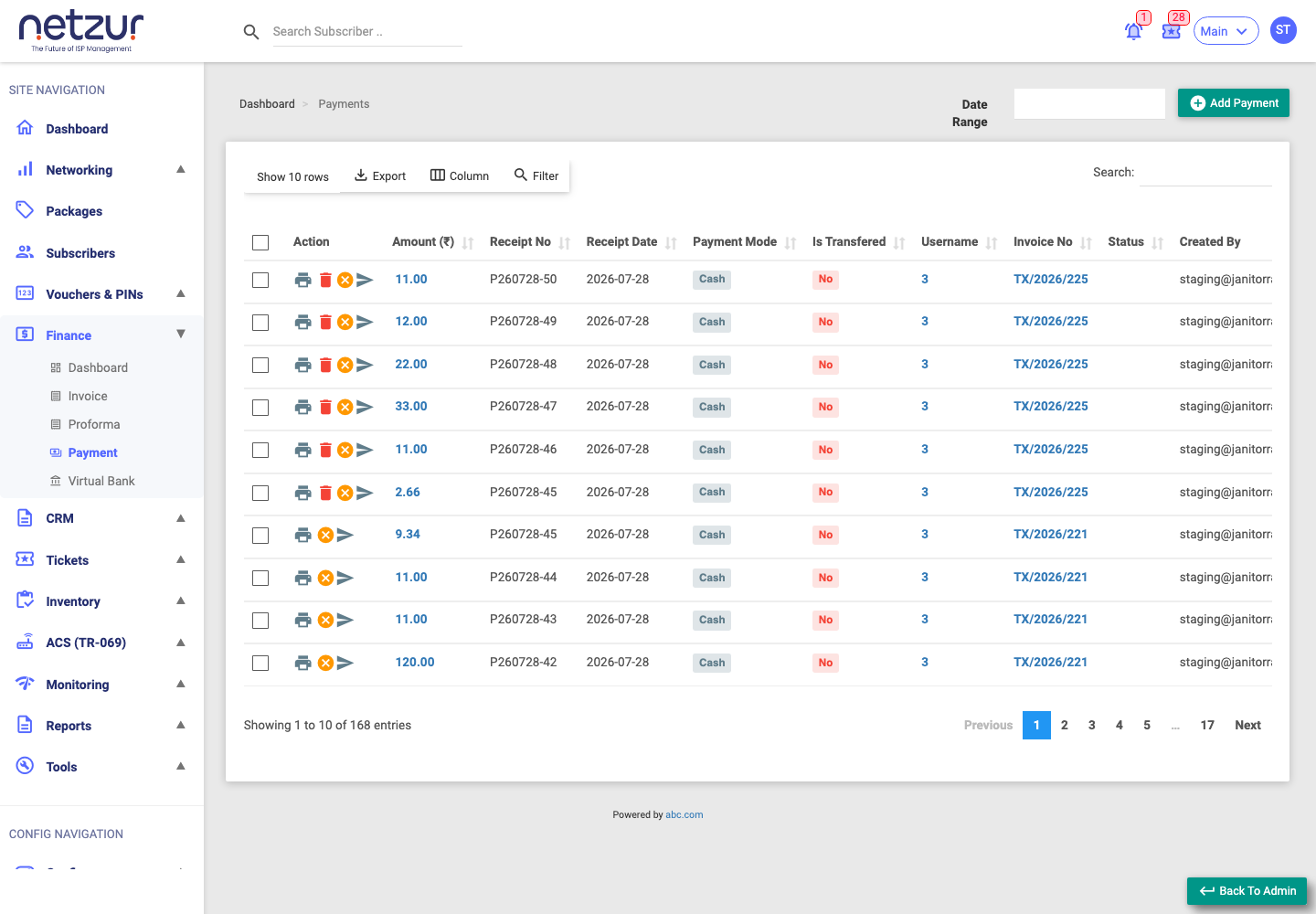
The list columns
Key columns (left to right):
| Column | Meaning |
|---|---|
| Action | Per-row icons: Print Receipt, View Image (if proof was attached), Delete Payment, Cancel Payment, Send Email. |
| ID | The payment's ID. |
| Amount | The amount received — click View Payment to see details. |
| Txn ID | Gateway/transaction id (for online payments). |
| Receipt No | The auto-generated receipt number. |
| Receipt Date | When it was received. |
| Payment Mode | Cash, Cheque, Bank Transfer, etc. (see Adding a payment). |
| Is Transfered | Yes if the payment is linked to a Virtual Bank, else No. |
| Account Name | The Virtual Bank it landed in (links to that bank's transactions). |
| Full Name / Username | The subscriber (links to their profile). |
| Invoice No | The invoice it paid (links to the invoice). |
| Payee Name / Cheque No | For cheque payments. |
| Official Receipt No / Acknowledge No | Reference numbers you entered. |
| Status | Cancelled if the payment was cancelled; otherwise blank. |
| Remark | Any note. |
| Created By / At, Updated By | Audit fields. |
Above the list: an Add Payment button and a Date Range filter (filters by receipt date), plus the usual Export / Column / Search controls.
Actions on a payment
- Print Receipt — download the payment receipt as a PDF.
- Send Email — email the receipt to the subscriber.
- View Image — view the uploaded payment proof (only if one was attached).
- Cancel Payment / Delete Payment — reverse a payment (see Cancelling & correcting payments).
- Transfer (bulk, tick rows) — link selected payments to a Virtual Bank (see Cancelling & correcting payments).
Important Notes
- Payments recorded with Direct Deposit Cash/Cheque or Bank Transfer modes also post into a Virtual Bank, so the money is tracked in that account.
- Overpayments become wallet credit that can pay the customer's future invoices.