Proformas
Overview
A proforma invoice is a preliminary bill — a draft or quotation-style document that shows a customer what they will owe (line items, discount, taxes, grand total) before it becomes a final, official tax invoice. No payment is recorded against a proforma while it stays a proforma; you can still edit it, cancel it, or convert it into a real tax invoice.
Think of it as: proforma = draft bill, tax invoice = final bill.
Who Can Use This Feature
Billing and accounts staff who quote or pre-bill customers before finalising.
Required Permissions
- Invoice → List to view; plus Convert To Tax, Cancel Proforma, Close/Open Proforma, Update, Print for the individual actions.
Navigation
Finance → Proforma
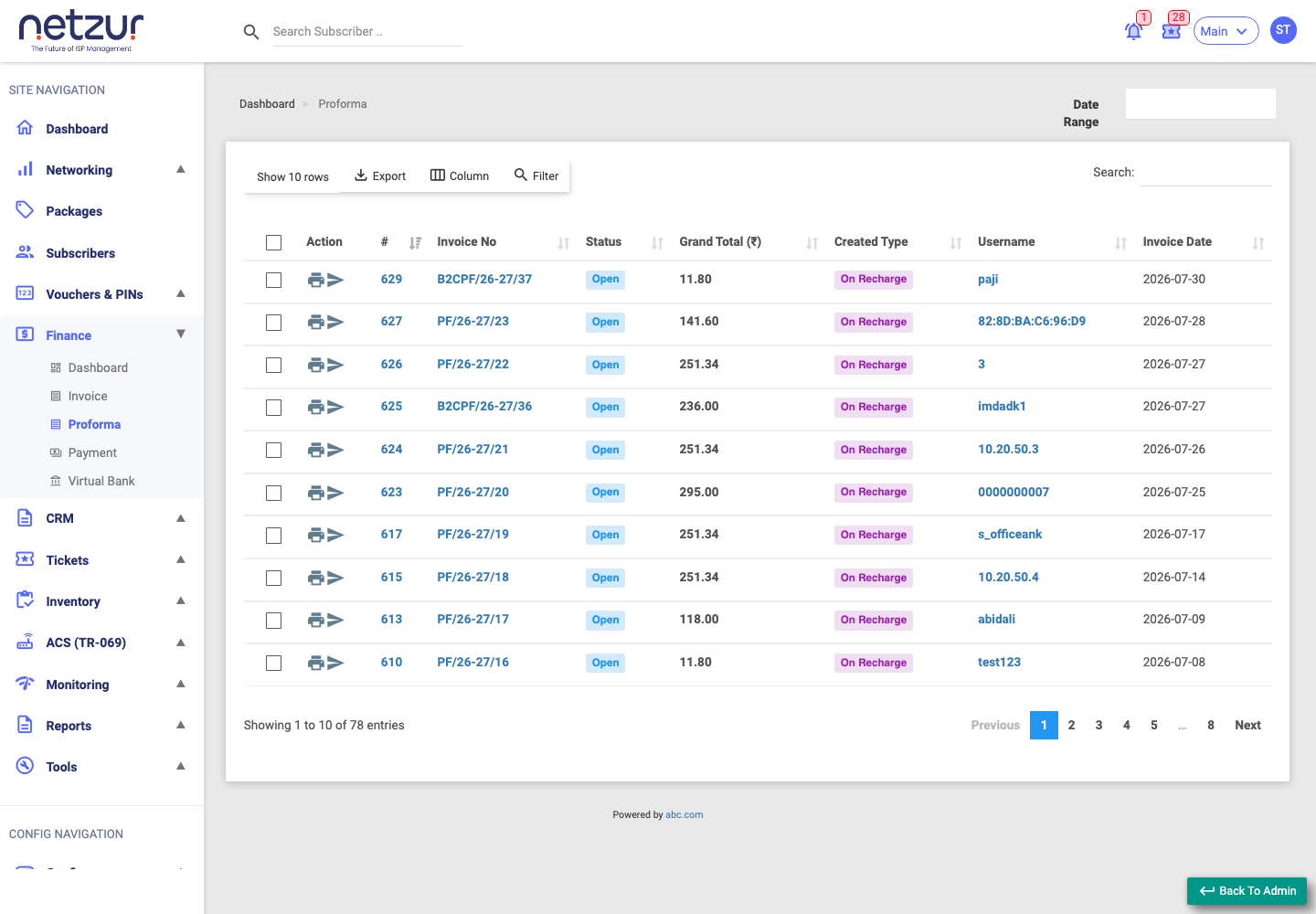
Proforma statuses
| Status | Meaning |
|---|---|
| Open (blue) | Active — can be edited, converted or cancelled. |
| Closed (green) | Locked from editing/cancelling; can be re-opened. A proforma is also closed automatically the moment it's converted to a tax invoice. |
| Cancelled (red) | Voided — no further actions. |
Like invoices, proformas show a Created Type of On Recharge (auto-generated on a recharge) or Custom (created manually).
The list
The columns mirror the Invoices list — Invoice No, Status, Subtotal, Discount, Taxable Amount, Tax, Grand Total, Created Type, Username, Company, Tax No, Invoice Date and audit fields. Each column has a search box; Created Type and Status are dropdown filters. There's a Date Range filter at the top.
Per-row actions: Print Invoice (PDF) and Send Email. Click a proforma number to open its Proforma Info page.
Bulk actions (tick rows):
- Cancel Proforma — void the selected open proformas (needs a remark).
- Close Proforma — lock the selected proformas without voiding them.
- Open Proforma — re-open selected closed (not-yet-converted) proformas.
- Download — download the selected proformas as PDFs.
The Proforma Info page
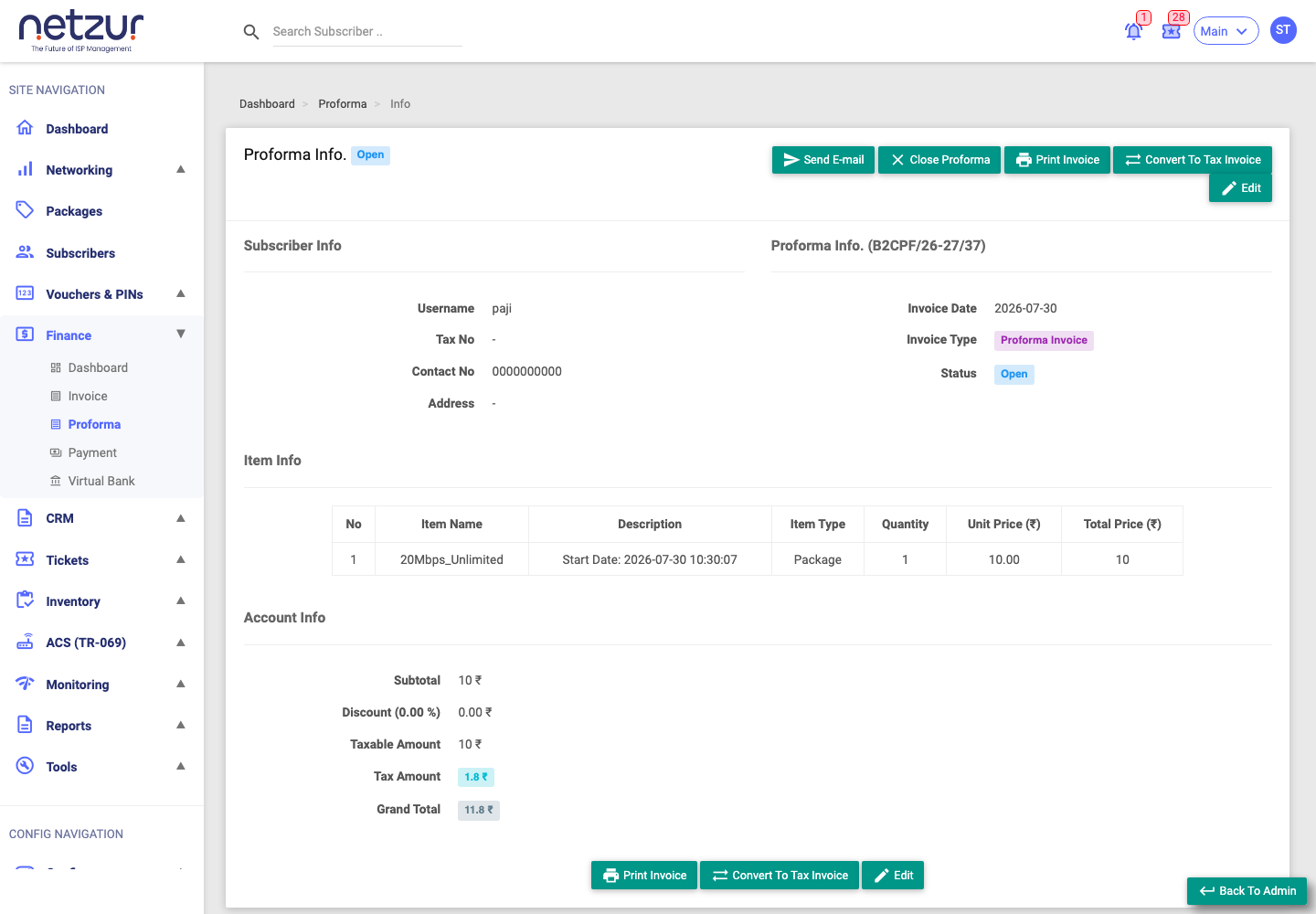
Opening a proforma shows the same layout as an invoice page — Subscriber Info, Proforma Info, Item Info, Account Info (totals with a hover tax breakdown) and a Quick Info timeline. The header buttons depend on status and permissions: Send E-mail, Close/Open Proforma, Print Invoice, Convert To Tax Invoice, and Edit (an open, unconverted proforma only).
Editing a proforma works like editing an invoice: adjust line items, discount, taxes and dates, then save with a remark.
Converting to a tax invoice
Convert To Tax Invoice turns an open proforma into a real, final invoice:
- Click Convert To Tax Invoice and enter a remark.
- The system creates a brand-new tax invoice (with a new invoice number) carrying the same line items and taxes, and records the amount as owed by the customer.
- The original proforma becomes Closed and marked as converted — it can no longer be edited, converted again, or cancelled.
After conversion, the customer formally owes the amount, and the new invoice appears on the Invoices page where you can receive payment against it.
If the subscriber has no billing profile set, conversion is blocked with "Please set billing profile." For partner/reseller billing, conversion also checks your site balance.
Cancelling a proforma
Cancel Proforma voids one or more selected open proformas (a remark is required); their status becomes Cancelled. If a cancelled proforma was the subscriber's most recent one, the service it had provisioned is rolled back (usage limits reset and expiry cleared).
You can only cancel open proformas. Closed or already-converted ones must be re-opened first (if eligible).
Taxes on a proforma
Taxes shown are the ones configured for your site (for example GST, VAT, or whatever your business uses) — each appears as its own line with a name, percentage and amount. Whether you can change them on a document depends on the Allow Tax Changes permission.
Important Notes
- A proforma carries no payment — money is only recorded once it's a tax invoice.
- Close just locks a proforma; Cancel voids it. A closed proforma can be re-opened; a cancelled one cannot.