Signing In
Overview
This page explains how to sign in to the Netzur IMBS operator portal — the area where ISP staff manage subscribers, billing, the network and settings. You sign in with the login account your administrator created for you.
Who Can Use This Feature
Every staff member with a Netzur IMBS login account (for example billing, support, network or management staff). What you can see and do after signing in depends on the role attached to your account.
Required Permissions
None to sign in. Your role's permissions decide which menus and pages appear once you are inside.
Prerequisites
- A login account (username or email, and password) created for you in Permissions → Login Accounts.
- The web address of your Netzur IMBS system, which ends in
/site_login. - A modern web browser (Chrome, Edge, Firefox or Safari).
Navigation
Open your system's login address in a browser:
https://<your-netzur-address>/site_login
Step-by-Step Instructions
-
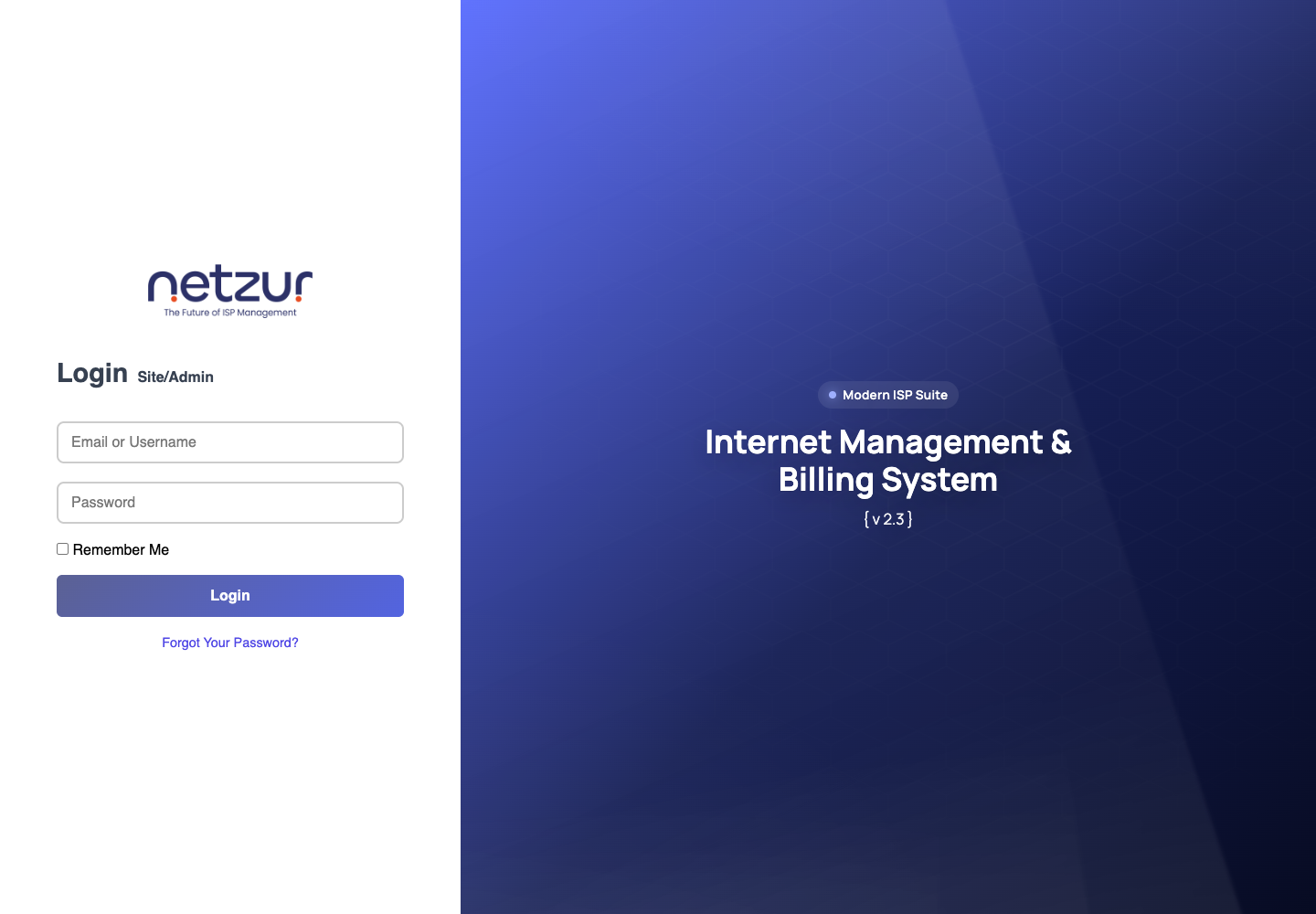
Open the login address above in your browser. The Login — Site/Admin screen appears.
-
In Email or Username, type your username or the email address on your account.
-
In Password, type your password.
-
(Optional) Tick Remember Me to stay signed in on this device. Only use this on a private computer.
-
Select Login.
-
If your account has two-factor authentication (2FA) enabled, enter the verification code when prompted.
-
You are taken to the Dashboard, the home screen of the portal.
Field Reference
| Field | Required | Description | Example |
|---|---|---|---|
| Email or Username | Yes | The username or email on your login account. | billing.desk |
| Password | Yes | Your account password. | (hidden) |
| Remember Me | No | Keeps you signed in on this device between visits. | Ticked / unticked |
What Happens After Saving
After a successful login you land on the Dashboard. Your name or account appears in the top bar, and the left menu shows only the sections your role is allowed to use.
Important Notes
- Never share your password. Each staff member should use their own login account so that actions are recorded against the right person.
- If your organisation runs more than one site/branch, the site you are working in is shown at the top of the screen.
Common Mistakes
- Wrong address: the login page must end in
/site_login. A different address may be the subscriber portal or the platform-admin login. - Caps Lock on while typing the password.
- Using an old browser tab after being signed out — reload the login page if the screen looks stuck.
Troubleshooting
| Problem | Likely cause | What to do |
|---|---|---|
| "Invalid credentials" or login fails | Wrong username/email or password | Re-type carefully; use Forgot Your Password? on the login screen to reset. |
| Account seems inactive | Your login account is not active | Ask your administrator to check that your account is set to Active in Login Accounts. |
| No 2FA code arrives / code rejected | 2FA setup or clock issue | Contact your administrator; the code is time-based and must be entered promptly. |
| You reach a different login page | Wrong portal | Confirm you are using the operator login address ending in /site_login. |