Adding Items
Overview
Add Items creates individual physical units of a product and puts them into stock. You pick the product and how many units you have; the system creates that many item records, all marked In Stock, and then lets you enter barcodes and serial numbers for them.
Adding items directly is one way to bring stock in. The other — more common when you're buying from a supplier — is to record a supplier invoice, which creates the items for you.
Required Permissions
- Inventory Item → Add.
Navigation
Inventory → Items → Add Items
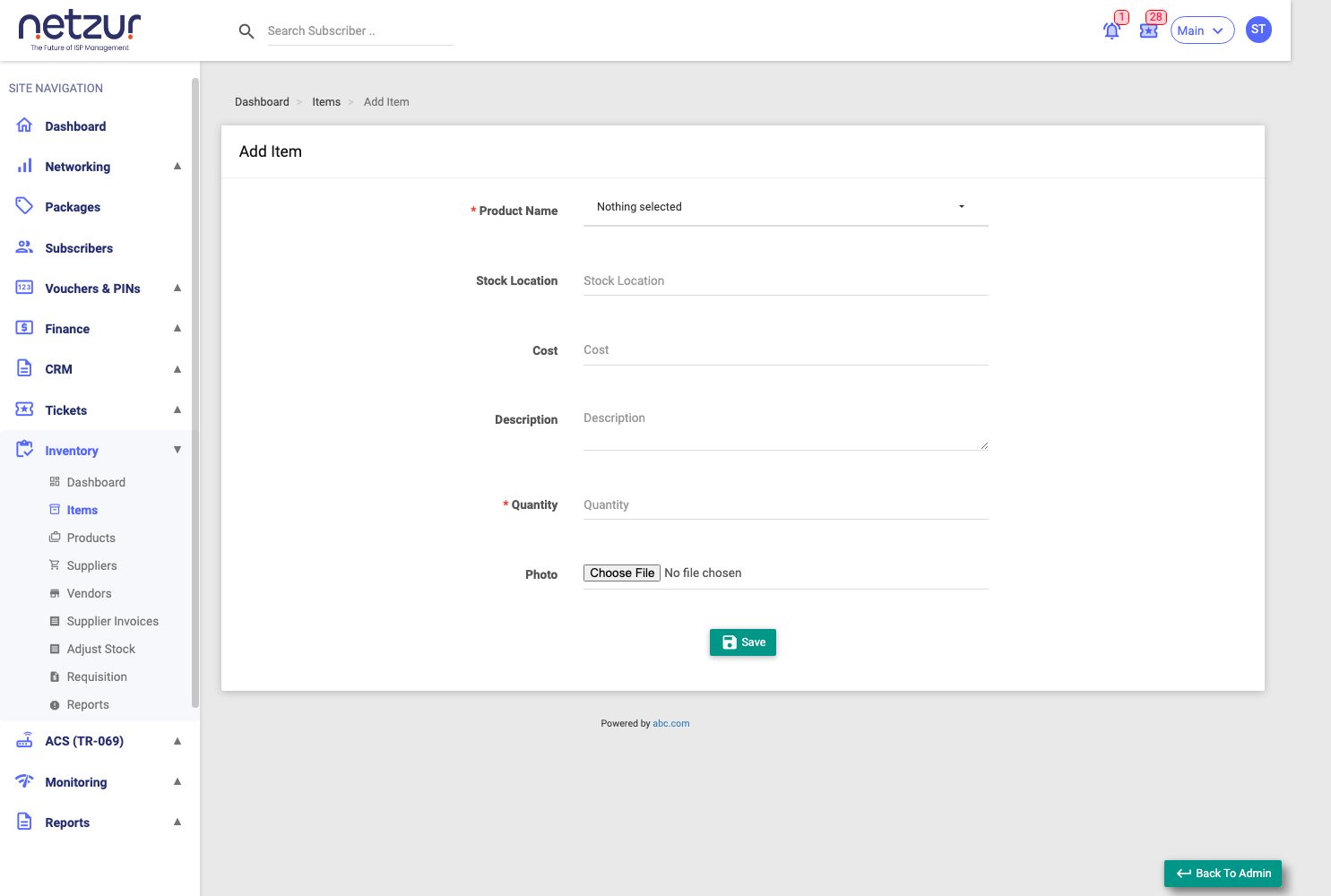
The form
| Field | Required | Description |
|---|---|---|
| Product Name | Yes | The product these units belong to — search and select from your product catalogue. Each unit becomes one instance of this product. |
| Stock Location | No | Where the units are physically kept (free text). |
| Cost | No | The purchase/cost price of each unit. |
| Description | No | A note stored on every unit created. |
| Quantity | Yes | How many identical units to create. Must be more than 0, and no more than 500 at once. |
| Photo | No | An optional picture, applied to all units in this batch. |
Select Save. You'll see "Items added successful" and the barcode/serial screen opens.
Entering barcodes and serial numbers
Right after saving, the Add Barcodes and Serial Numbers window lists every unit you just created (as Item #… — product name). For each one you can type a Barcode and a Serial Number.
- The toggle "Serial number is same as barcode" hides the serial column and copies each barcode into the serial number — handy when they're identical on your equipment.
- Barcodes must be unique, and serial numbers must be unique — the system rejects one already used by another item.
- This step is optional — leave rows blank and close if you don't have the numbers yet. You can fill them in later from the item actions (Add Barcodes / Add Serial Numbers).
Important Notes
- Every new unit starts as In Stock with condition New.
- The 500-per-batch limit is per Save — add another batch if you have more.