Item Actions — Sell, Rent, Assign, Return & more
Overview
The Action menu on the Items list is where equipment moves through its life: you sell or rent it to a customer, assign it, put it into internal usage, return it, relocate it, or tag it with barcodes and serials. This page explains every action — when it's available, what you fill in, and what happens when you save.
Required Permissions
Each action has its own permission, so your Action menu shows only the ones you're allowed to run:
| Action | Permission |
|---|---|
| Internal Usage | Inventory Item → Internal Usage |
| Rent | Inventory Item → Rent |
| Sell | Inventory Item → Sell |
| Return | Inventory Item → Return |
| Assign | Inventory Item → Assign |
| Add Barcodes | Inventory Item → Update Barcodes |
| Add Serial Numbers | Inventory Item → Update Serial Numbers |
| Change Stock Location | Inventory Item → Stock Location |
| Delete | Inventory Item → Delete |
How the Action menu works
On the Items list, tick one or more items, then click Action.
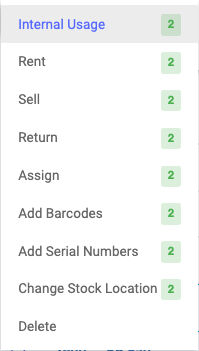
Each option shows a small count badge telling you how many of your selected items qualify for that action:
- Green — all selected items qualify.
- Orange — some qualify (the action runs on those; the rest are skipped).
- Red / disabled — none qualify.
What each action is allowed on
An item's current status decides which actions apply to it:
| Item status | Actions available |
|---|---|
| In Stock | Sell · Rent · Assign · Internal Usage · Return · Change Stock Location · Delete |
| Internal Usage | Sell · Rent · Assign · Return |
| Rented | Return |
| Sold | Return |
| Assigned | Return |
| Returned | Sell · Rent · Assign · Internal Usage · Return |
In short: In-Stock items can go anywhere; items already out (Rented, Sold, Assigned) can only be Returned.
Financial effect: only Sell and Rent touch billing — each raises an invoice and a payment against the subscriber. Assign, Internal Usage, Return, Change Stock Location, barcodes, serials and Delete create no invoice and no charge.
Sell
Sell one or more in-stock units to a subscriber and raise a sale invoice.
Available for: In Stock, Internal Usage, or Returned items.
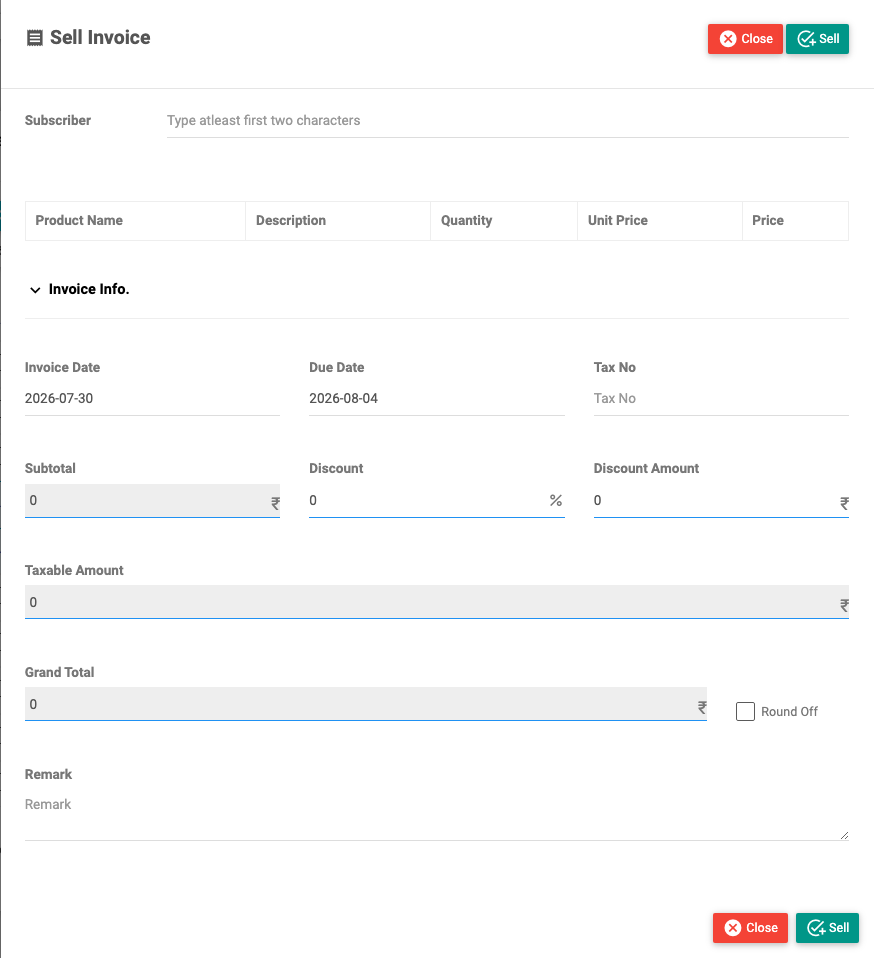
| Field | Description |
|---|---|
| Subscriber | Type at least two characters to search and pick the customer. Selecting them loads their products, prices, taxes and wallet balance. Required. |
| Line items | One row per product in your selection: Product Name and Quantity are fixed; Description (pre-filled with serial numbers) and Unit Price (defaults to the product's sell price) are editable; Price is the row total. |
| Invoice Date / Due Date | The sale date and when payment is due (due date defaults ~5 days ahead). |
| Tax No | The subscriber's tax number (pre-filled). |
| Discount / Discount Amount | An optional percentage or fixed discount. |
| Taxes | Any taxes from the subscriber's billing profile, applied automatically. |
| Round Off | Rounds the grand total to a whole number. |
| Wallet | If the subscriber has wallet balance (and your site allows it), tick to pay from their wallet. |
| Remark | A note saved on the invoice. |
On Save (Sell): the system raises a tax invoice for the subscriber, records a payment, updates the product's stored sell price to what you entered, and sets each unit to Sold (condition Used), linked to the invoice and the subscriber. If wallet was used, the invoice is marked Paid (fully covered) or partially paid.
If you see "Product not shared" or "Please set billing profile": the product must be shared to the subscriber's site, and the subscriber must have a billing profile before you can sell (or rent) to them.
Rent
Rent units to a subscriber for a period, raising a rental invoice.
Available for: In Stock, Internal Usage, or Returned items.
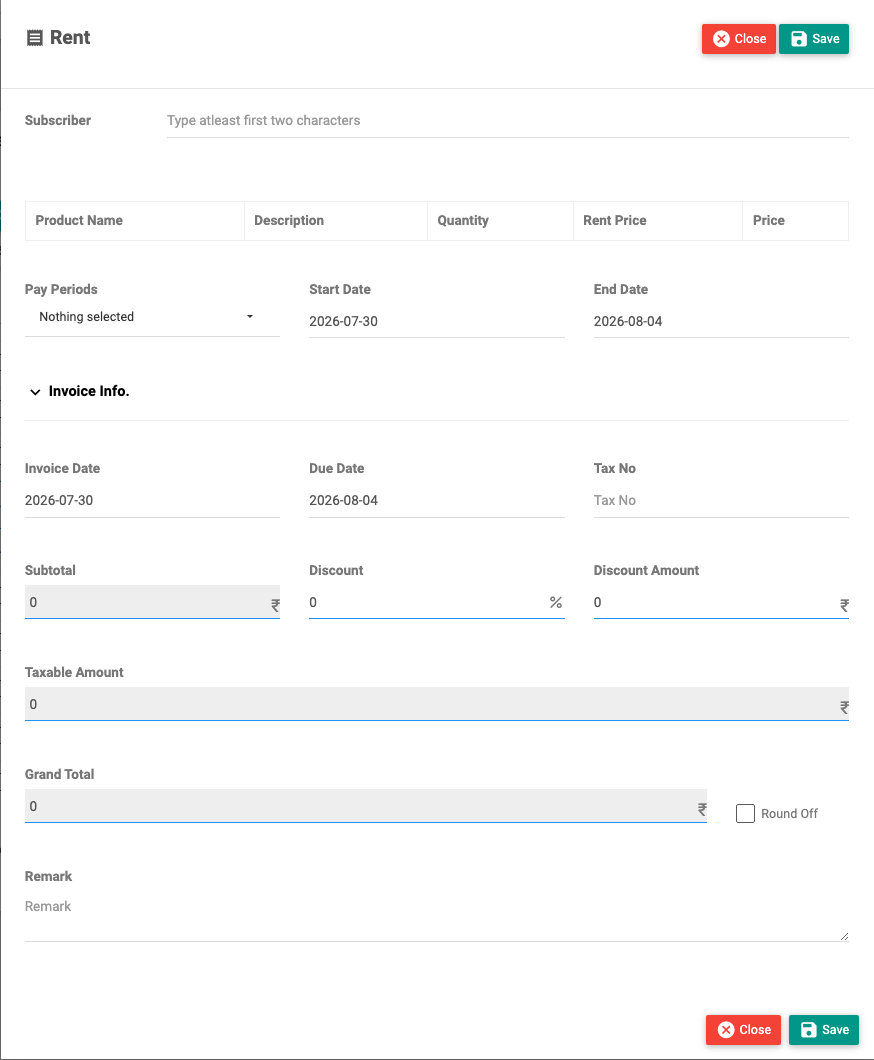
It works like Sell, with a rental period added:
| Field | Description |
|---|---|
| Subscriber | Search and select the customer. Required. |
| Line items | Rent Price (defaults to the product's rent price) replaces Unit Price. |
| Pay Periods | A number of months (1–60). Choosing a period auto-fills the End Date from the Start Date. |
| Start Date / End Date | The rental window. |
| Invoice Info | Same invoice date, due date, discounts, taxes, round-off and optional wallet as Sell. |
| Remark | A note saved on the invoice. |
On Save: raises a tax invoice and payment, updates the product's stored rent price, and sets each unit to Rented (condition Used), storing the rent start/end dates and linking the invoice and subscriber.
Assign
Hand equipment to a subscriber at no charge — no invoice, no payment.
Available for: In Stock, Internal Usage, or Returned items.
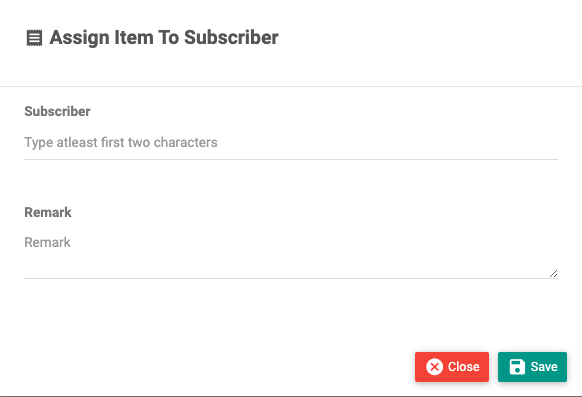
| Field | Description |
|---|---|
| Subscriber | Search and select the customer. Required. |
| Remark | An optional note. |
On Save: sets each unit to Assigned (condition Used) and links the subscriber. No invoice or charge is created — use this for equipment you provide free (e.g. a bundled ONU).
Internal Usage
Mark units as used by your own staff rather than a customer.
Available for: In Stock or Returned items.
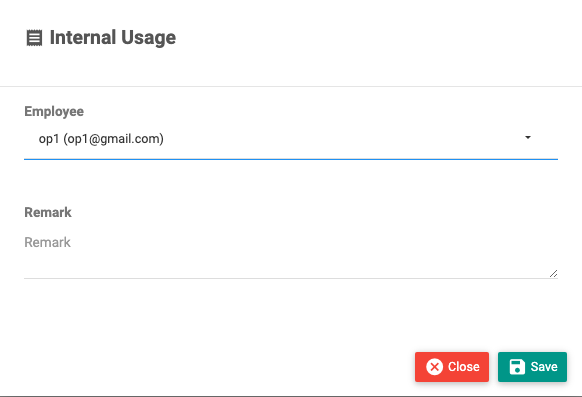
| Field | Description |
|---|---|
| Employee | The staff member the unit goes to (dropdown of your site's accounts, shown as username (email)). Required. |
| Remark | An optional note. |
On Save: sets each unit to Internal Usage (condition Used) against the chosen employee. No charge.
Return
Bring a unit back — either into stock or to the supplier. This is the one action for Rented, Sold, or Assigned items.
Available for: any item that's out (Internal Usage, Rented, Sold, Assigned) — and it can also re-process In-Stock/Returned items.
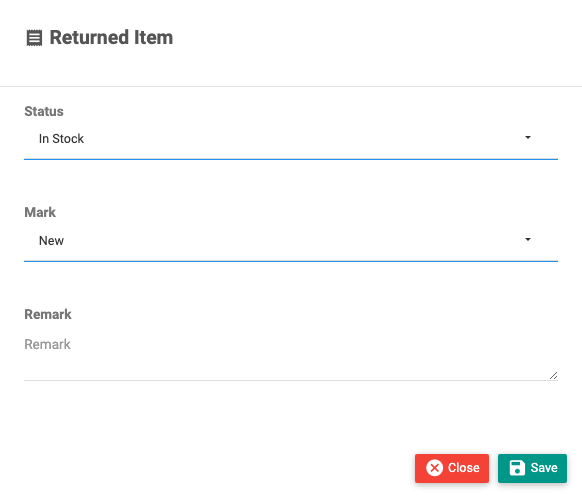
| Field | Description |
|---|---|
| Status | In Stock (back on the shelf, sellable again) or Returned to supplier (out of your stock). |
| Mark | The unit's condition on return — New, Used or Broken. |
| Remark | An optional note. |
On Save: sets the unit to the chosen status and condition, and detaches it from whoever held it (clears the subscriber, invoice, and internal-usage links).
Returning an item does not refund or reverse the original sale/rental invoice — it only changes the item's state. Handle any refund separately in Finance.
Change Stock Location
Move in-stock units to a different storage location.
Available for: In Stock items only.
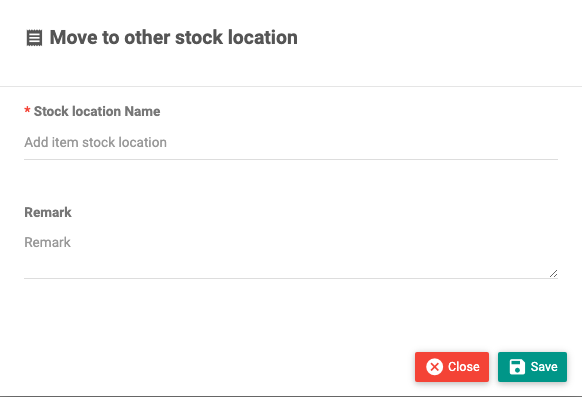
| Field | Description |
|---|---|
| Stock location Name | The new location. Required. |
| Remark | An optional note. |
On Save: updates the stock location on all selected units. No status or financial change.
Add Barcodes and Serial Numbers
Fill in (or add) barcodes and serial numbers for units that don't have them yet.
Available for: any selected item whose barcode (or serial number) is currently empty.
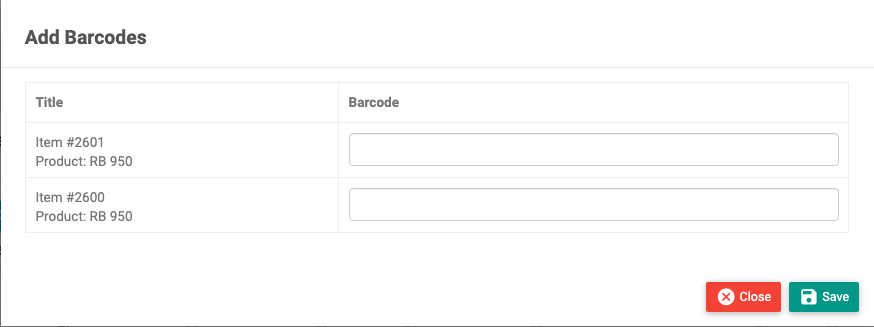
Each modal lists the eligible units (Item #… — product name) with a field to type the Barcode (or Serial Number). Numbers must be unique — the system won't accept one already used by another item. Blank rows are skipped.
On Save: the barcodes/serials are stored on the units.
Delete
Remove units from inventory.
Available for: In-Stock items only — the system refuses if any selected item is not In Stock ("You can delete only in-stock items").
Choosing Delete shows a confirmation ("Are you sure? You will not be able to recover data!"). Confirm to remove the selected in-stock units.