Items Overview
Overview
The Items list is the heart of the Inventory module. Each row is a single physical unit of equipment — one router, one ONU — with its own barcode, serial number, condition, location, and status. This is also where you run all the per-item actions: sell, rent, assign, return, and more.
Required Permissions
- Inventory Item → List. Individual actions (add, edit, delete, sell, rent, etc.) each have their own permission — see Item actions.
Navigation
Inventory → Items
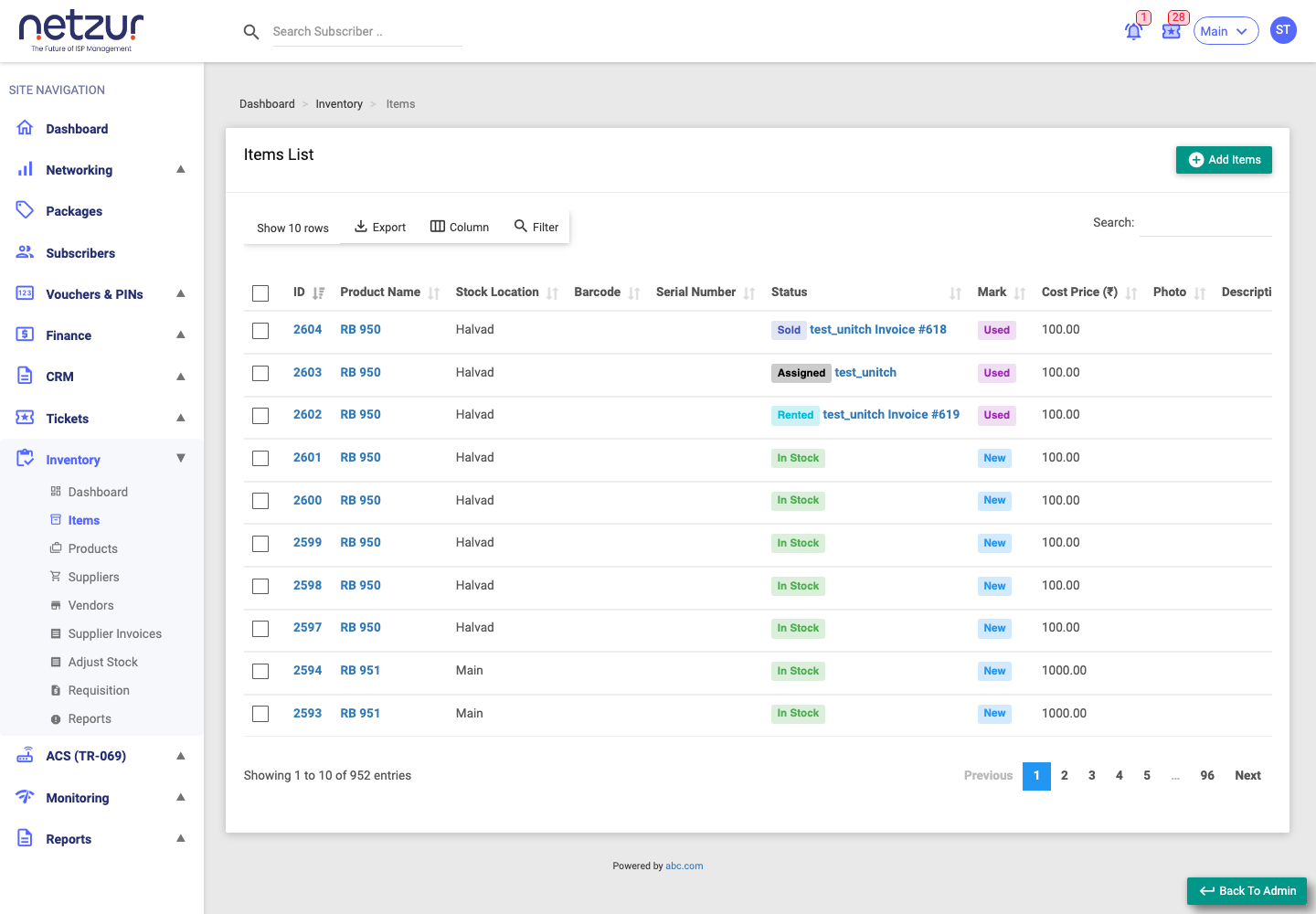
The columns
| Column | Meaning |
|---|---|
| (checkbox) | Select rows to act on. The header checkbox selects all. |
| ID | The item's ID — click to open its detail page. |
| Product Name | The product this unit belongs to (links to the product). |
| Stock Location | Where the unit is physically kept. |
| Barcode | The unit's barcode. |
| Serial Number | The unit's serial number. |
| Status | In Stock / Internal Usage / Rented / Sold / Returned / Assigned. Rented and Sold rows also show the subscriber and an Invoice # link; Assigned shows the subscriber; Internal Usage shows the staff member. |
| Mark | Condition — New, Used or Broken. |
| Cost Price | What the unit cost you (in your site currency). |
| Photo | An eye icon opens a picture of the unit, if one was uploaded. |
| Description | Any note on the unit. |
More columns — Supplier Invoice Id, Subscriber Status, and the audit fields (Created/Updated By and At) — are hidden by default and can be switched on with the Column button.
Finding items
- Filter button — turns on a search row under the headers. Most columns get a search box; Status and Mark become dropdowns (e.g. Status → In Stock / Sold / Rented …, Mark → New / Used / Broken).
- Search — the global search box (top-right).
- Export — Copy, Excel or Print the current list.
- Column — show or hide columns.
- Show N rows — page length (5 to 500).
Selecting items and the Action menu
Tick one or more rows and an Action button appears with a count badge. Clicking it opens the menu of per-item actions:
- Internal Usage, Rent, Sell, Return, Assign, Add Barcodes, Add Serial Numbers, Change Stock Location, and Delete.
Each option shows a small eligibility badge: green when every selected item qualifies, orange when only some do, and red (disabled) when none qualify. This is because an action's availability depends on each item's status — for example, only In-Stock items can be sold, rented, or deleted, while only Rented/Sold/Assigned items can be returned. See Item actions for the full rules.
Important Notes
- You can only see the items for your own site (head-office logins get an All / per-site selector).
- Everything you do to an item is written to its history — visible on the item detail page and in the Item History report.