Adding & Editing Products
Overview
Adding a product creates a catalogue entry — a type of equipment with its prices and vendor. Editing lets you change those details and, on the edit screen, review all the individual items of that product.
Required Permissions
- Inventory Product → Add / Update.
Navigation
Inventory → Products → Add Product (or click a product's name to edit)
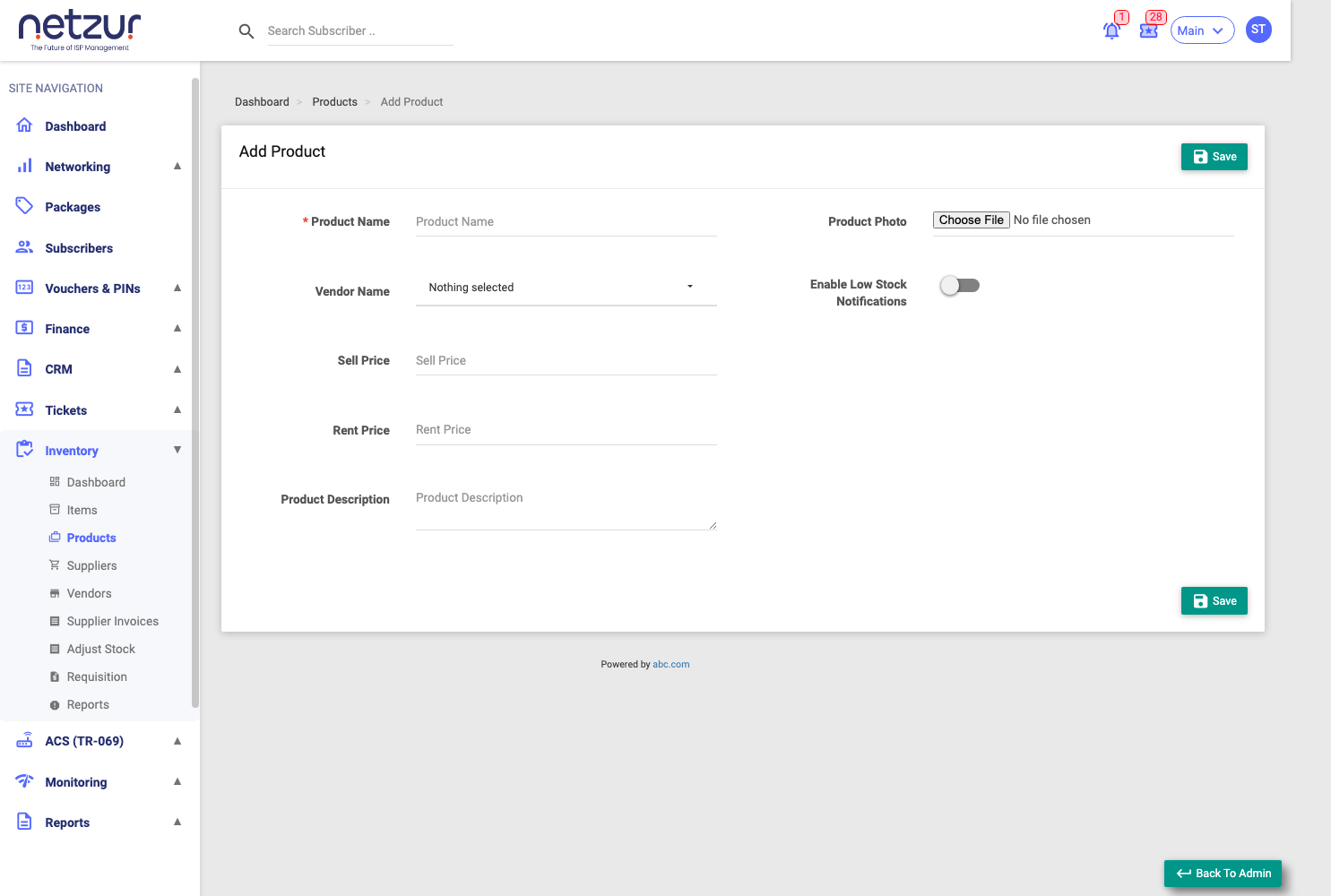
The form
| Field | Required | Description |
|---|---|---|
| Product Name | Yes | The catalogue name. Must be unique within your site. |
| Vendor Name | No | The brand/manufacturer — a dropdown of your enabled vendors. |
| Sell Price | No | The default price when this product is sold. |
| Rent Price | No | The default price when this product is rented. |
| Product Description | No | Free text. |
| Product Photo | No | An image of the product. |
| Low Stock Enabled | No | A switch — turn on to track a low-stock level for this product. |
| Low Stock | No | The threshold (default 5). Only shown when Low Stock Enabled is on. |
Select Save.
The Sell Price and Rent Price here are just defaults — when you actually sell or rent an item, you can adjust the price on that invoice, and the product's stored price updates to match.
Editing a product
The Edit screen has the same fields (pre-filled) plus:
- Status Information — a summary of how many of the product's items are In Stock, in Internal Usage, Rented, Sold, Returned, or Assigned.
- Items of Product — an expandable list of every individual item of this product, with each item's location, barcode, serial, status (linking to the subscriber/invoice where relevant), condition and cost. Click an item to open it.
- Audit Timeline — a history of changes to the product.