Supplier Invoices
Overview
A Supplier Invoice records a batch of stock you've bought from a supplier — a goods-in document. This is the main way new stock enters the system: saving an invoice creates the individual items for every product line and marks them In Stock.
Required Permissions
- Inventory Supplier Invoices → List, plus Add / Update / Delete for those actions.
Navigation
Inventory → Supplier Invoices
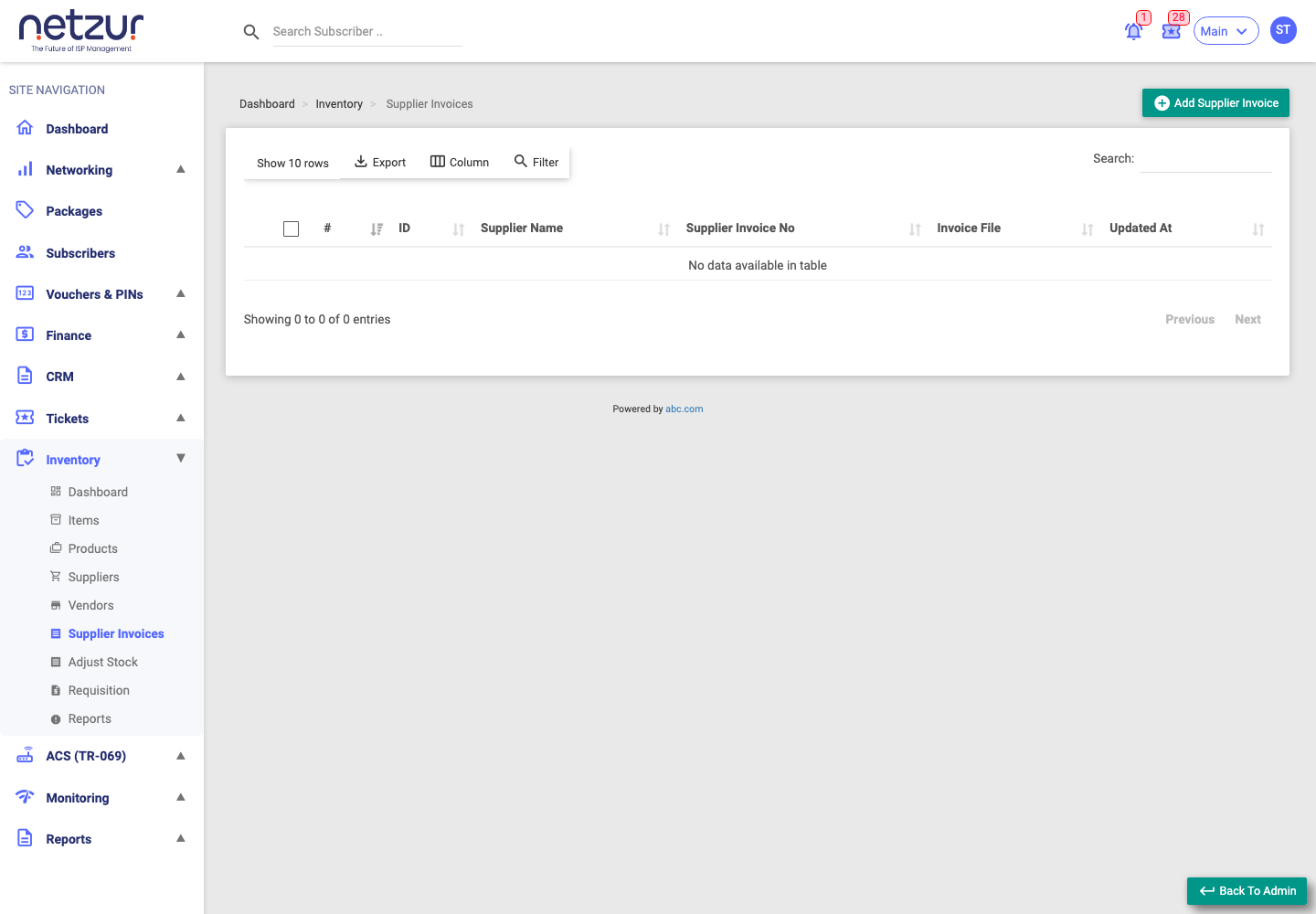
The list
Each row has a view (receipt) icon, the invoice Id, Supplier Name, Supplier Invoice No (the supplier's own reference), an Invoice File preview (if a file was attached), and the Invoice Date. The receipt icon opens a read-only View Invoice popup showing the products, quantities and prices.
Recording a supplier invoice
Inventory → Supplier Invoices → Add Supplier Invoice
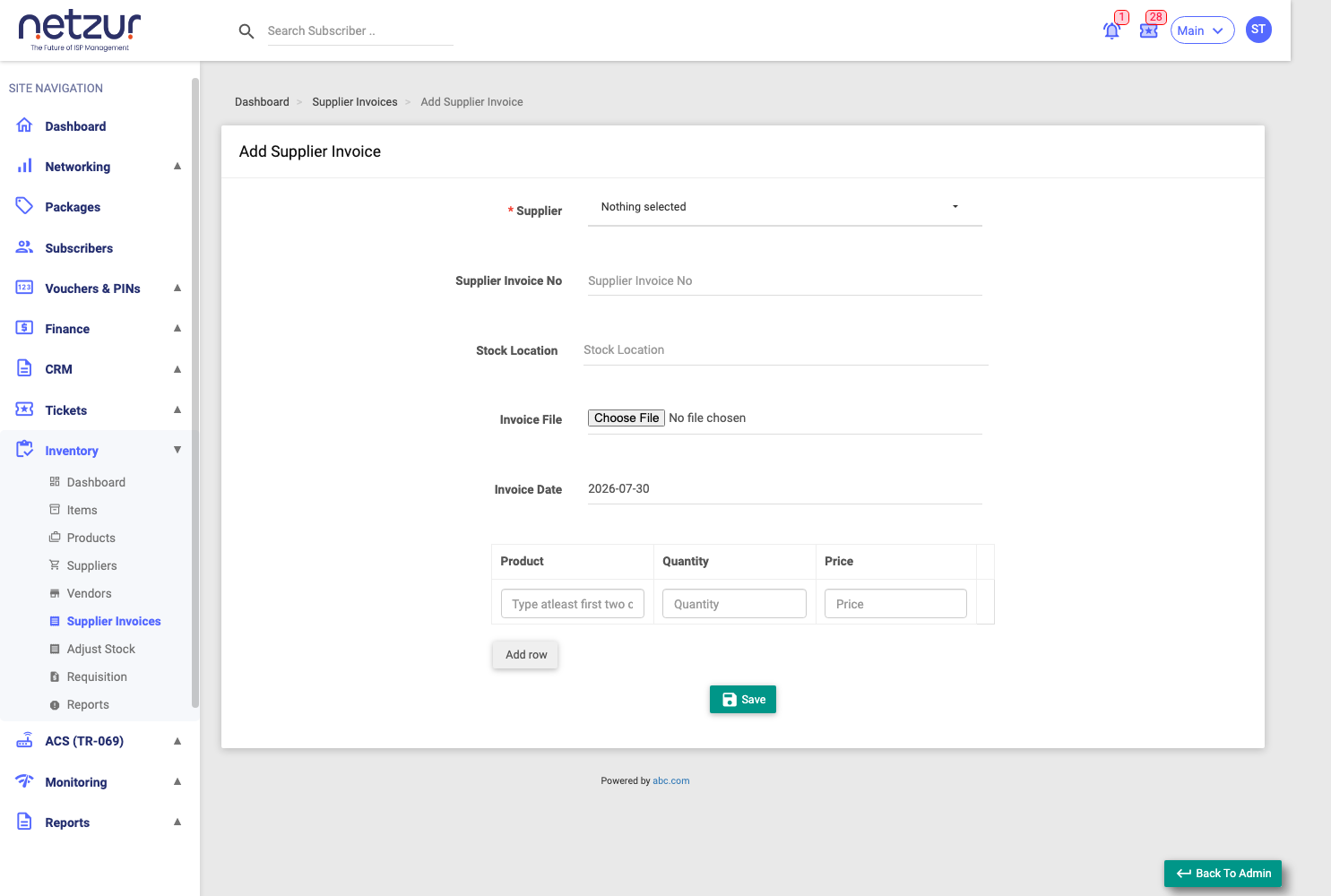
Header fields:
| Field | Required | Description |
|---|---|---|
| Supplier | Yes | Who you bought from — search and select. |
| Supplier Invoice No | No | The supplier's own invoice/reference number. |
| Stock Location | No | Where this stock is stored (applied to every item on the invoice). |
| Invoice File | No | An attachment — JPG, JPEG, PNG or PDF. |
| Invoice Date | No | The invoice date. |
Line items (one row per product — use Add Row for more):
| Column | Description |
|---|---|
| Product | Type to search existing products, or type a brand-new name — a new name is created as a product automatically on save. |
| Quantity | How many units (at least 1, up to 500 per line). |
| Price | The per-unit cost. |
Select Save.
What happens on save
- For each line, the system creates that many items, all set to In Stock, carrying the entered cost, stock location, and supplier.
- Any brand-new product name is added to your Products catalogue.
- A Add Barcodes and Serial Numbers window then opens listing every new item, so you can enter barcodes/serials right away (optional — you can close and do it later from the item actions).
Editing an invoice
On the edit screen the Product on each line is fixed, but you can change Quantity and Price:
- Increasing a line's quantity adds more in-stock items.
- Decreasing it removes items — but only ones still In Stock. If you try to remove more than are in stock, it refuses ("You cannot remove item because in-stock items are not enough").
Deleting an invoice
Tick an invoice and choose Action → Delete, then confirm. This removes the invoice and its lines.
Important Notes
- Recording a supplier invoice is the cleanest way to bring stock in — it creates the items and their cost in one step.
- Reducing an invoice's quantity only ever removes unused (in-stock) items — items already sold, rented, or assigned are never touched.