Adding an OLT
Overview
Adding an OLT tells the system how to reach your fibre box so it can start polling it. You give it a name, its address, what type it is, and the credentials to connect — then the poller reads its ports and ONUs automatically from then on.
Required Permissions
- OLT → Add / OLT → Update.
Navigation
Monitoring → OLTs → Add OLT (or click the Edit pencil on an OLT)
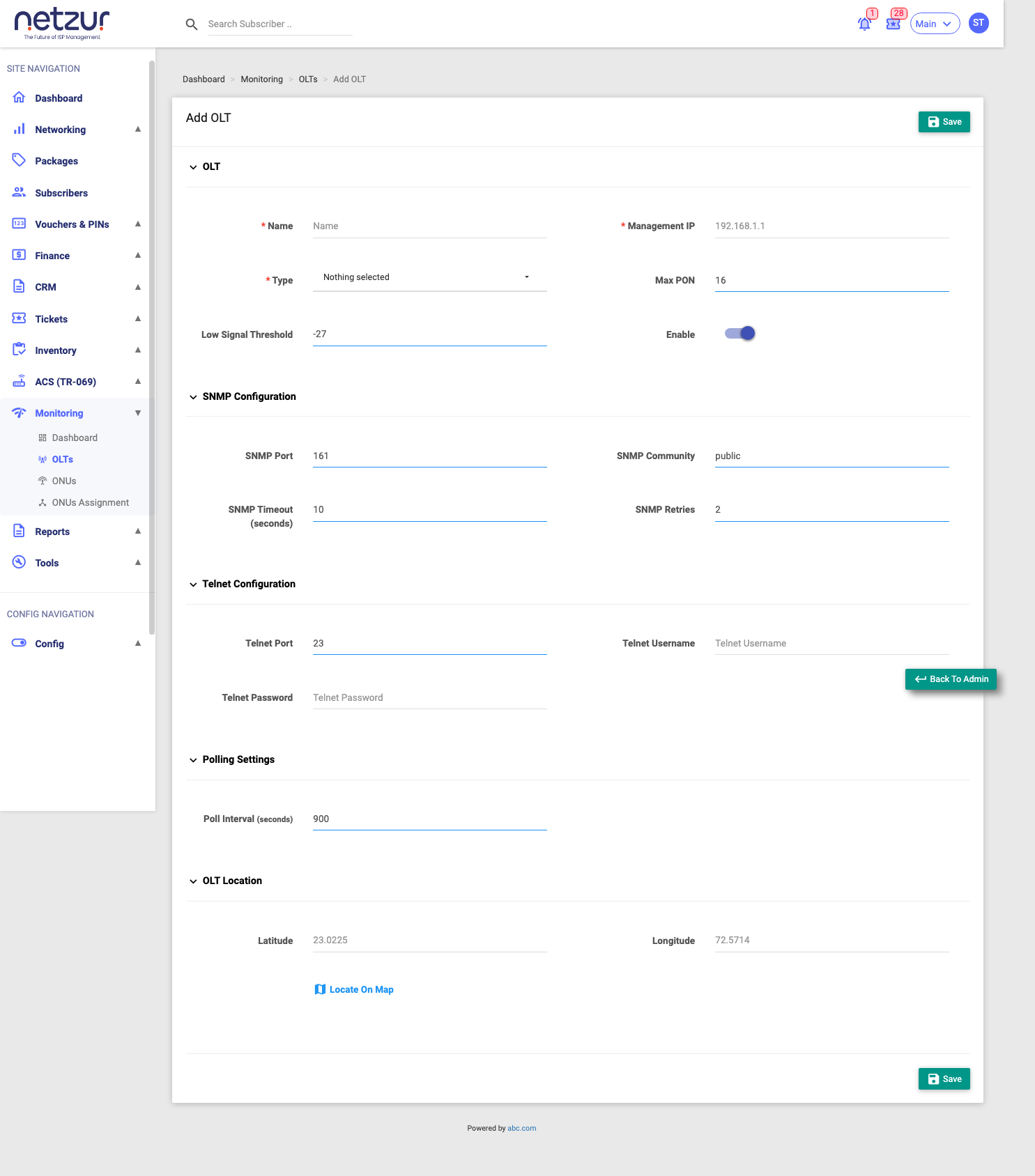
The form
The form is grouped into panels. Required fields are marked with a red asterisk.
OLT
| Field | Required | Description |
|---|---|---|
| Name | Yes | A name for the OLT — must be unique on your site. |
| Type | Yes | Pick the entry that matches your hardware (see The OLT types below). |
| Low Signal Threshold | No | The dBm level below which an ONU counts as Low Signal (defaults to about −29 dBm). |
| Management IP | Yes | The OLT's network address. |
| Max PON | No | Number of PON ports (default 16). |
| Enable | — | On/off. When off, the OLT is Disabled and skipped by the poller. |
The OLT types
The Type you pick tells the system two independent things about the box:
- Technology — the fibre standard: EPON or GPON (this is a property of your hardware).
- Protocol — how the system talks to the OLT to read it: SNMP or CLI (Telnet).
Each entry in the dropdown reads Vendor - Model (TECHNOLOGY - PROTOCOL). The built-in types are:
| Type (as shown in the dropdown) | Technology | Protocol |
|---|---|---|
| VSOL - V1600D (EPON - SNMP) | EPON | SNMP |
| VSOL - V1600D (EPON - CLI) | EPON | CLI (Telnet) |
| VSOL - V1600G (GPON - SNMP) | GPON | SNMP |
| VSOL - V1600G (GPON - CLI) | GPON | CLI (Telnet) |
| Huawei - MA5683T (GPON - SNMP) | GPON | SNMP |
Notice the VSOL V1600D (EPON) and VSOL V1600G (GPON) each appear with both SNMP and CLI — proof that the choice of protocol is separate from the technology. (Your dropdown shows whichever types are enabled for your system; an administrator can add more.)
Which connection panel you fill depends on the Type's protocol — not its technology:
- Pick an SNMP type → complete the SNMP Configuration panel.
- Pick a CLI type → complete the Telnet Configuration panel.
SNMP Configuration (fill this when your Type uses the SNMP protocol)
SNMP Port (default 161), SNMP Timeout, SNMP Community (the read credential), and SNMP Retries.
Telnet Configuration (fill this when your Type uses the CLI (Telnet) protocol)
Telnet Port (default 23), Telnet Username, and Telnet Password — the login the system uses to read the device.
These SNMP/Telnet values are credentials for your network gear. You only need to complete the panel for the protocol your chosen Type uses.
Polling Settings
| Field | Required | Description |
|---|---|---|
| Poll Interval | Yes | How often (in seconds) the poller reads this OLT. Minimum 900 seconds (15 minutes). |
OLT Location
Latitude / Longitude, with a Locate On Map picker — used to place the OLT on the map on its detail page.
What happens on save
You'll see "OLT added successfully" (or "updated"). Saving doesn't do a full data poll immediately, but it does register the OLT with the poller and queue a ping so its reachability shows shortly. To pull full data right away, open the OLT and use Poll Now.
If you leave the connection fields blank, the form reminds you to complete the panel for your Type's protocol — the SNMP details for an SNMP type, or the Telnet details for a CLI type. Other common messages: "OLT already exists" (duplicate name) and the 900-second minimum poll interval.