OLTs Overview
Overview
The OLT List shows every OLT you monitor — its address, technology, how many ONUs are online, and whether the box itself is reachable. Click an OLT to open its detail page, where you see its ports, ONUs and a network map.
Required Permissions
- OLT → List; Add / Update / Delete for those actions; View to open a detail page.
Navigation
Monitoring → OLTs
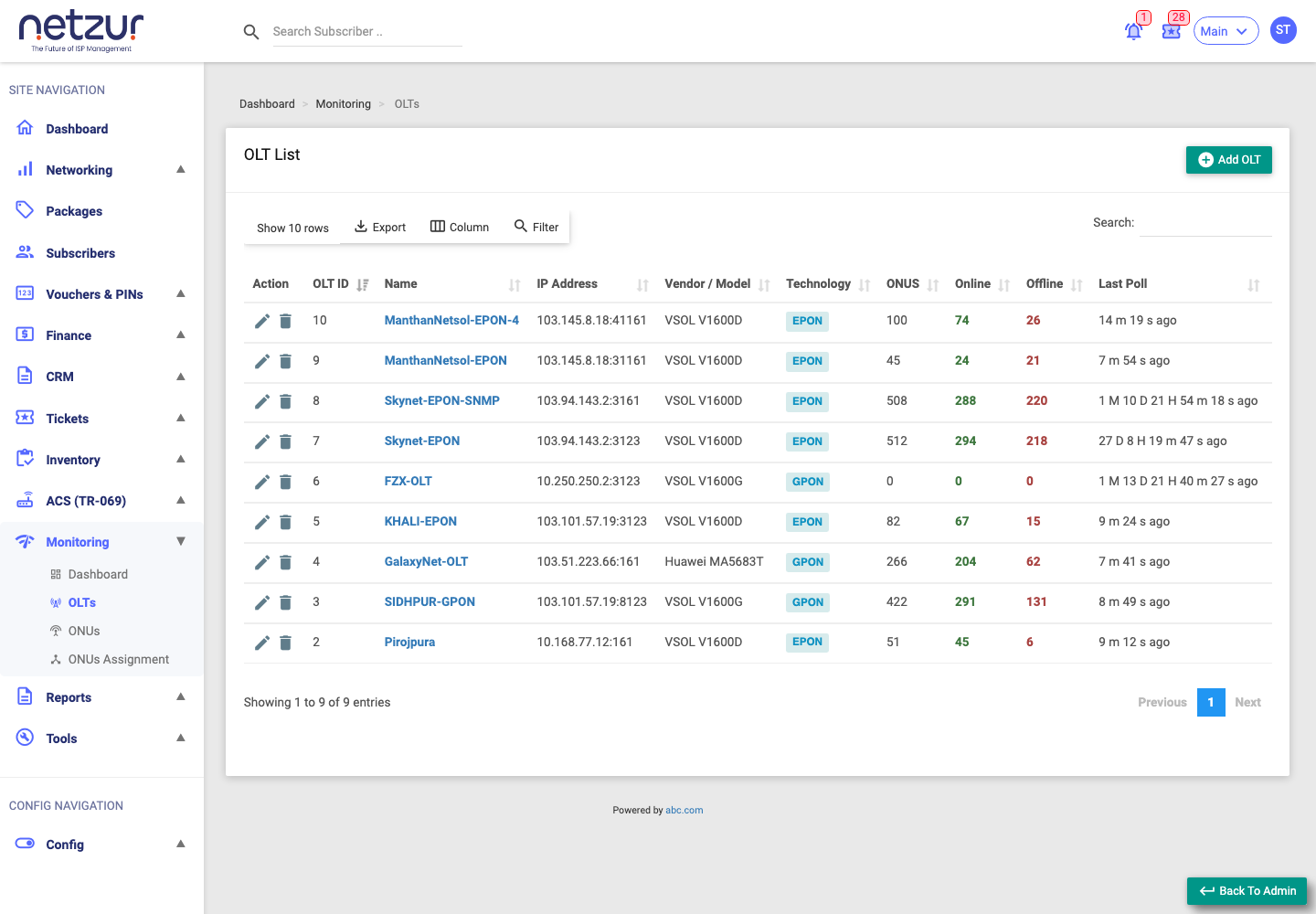
The columns
| Column | Meaning |
|---|---|
| Action | Edit (pencil) and Delete (trash) icons, per your permissions. |
| OLT ID | The OLT's internal ID. |
| Name | The OLT's name — click to open its detail page. |
| IP Address | The management address (shown as IP:port) the system uses to reach the OLT. |
| Vendor / Model | The manufacturer and hardware model. |
| Technology | EPON or GPON — the fibre technology. |
| ONUS | Total ONUs seen on this OLT. |
| Online | ONUs currently online (green). |
| Offline | ONUs currently offline (red). |
| Last Poll | How long ago the last successful poll ran. |
More columns are available via the Column button — TTL (the last-ping reachability of the OLT box: an Online badge with the ping time, or Unreachable), Poll Interval, Max PON, Status (Enabled/Disabled), and the audit fields.
Finding OLTs
Filter (per-column search, with a Status dropdown of Enabled / Disabled), the global Search, Column show/hide, and Export (Copy / Excel / Print).
Add, edit, delete
- Add OLT (top-right) opens the Add OLT form.
- Edit (pencil) opens the same form pre-filled.
- Delete (trash) removes the OLT after a confirmation.
An OLT can't be deleted while any of its ONUs are assigned to subscribers — you'll see "OLT has assigned subscribers". Unassign them first.
Enabled vs Disabled
An OLT's Status is Enabled or Disabled. A Disabled OLT is skipped by the automatic poller (no fresh data is collected for it) — use it to pause monitoring on a box that's offline for maintenance.