ONU Assignment
Overview
When ONUs are discovered by polling, they aren't yet linked to any customer. The ONU Assignment screen links unassigned ONUs to subscriber accounts — and its real power is doing it in bulk by automatically matching many ONUs to many subscribers at once, so you don't assign hundreds of boxes by hand.
"Assigning" is a monitoring link only — it records which customer a fibre box belongs to so staff can see it on the ONU pages. It does not provision or activate service.
Required Permissions
- ONU → Assign and ONU → Unassign; the matching screen also uses ONU → Assignment Report.
Navigation
Monitoring → ONU Assignment
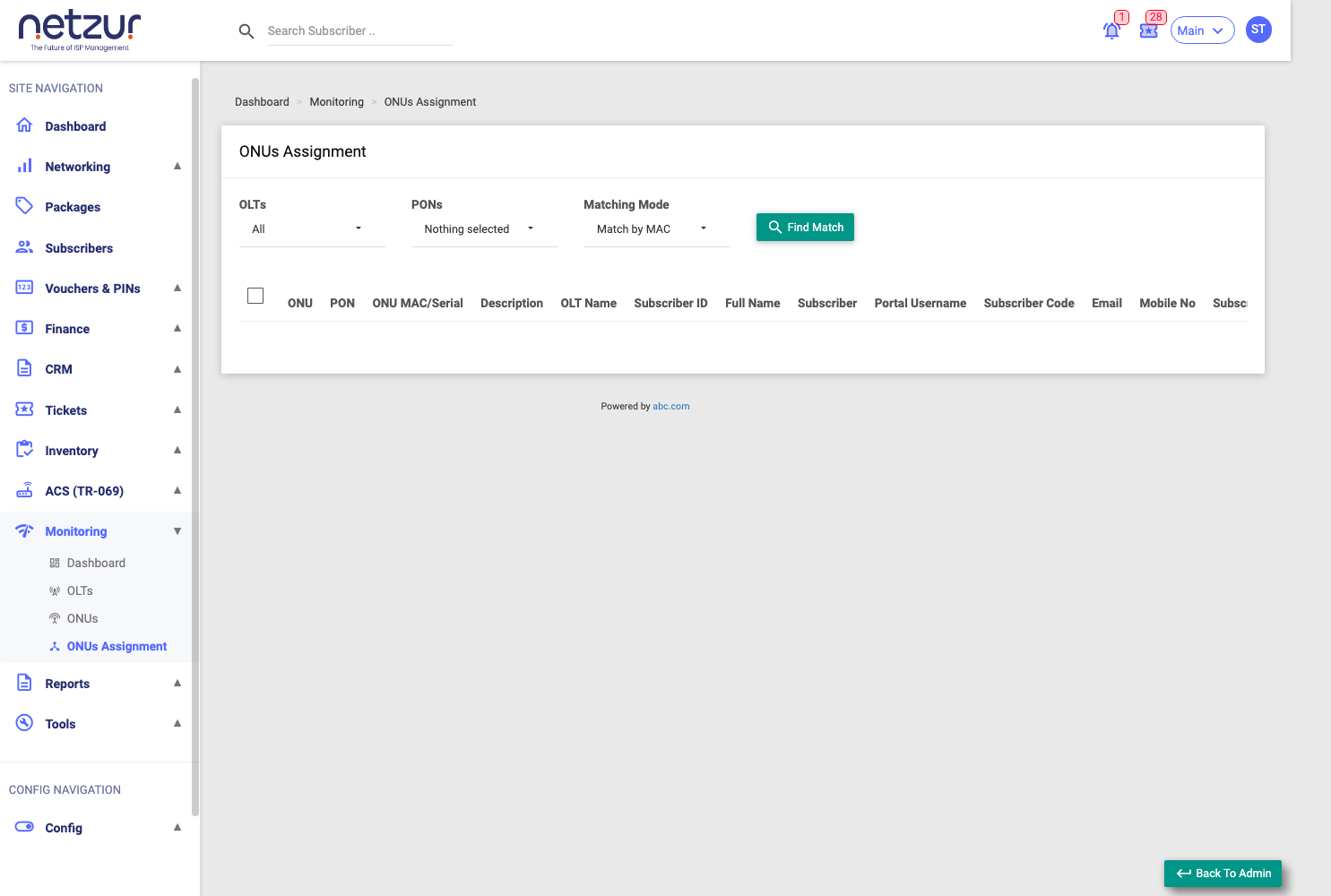
Finding matches
This screen only ever lists unassigned ONUs. You choose how to pair them with subscribers, then run the match:
- OLTs / PONs — narrow to a specific OLT and port.
- Matching Mode:
- Match by MAC — pairs an ONU with the subscriber whose stored MAC contains the ONU's MAC. The automatic, hands-off option when your customer records already hold the ONU MAC.
- Match by Description — compares the ONU's Description text against a subscriber field you choose. It reveals two more dropdowns: Matching Field (Subscriber ID, Full Name, Username, Portal Username, Subscriber Code, Email, or Mobile) and Match Operator (Contains / Exact / Starts With / Ends With).
- Find Match runs it and fills the table with proposed ONU → subscriber pairs.
The system only proposes the pairs — nothing is linked until you confirm.
The results
Each row shows the ONU (ONU index, PON, MAC/Serial, description, OLT) alongside the matched subscriber (ID, name, username, code, email, mobile, MAC), plus a Match Type badge (MAC Match, or Description / [field]) telling you which rule produced the pair — so you can sanity-check before committing.
Assigning and unassigning
- Bulk match assign — tick the pairs you're happy with and choose Action → Assign. Each ONU is linked to the subscriber it was matched with (many-to-many, in one action). The system re-verifies every pair before writing; if any pair no longer holds, nothing is assigned and it tells you why.
- Assign to one subscriber — from the ONU list or an ONU's page, the Assign button links one or more selected ONUs to a single chosen subscriber (search by username in the Assign ONU popup).
- Unassign — clears an ONU's subscriber link, from the ONU list row action or the ONU details page.
Important Notes
- Assignment refuses an ONU already linked to a different subscriber unless you use Change Subscriber.
- Get your customer records' MAC or Description fields tidy first — good data makes the automatic matching do almost all the work.