Add a NAS
Overview
This page explains how to register a new NAS (a router/gateway such as a MikroTik) so Netzur IMBS can authenticate the subscribers on it through RADIUS. You'll enter the device's name, type, IP address and a shared secret, then save.
Who Can Use This Feature
Network administrators and engineers.
Required Permissions
- NAS → Add (and NAS → Mikrotik for MikroTik-specific options).
Prerequisites
- The router is installed and reachable on the network.
- You have the router's management IP address.
- You can configure the same shared secret and RADIUS/CoA settings on the router.
Navigation
Networking → NAS → Add NAS
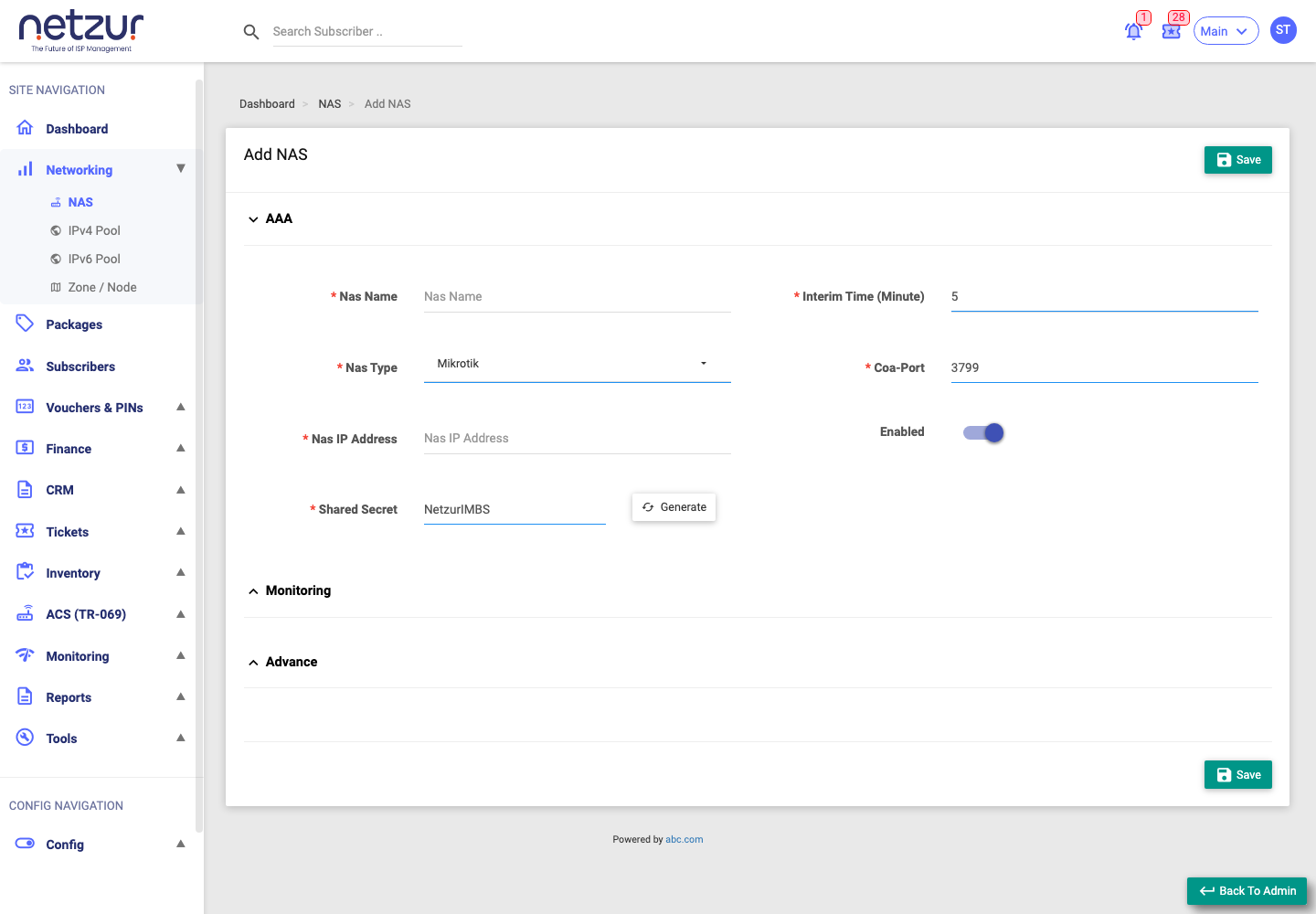
Step-by-Step Instructions
- Go to Networking → NAS and select Add NAS.
- Under the AAA section, complete the required fields (marked with *):
- Nas Name — a friendly short name.
- Nas Type — choose the device family (e.g. Mikrotik).
- Nas IP Address — the router's management IP.
- Shared Secret — type a secret, or select Generate to create a strong one. Use the same value on the router.
- Interim Time (Minute) — how often the router reports session accounting updates.
- Coa-Port — the port for live change/disconnect instructions (commonly
3799).
- Leave Enabled on so the NAS is active.
- (Optional) Expand Monitoring to let Netzur read live stats from the device and alert you when it goes up or down (see the Monitoring fields below).
- (Optional) Expand Advance for extra network options such as logging, default package/group and request blocking (see the Advance fields below).
- Select Save.
Hotspot self-registration is set up after the NAS is created: open the NAS again (Edit) and use the Hotspot tab. See Hotspot Configuration.
Field Reference
| Field | Required | Description | Example |
|---|---|---|---|
| Nas Name | Yes | Friendly short name for the device. | Office-NAS |
| Nas Type | Yes | Device family. Options include Mikrotik, Accel-PPP, NetElastic, Cisco, Juniper, Huawei, Ericsson, Alcatel, MPD, Bison-Router, Netvyn, Other. | Mikrotik |
| Nas IP Address | Yes | Management IP address of the router. | 10.0.0.1 |
| Shared Secret | Yes | Password shared between the router and Netzur (use Generate for a strong one). | (kept secret) |
| Interim Time (Minute) | Yes | Interval for session accounting updates from the router. | 5 |
| Coa-Port | Yes | Port for Change-of-Authorization / disconnect messages. | 3799 |
| Enabled | No | Whether the NAS is active. | On |
Monitoring section
| Field | Required | Description | Example |
|---|---|---|---|
| MikroTik API Username | No | Login the router API uses so Netzur can read live stats. (Sensitive — never share/screenshot.) | apiuser |
| MikroTik API Password | No | Password for the router API. (Sensitive.) | (kept secret) |
| MikroTik API Port | No | The router's API port. | 8728 |
| WinBox Port | No | The router's WinBox port. | 8291 |
| Ping Monitoring | No | Turn on the reachability (ping) check for this NAS. | On |
| Up/Down Alert | No | Send an alert when the NAS goes offline or comes back. | On |
| Telegram Chat ID | No | Where up/down alerts are sent on Telegram. | (chat id) |
Advance section
| Field | Required | Description | Example |
|---|---|---|---|
| Default Package | No | Package assigned by default for sessions from this NAS. | Basic 20 Mbps |
| Default User Group | No | User group assigned by default. | default |
| Blocked Address List | No | A router address-list used to restrict/park subscribers. | blocked |
| Blocked IP Pool | No | An IP pool used for blocked/parked subscribers. | park-pool |
| Block Unwanted Requests | No | Reject authentication requests that shouldn't be served. | On |
| Catch Username | No | Record the username seen in each request from this NAS, for troubleshooting/logging. | On/Off |
| Catch Password | No | Record the password seen in each request. Use only when diagnosing auth problems, as it logs credentials. | On/Off |
| Log Server Type | No | Where this NAS's logs are sent (the type of external log server). | — |
| Log Server Prefix | No | A prefix/directory used to tag or store this NAS's log entries. | NAS01 |
Hotspot self-registration is configured separately on the NAS Edit screen — see Hotspot Configuration.
What Happens After Saving
The NAS is added to your list and becomes active. ⚠ Netzur restarts the RADIUS service so the new device takes effect, and it begins a reachability check (shown as Status on the NAS list). For a MikroTik with monitoring configured, live stats become available under the NAS Statistics action.
Important Notes
- The shared secret and CoA-Port must match on both the router and Netzur.
- ⚠ Saving restarts RADIUS — brief and normal, but best done in a quiet period.
- The Monitoring fields ask for the router's API login. Treat these credentials as sensitive; they are never shown to subscribers and should not appear in screenshots.
Common Mistakes
- Entering a shared secret that doesn't match the router.
- Choosing the wrong Nas Type.
- Forgetting to open the CoA-Port on the router/firewall, which breaks live disconnect/suspend.
Troubleshooting
| Problem | Likely cause | What to do |
|---|---|---|
| New NAS shows Unreachable | Router unreachable or wrong IP/credentials | Confirm the IP and that the device is online; check firewall. |
| Subscribers can't authenticate | Secret mismatch or NAS not enabled | Re-check the shared secret; confirm Enabled is on. |
| No live statistics for a MikroTik | Monitoring/API details missing or wrong | Re-open the NAS, expand Monitoring, and confirm the router API details. |