Hotspot Configuration (Self-Registration)
Overview
For a hotspot NAS (captive-portal Wi-Fi on a MikroTik), the Hotspot tab on the NAS Edit screen controls how visitors register themselves and log in — instead of staff creating each account by hand. Here you set the default package they receive, how they are verified (OTP / e-KYC), which details they must enter, the captive-portal login page, your branding, and optional advertisement.
Hotspot = open Wi-Fi where users are sent to a sign-up/login page before they can browse.
Who Can Use This Feature
Network administrators setting up public or semi-public Wi-Fi.
Required Permissions
- NAS → Hotspot (with NAS → Update).
Prerequisites
- The NAS is a hotspot device with self-registration enabled (the Hotspot tab only appears for such a NAS).
- The package(s) and package group self-registering users should receive already exist.
- For OTP/e-KYC verification, the relevant notification and KYC settings are configured.
Navigation
Networking → NAS → open a hotspot NAS (Edit) → the Hotspot tab.
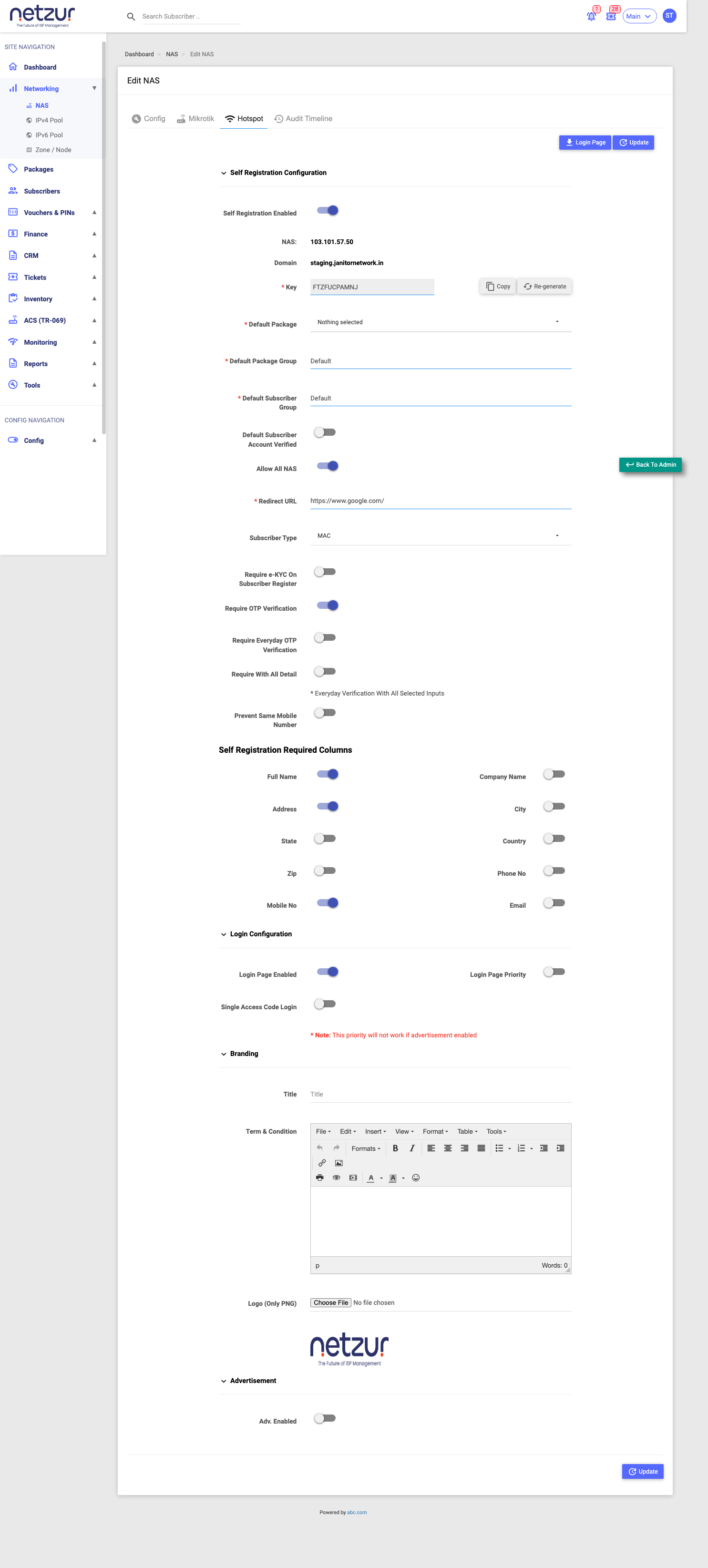
Self Registration Configuration
| Field | Description |
|---|---|
| Self Registration Enabled | Turns self-registration on for this hotspot. |
| NAS / Domain | The NAS IP and portal domain (shown for reference). |
| Key | The hotspot key that links the captive portal to Netzur. Use Copy to copy it, or Re-generate to issue a new one. |
| Default Package | The package a self-registered user receives. |
| Default Package Group | The package group offered. |
| Default Subscriber Group | The subscriber group new users are placed in. |
| Default Subscriber Account Verified | Whether new accounts are treated as verified automatically. |
| Allow All NAS | Let these hotspot logins work on all NAS devices; turn off to restrict to selected NAS. |
| Redirect URL | Where users are sent after logging in (e.g. your website). |
| Subscriber Type | The type of subscriber created (e.g. MAC). |
| Require e-KYC On Subscriber Register | Require identity (e-KYC) verification during sign-up. |
| Require OTP Verification | Require a one-time password (SMS/email) to confirm the mobile/email. |
| Require Everyday OTP Verification | Ask for OTP each day, not only at first sign-up. |
| Require With All Detail | Everyday verification checks all the selected inputs. |
| Prevent Same Mobile Number | Block a mobile number from registering more than once (a variant also covers all sites). |
Self Registration Required Columns
Toggles that decide which fields appear on the sign-up form (and are required): Full Name, Company Name, Address, City, State, Country, Zip, Phone No, Mobile No, Email. Turn on only what you actually need from visitors.
Login Configuration
| Field | Description |
|---|---|
| Login Page Enabled | Show the captive-portal login page. |
| Login Page Priority | Prioritise the login page. Note: this has no effect when advertisement is enabled. |
| Single Access Code Login | Allow logging in with a single access code. |
The Login Page button (top of the tab) opens the captive-portal login-page setup/preview.
Branding
| Field | Description |
|---|---|
| Title | The title shown on the portal. |
| Term & Condition | The terms text shown to users (rich-text editor). |
| Logo (Only PNG) | Your logo for the portal — PNG only. |
Advertisement
Turn on Adv. Enabled to show an advertisement and set its URL on the captive portal. (When advertisement is on, Login Page Priority above is ignored.)
Saving
Use Update (top or bottom of the tab) to save the hotspot configuration.
Important Notes
- The Hotspot tab is only present for a hotspot NAS with self-registration — it won't appear on an ordinary NAS.
- Choose the Default Package carefully: it decides what access strangers can grant themselves.
- OTP and e-KYC verification send real messages / call the KYC vendor — make sure those channels are configured.
- Treat the Key as sensitive; re-generating it changes what the captive portal must use.
Common Mistakes
- Requiring too many fields on the sign-up form, which puts visitors off.
- Enabling advertisement and then wondering why Login Page Priority has no effect.
- Exposing a paid package as the self-registration default by mistake.
Troubleshooting
| Problem | Likely cause | What to do |
|---|---|---|
| No Hotspot tab on a NAS | The NAS isn't a hotspot / self-registration device | Confirm the NAS is set up for hotspot self-registration. |
| Users can't finish sign-up | A required field or verification can't be met, or no default package | Review the required columns, verification toggles and Default Package. |
| OTP never arrives | SMS/email channel not configured | Check the notification settings. |
Related Guides
- NAS Overview
- Add a NAS
- Vouchers & PINs (related prepaid/hotspot access)