Fair Usage Policy (FUP)
Overview
A Fair Usage Policy (FUP) lets a package change what a subscriber gets after they have used a certain amount of data or time. Instead of one fixed speed for the whole month, you can say things like:
"Give 100 Mbps, but after 500 GB in a month, drop to 10 Mbps for the rest of the month."
Each of those "after X, do Y" statements is one FUP rule. A package can have several rules, and they are evaluated together.
FUP rules live in the FUP Rules table inside a package's Edit screen. You will not find FUP on the Add-package screen — a package must be saved first, then reopened to add rules.
Not to be confused with Custom Attributes. The same panel also holds a separate Custom Attribute table for technical RADIUS values. That is a different feature — see Custom RADIUS Attributes.
Who Can Use This Feature
Network administrators and technically-minded managers who understand the speeds and data limits they want to enforce.
Required Permissions
- Package → Update to add, edit or delete rules.
- Package → Show to view them.
Prerequisites
- The package already exists (see Add an Internet Package).
- You know the threshold (how much data or time triggers the change) and the speed you want to apply afterwards.
How to Access FUP
- Go to Packages and open the Internet tab.
- Find the package and select Edit (the pencil).
- Scroll to the Rule / Custom Attribute panel near the bottom and expand it.
- Under FUP Rules, use Add to create a rule (or the pencil/bin on an existing row to edit or delete one).
Packages → (open a package) → Edit → Rule / Custom Attribute → FUP Rules
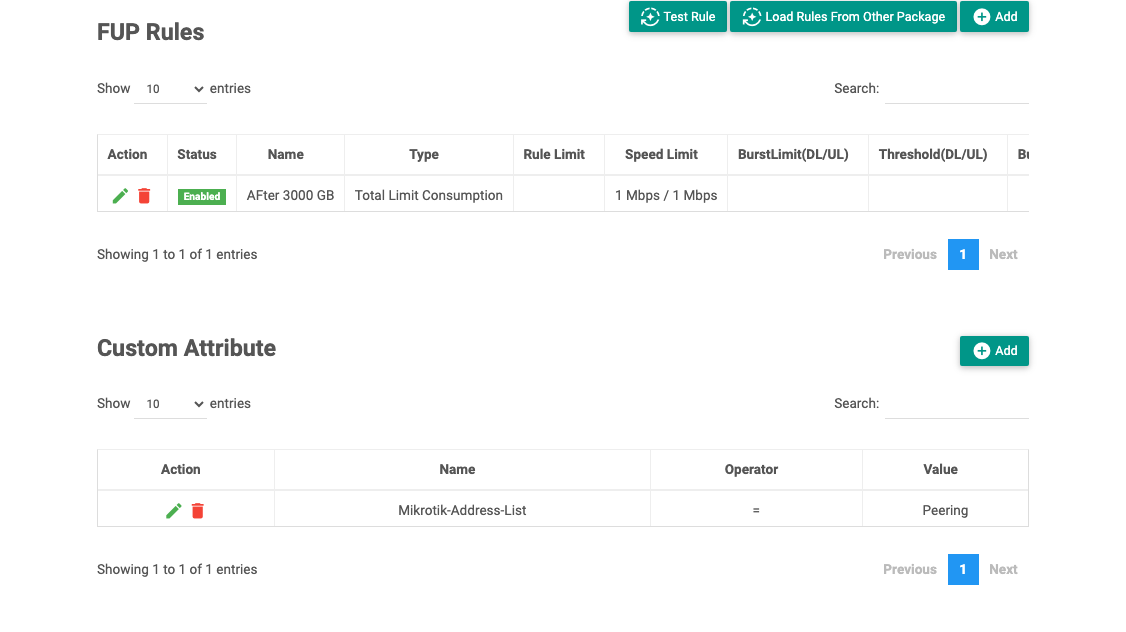
The example above is the 20Mbps_Unlimited package: one enabled rule named "After 3000 GB" of type Total Limit Consumption that drops the subscriber to 1 Mbps / 1 Mbps once they have used 3000 GB in total.
The FUP Rules table shows every rule already on the package:
| Column | Meaning |
|---|---|
| Action | Edit or delete the rule. |
| Status | Enabled (active) or Disabled. |
| Name | The rule's name. |
| Type | What the rule counts (e.g. Monthly Consumption, Daily Online, Time Of Day). |
| Rule Limit | The threshold that triggers the rule (data amount, time, or a schedule). |
| Speed Limit | The download / upload speed applied when the rule triggers (or Blocked). |
| BurstLimit / Threshold / BurstTime / Priority | Burst settings, shown only if the rule uses burst. |
| Min Speed | The minimum guaranteed speed, if set. |
Three buttons sit above the table:
- Add — create a new rule.
- Test Rule — check which rule would trigger for a given amount of usage (see Testing a rule).
- Load Rules From Other Package — copy all the rules from another package into this one, to save re-typing.
Adding an FUP rule
Select Add to open the Add Rule dialog. A rule has two halves: a Rule Condition (when it triggers) and a Rule Action (what happens).
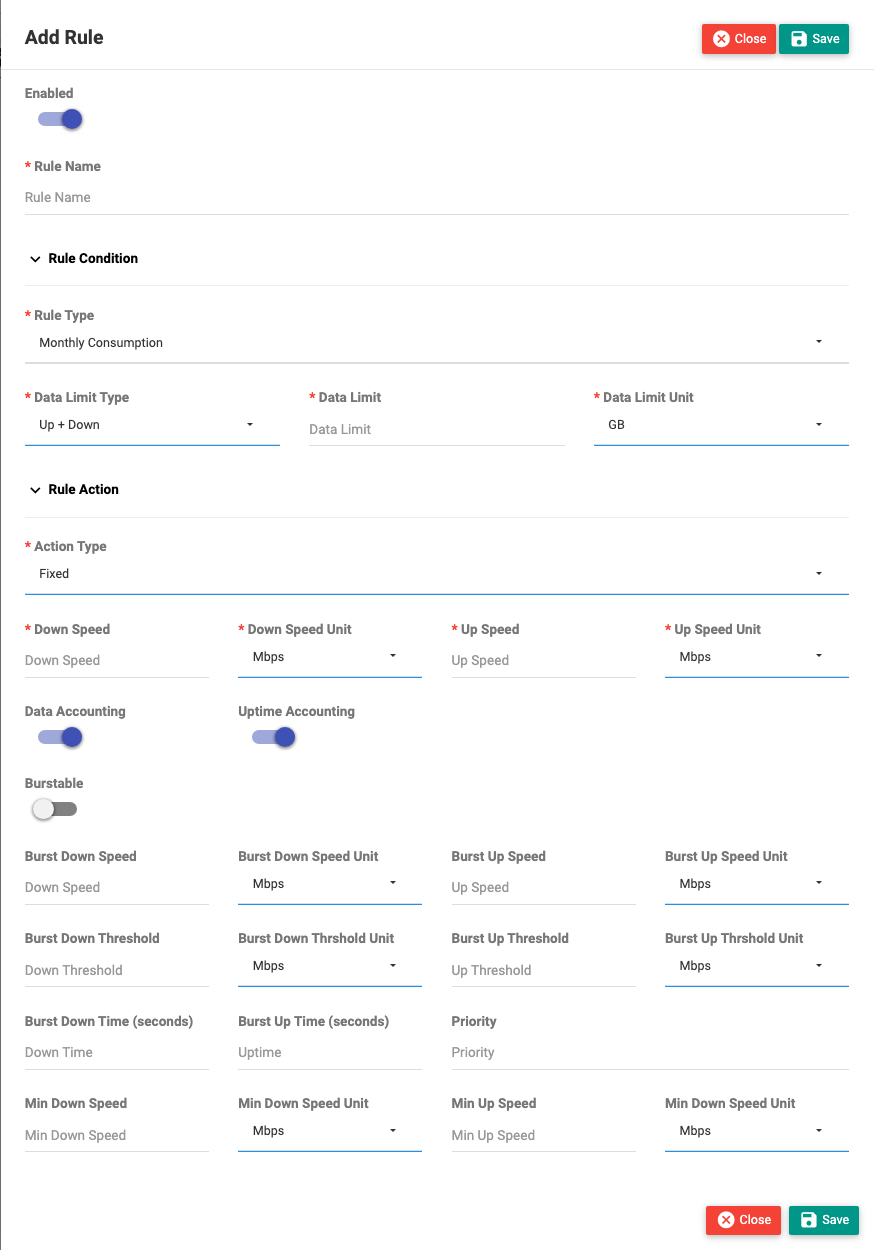
Rule Condition — when the rule triggers
First choose a Rule Type. The fields below change to match the type you pick:
| Rule Type | Triggers when the subscriber has used… | You set |
|---|---|---|
| Total Limit Consumption | this much total data since activation (does not reset each cycle) | Data Limit + unit |
| Daily / Weekly / Monthly Consumption | this much data in a day / week / month | Data Limit + unit |
| Daily / Weekly / Monthly Online | this much online time in a day / week / month | Uptime Limit + unit |
| Time Of Day | the current time falls in a set window on chosen days | From/To time + Allowed Days |
| Day Of The Week | the day is one of the chosen days | Days Of Week |
Condition fields:
| Field | Applies to | Description |
|---|---|---|
| Data Limit Type | Consumption types | Whether to count Upload, Download, or Up + Down together. |
| Data Limit + Unit | Consumption types | The amount that triggers the rule (KB/MB/GB/TB). |
| Uptime Limit + Unit | Online-time types | The online time that triggers the rule (Minutes/Hours). |
| From Time / To Time | Time Of Day | The daily window during which the rule applies. |
| Allowed Days / Days Of Week | Time Of Day / Day Of Week | Which weekdays the rule applies on. |
Consumption vs Total Limit: Daily/Weekly/Monthly Consumption resets at the start of each day/week/month, so a subscriber gets full speed again next cycle. Total Limit Consumption keeps counting and does not reset — use it for one-off "lifetime" data caps.
Rule Action — what happens when it triggers
Action Type decides the outcome:
- Fixed — apply a new download/upload speed (usually slower). The speed fields appear.
- Block — cut the subscriber's access until the counter resets.
Action fields (for Fixed):
| Field | Description |
|---|---|
| Down Speed / Up Speed (+ units) | The speed the subscriber is limited to once the rule triggers. |
| Data Accounting | Whether data is still counted while this rule is active. |
| Uptime Accounting | Whether online time is still counted while this rule is active. |
| Burstable | Turn on to allow a short burst above the limited speed (reveals the burst fields). |
| Burst Down/Up Speed, Threshold, Time, Priority | Standard MikroTik-style burst settings — a higher speed allowed briefly before settling to the limited speed. |
| Min Down/Up Speed | The lowest speed the subscriber is guaranteed. |
Give the rule a Name, leave Enabled on, and select Save. The rule appears in the FUP Rules table and takes effect through RADIUS.
Testing a rule
Test Rule lets you check your rules without waiting for a real subscriber to hit the limit. You enter hypothetical usage — for example a daily download/upload amount or online time — and Netzur tells you which rule would trigger and the resulting action (speed or Blocked). Use it after building rules to confirm the thresholds behave the way you expect.
Copying rules between packages
Load Rules From Other Package copies every FUP rule from a package you choose into the one you are editing. This is the fastest way to give several plans the same FUP behaviour — but always review the copied thresholds and speeds, because a rule that suits a 100 Mbps plan may be wrong for a 20 Mbps plan.
What Happens After Saving
Rules are stored with the package and enforced through RADIUS for every subscriber on that plan. Changing a rule affects all current subscribers at their next accounting update. You can see who is currently limited under Reports → FUP Applied Subscribers.
Important Notes
- FUP changes the real experience for many subscribers at once — change thresholds deliberately.
- A rule only acts while Enabled; disable a rule to pause it without deleting it.
- Block action cuts access until the counter resets — use it carefully on consumption rules.
- Consumption/online-time counters reset per their period (daily/weekly/monthly); Total Limit does not reset.
Common Mistakes
- Setting a threshold so low that customers are throttled too early in the cycle.
- Confusing Total Limit Consumption (never resets) with Monthly Consumption (resets each month).
- Copying rules from a very different plan without adjusting the speeds and thresholds.
- Forgetting that FUP is on Edit, not Add — a new package has no rules until you add them.
Troubleshooting
| Problem | Likely cause | What to do |
|---|---|---|
| Subscribers throttled unexpectedly | An FUP rule is triggering | Open the package, review the rule's threshold and speed; use Test Rule to confirm. |
| A rule never triggers | Rule disabled, wrong type, or threshold too high | Check Status, the Rule Type, and the limit; test it. |
| Wrong speed after throttling | Down/Up speed or unit set incorrectly | Edit the rule's Rule Action speeds. |
| Need the same FUP on many plans | Re-typing each time | Use Load Rules From Other Package, then review. |