Roles
Overview
A Role is a named set of permissions you can hand to staff — for example Support, Full Access or Read only. Instead of setting access person by person, you define it once on a role and assign that role to each Login Account.
Navigation: Permissions → Roles
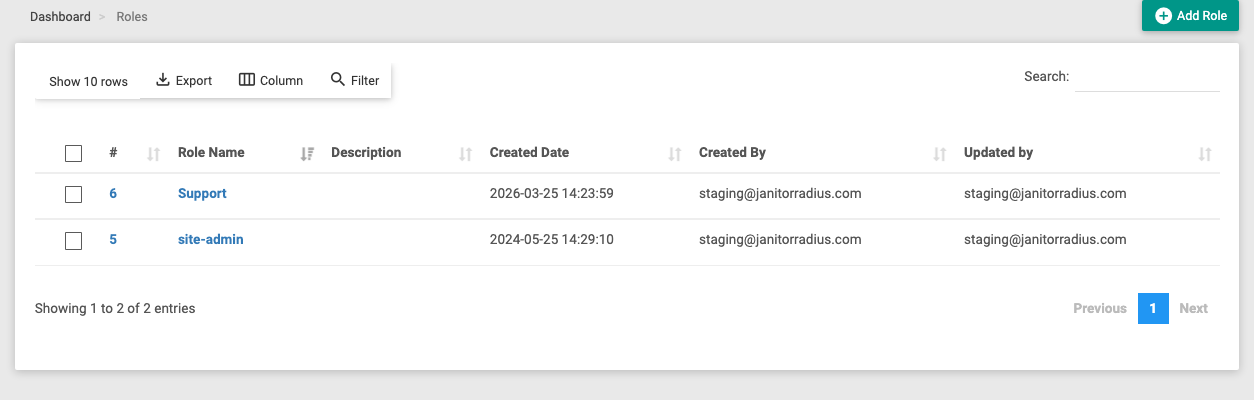
The list shows each role's Name, Description, and who created/updated it. Add Role (top-right) creates a new one; click a role's name to edit it.
Creating a role
Click Add Role and give it the basics:
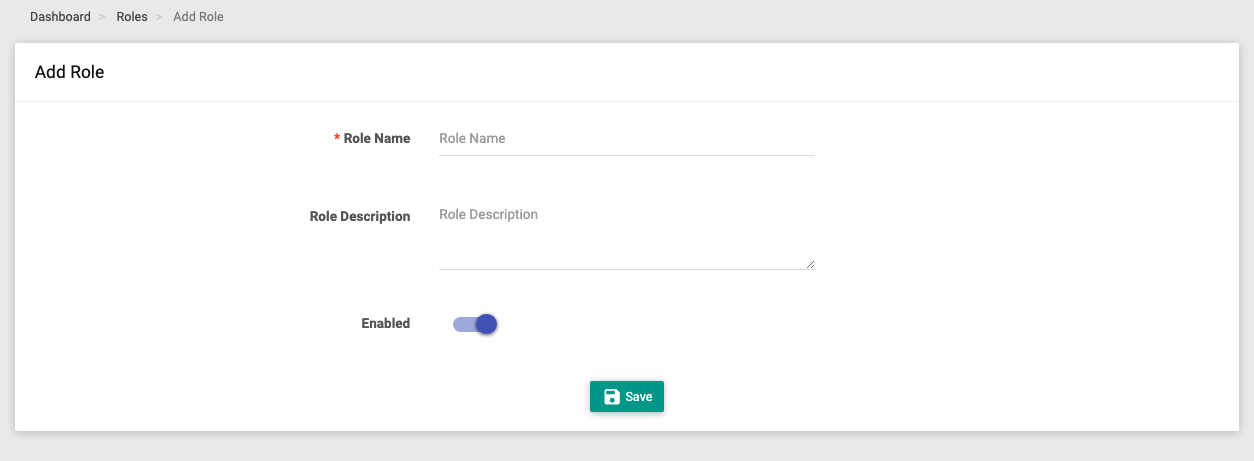
| Field | What it does |
|---|---|
| Role Name | A name for the role (e.g. "Front-desk"). Must be unique. |
| Role Description | An optional note about what the role is for. |
| Enabled | Whether the role is active and can be assigned. |
Click Save. The role is created with no permissions yet — you grant them on the edit page.
Setting permissions
Open a role (click its name) to reach the Edit Role page, where you tick exactly what that role may do.

The permissions are grouped by module (Site Dashboard, Subscriber, Subscriber Action, NAS, Package, Invoice, Payments, Ticket, OLT, ONU, ACS Devices, Inventory, Config, Report, and more). Within each module you tick the individual permissions — the common ones are:
| Permission | Meaning |
|---|---|
| List | See the module's list/page. |
| Show | Open an individual record. |
| Add | Create new records. |
| Update | Edit existing records. |
| Delete | Remove records. |
Many modules add their own actions — for example Invoice → Rollback, Payments → Add/Receive, OLT → Poll, ONU → Assign, Ticket → Show All Tickets, or the per-item actions under Inventory Item (Sell, Rent, Assign, Return…).
Helpers on this page:
- Select All / De-Select All — tick or clear every permission at once (there's also a Select All per module).
- Search By Module — filter the grid to find a module quickly.
- Readonly — mark the role read-only. A read-only role is granted view access only, regardless of what's ticked — useful for auditors or trainees who should look but not change anything.
- Audit Timeline tab — the history of changes to this role.
Click Update to save. Everyone assigned this role gets the new access immediately.
:::note Privacy permissions The Privacy module in the grid controls who can see subscribers' mobile number, email and address, and who can export data. If contact details look masked for a staff member, it's because their role doesn't have the matching Privacy permission. :::
:::caution Grant carefully Powerful permissions (Delete, Rollback, Terminate, Config changes, Login As Subscriber) let staff make hard-to-reverse changes. Give each role only what that job needs. :::