Notifications, Logs & Alerts Reports
These reports are for delivery tracking, troubleshooting and audit — did a message reach the customer, who logged in (or was rejected), what changed, and which raw log files exist.
All share the standard interface (filter bar → Search → results table). See How every report works.
Notifications
Menu: Reports → Notifications
Shows every automated message the system sent to customers or staff (email, SMS, WhatsApp, Telegram, push) and whether each delivery succeeded or failed.
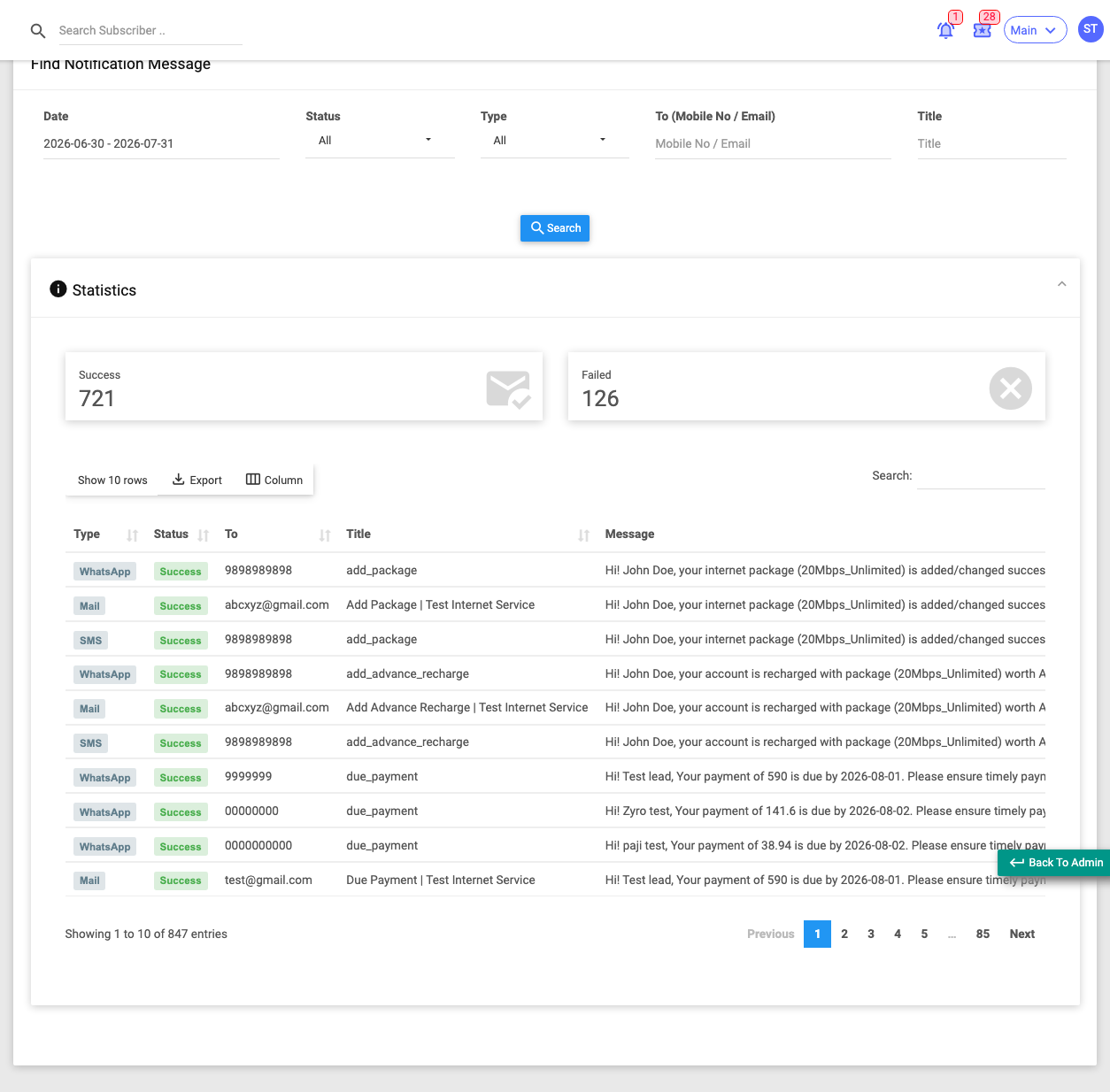
Use it when a customer says they didn't receive an OTP, invoice or reminder — you can check whether it was actually sent and delivered.
Filters: Date, Status (All / Success / Failed), Type (All / Mail / SMS / WhatsApp / Telegram / Push Notification), To (recipient mobile/email), Title (subject).
Columns: Type, Status, To, Title, Message, Created By, Created Date.
Summary tiles: Success, Failed.
Logs
Menu: Reports → Logs
A single troubleshooting screen for authentication and audit history. It's organised into two collapsible sections, each with tabs.
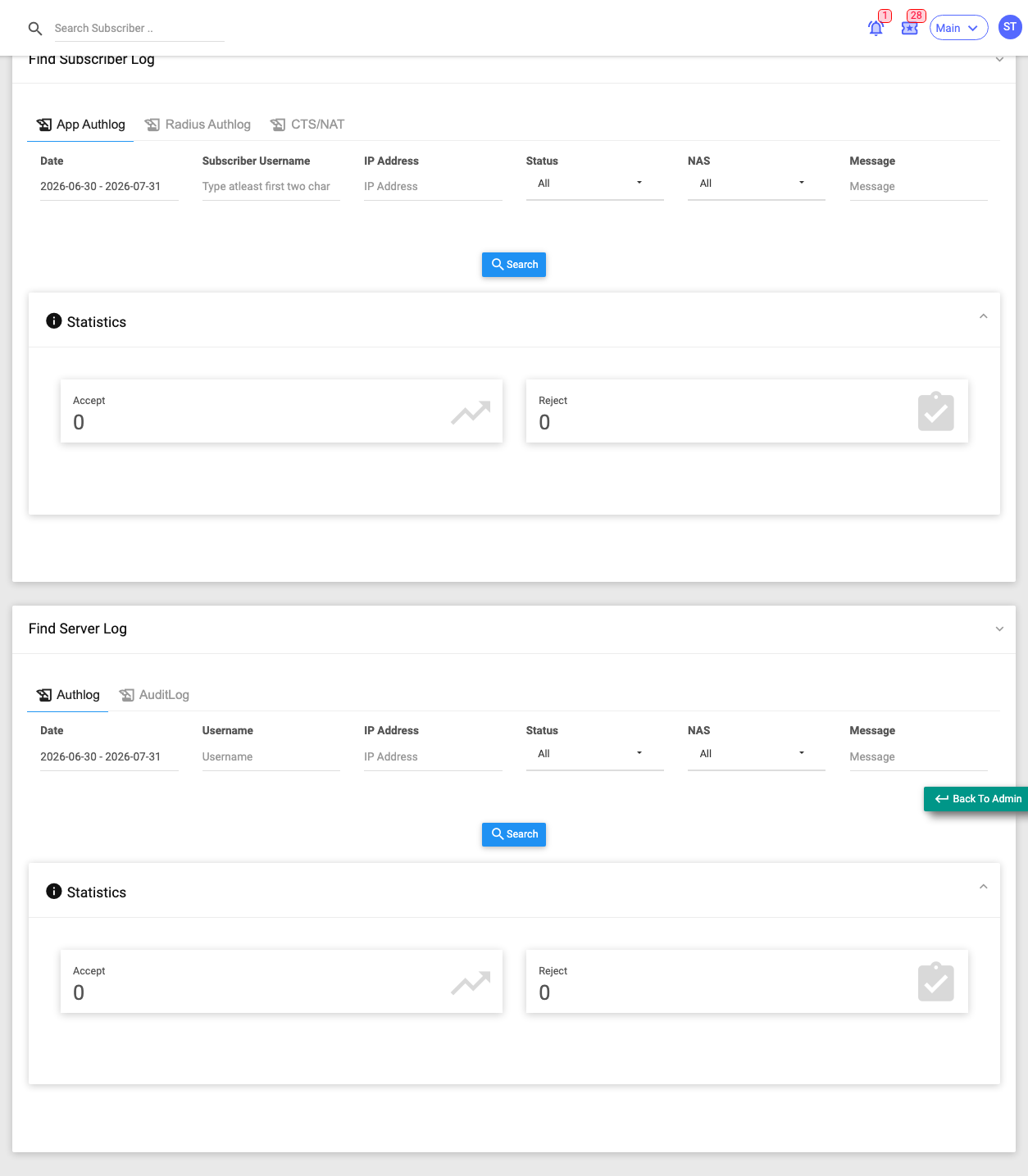
Use it when you need to see why a login was rejected, review RADIUS accept/reject records, or audit who changed what.
Find Subscriber Log
| Tab | What it shows | Notable filters |
|---|---|---|
| App Auth Log | Captive-portal / app login attempts by subscribers | Date, Username, IP, Status (Accept/Reject), NAS, Message |
| Radius Auth Log | RADIUS accept/reject records | Date, Username, IP, Status, NAS, MAC, Message |
| CTS/NAT | Carrier-grade NAT / connection-tracking log files per NAS | Date, NAS |
The CTS/NAT tab also has a Request for Log button — a modal (Date, Time, NAS, Contains, Remark) with a Generate button that asks the router to produce an older NAT log that isn't already on the server.
Find Server Log
| Tab | What it shows | Notable filters |
|---|---|---|
| Auth Log | Admin/operator panel login attempts | Date, Username, IP, Status, NAS, Message |
| Audit Log | A change/audit trail of actions across modules | Date, IP, Status, Module Type, Message, Action By |
Each tab shows Accept / Reject summary tiles. In the Audit Log, subscriber rows link to the subscriber, and a deleted-subscriber row may offer a Recover Data link.
For security, a password is only ever shown (as a badge) on a rejected attempt — never on an accepted one. "Accept / Reject" means whether the login or action was allowed.
Alerts
Menu: Reports → Alerts
Shows system-generated alerts for your site — operational notices — prioritised Low → Critical.
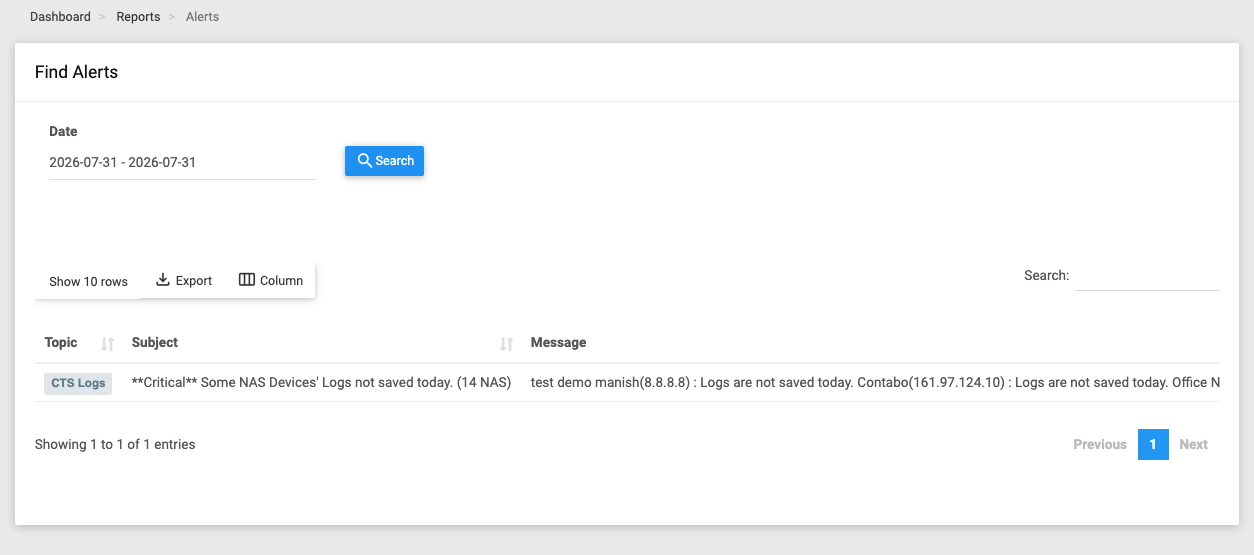
Use it when you want to review what the system has flagged for your attention.
Filters: Date. (With no range chosen, it defaults to today's alerts.)
Columns: Topic, Subject, Message, Priority (Low / Medium / High / Critical — colour-coded), Created At.
Actions: Click a row to open a View Alert popup with the full detail.
Syslog
Menu: Reports → Syslog
Lists the raw Syslog / NAT-log files stored for a chosen router, for download and deep inspection.
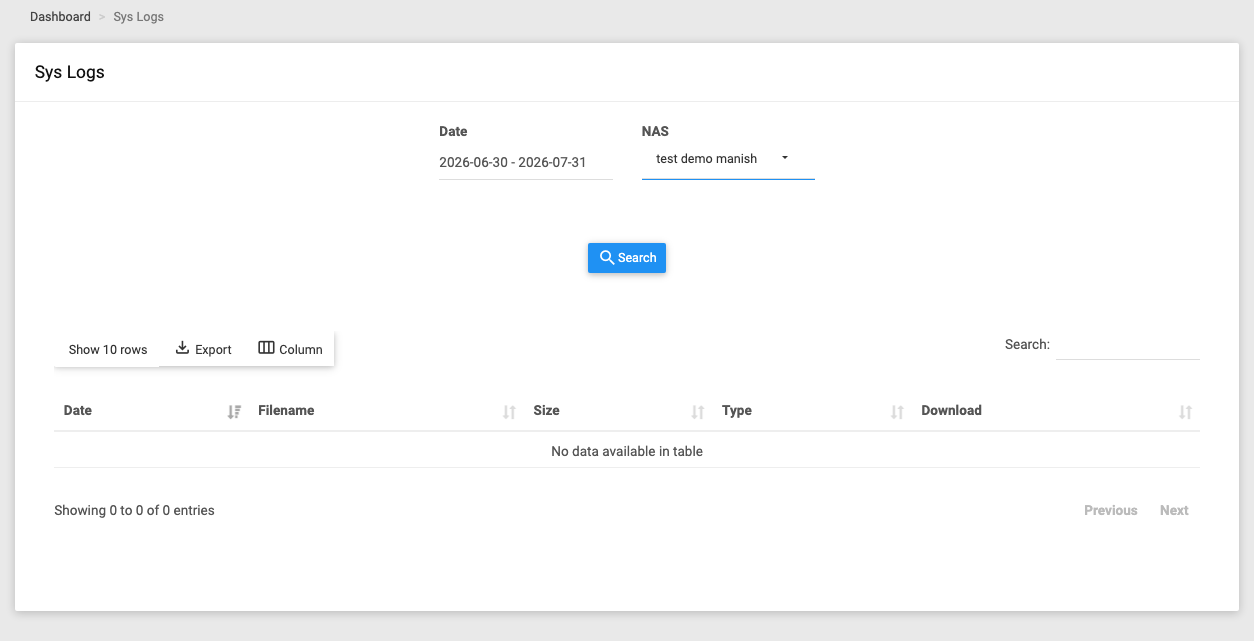
Use it when you need to pull a specific router's log file for detailed investigation.
Filters: Date, NAS (the router).
Columns: Date, File Name, Size, Type (SysLog / NATLog), Download.
Actions: Each row has a Download button and a Deep Filter button that opens a dedicated search page for that file in a new tab.
Files may come from an internal store or a remote log server — the report shows both transparently. Access is permission-gated.