Sales & Recharges Reports
These reports cover money coming in from plans — what sold, to whom, renewals due, new customers, scheduled recharges, plan-change history, and any custom pricing.
All reports here share the standard interface (filter bar → Search → results table with Column chooser and Export). See How every report works.
All amounts are shown in your site's configured currency.
Package Wise Sales
Menu: Reports → Package Wise Sales
A summary of sales grouped by package — one row per plan, showing how many you sold and how much each plan billed, was paid, and is still owed.
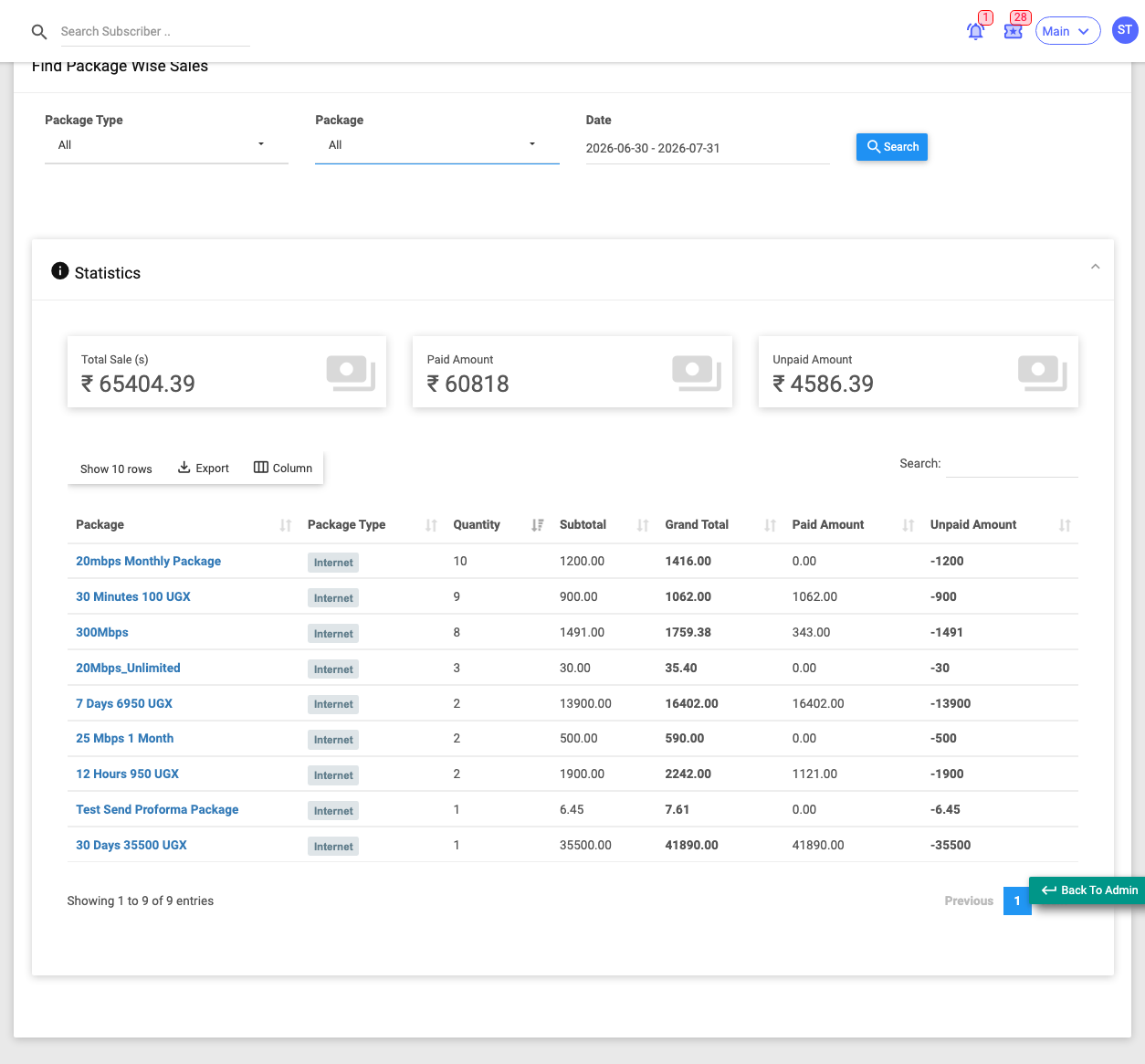
Use it when you want a quick "best-selling plan / revenue by plan" view.
Filters: Package Type (All / Internet / OTT / IPTV / Add-on), Package, Date (invoice date).
Columns: Package, Package Type, Quantity, Subtotal, Discount, Total Tax, Grand Total, Paid Amount, Unpaid Amount. (Discount and Tax columns are hidden by default — re-enable them with the Column button.)
Summary tiles: Total Sales, Paid Amount, Unpaid Amount.
Counts only real recharge (system-generated) sales invoices. Manual/custom invoices are excluded — use the Sales report for those.
Sales
Menu: Reports → Sales
The detailed, invoice-by-invoice sales ledger — one row per invoice, showing who was billed, for what plan, and whether it's paid.
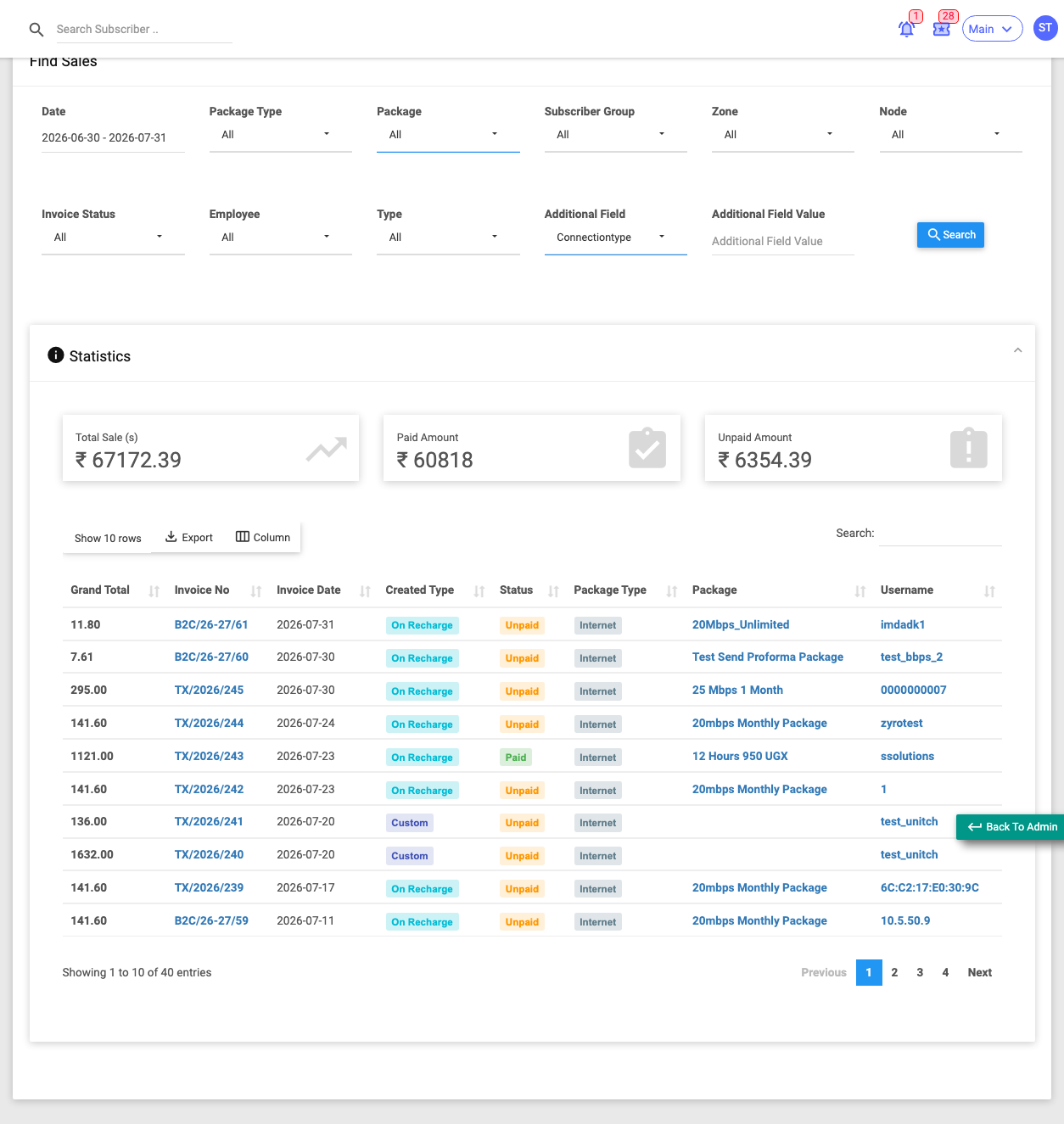
Use it when you need the full detail behind your sales figures, or to find a specific invoice.
Filters: Date, Package Type, Package, Sub Group, Zone, Node, Invoice Status (All / Paid / Unpaid / Rollback), Employee (who created it — a staff member, Subscriber Self, or System), Type (New vs Existing customer), and an Additional Field + value filter for custom subscriber fields.
Key columns: Invoice No, Invoice Date, Created Type (On Recharge / Custom), Status, Package, Username, Subtotal, Discount, Tax, Grand Total, Paid Amount, Unpaid Amount, plus full contact/account columns.
Summary tiles: Total Sales, Paid Amount, Unpaid Amount.
Proformas are not included here. The Additional Field filters only work if your site has defined custom subscriber fields.
Renewals
Menu: Reports → Renewals
Lists subscribers by expiry date — who is due to renew (or has expired) within a chosen window — so you can follow up or renew in bulk.
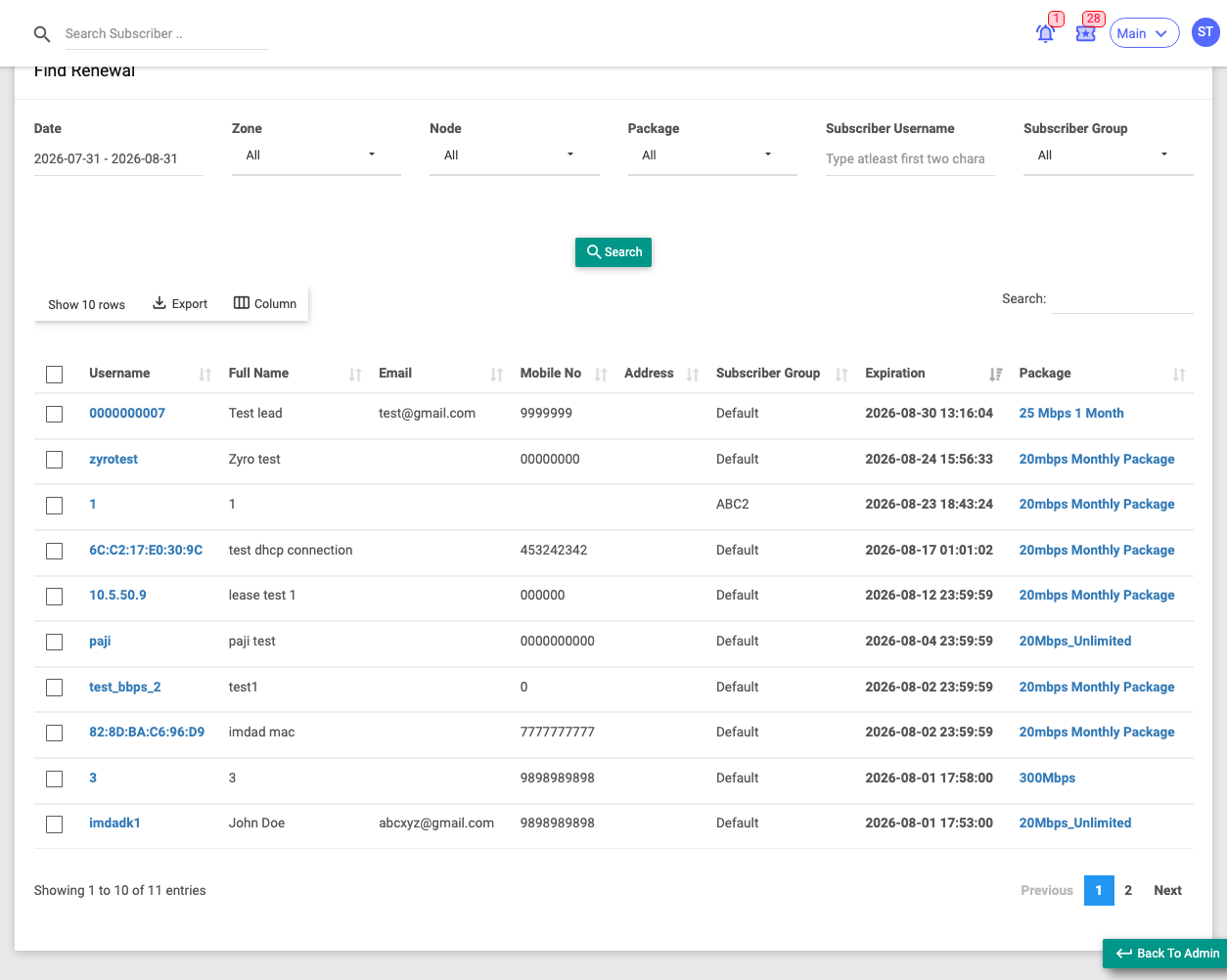
Use it when you want to chase upcoming expiries or bulk-renew a group of customers.
Filters: Date (expiry date), Zone, Node, Package, Subscriber Username, Sub Group.
Key columns: a selection checkbox, Username, Expiration, Last Recharge Date, Package, plus full contact/account columns.
Bulk actions: Select rows and an Action menu appears. Depending on your permissions this can include Bulk Renew, Enable/Disable, Change Package, Change Expiry Date, Set Data/Uptime Limit, Change Zone/Node/Group/NAS/OLT, Terminate, and more.
:::caution Bulk actions change live accounts Every option in the Action menu edits real customer accounts. You only see the actions your role permits, and a few (Set Data Limit, Set Uptime Limit, Change Expiry Date) appear only on data/time-based sites. :::
New Subscription
Menu: Reports → New Subscription
Newly registered subscribers within a date range — how many, and which, customers you onboarded.
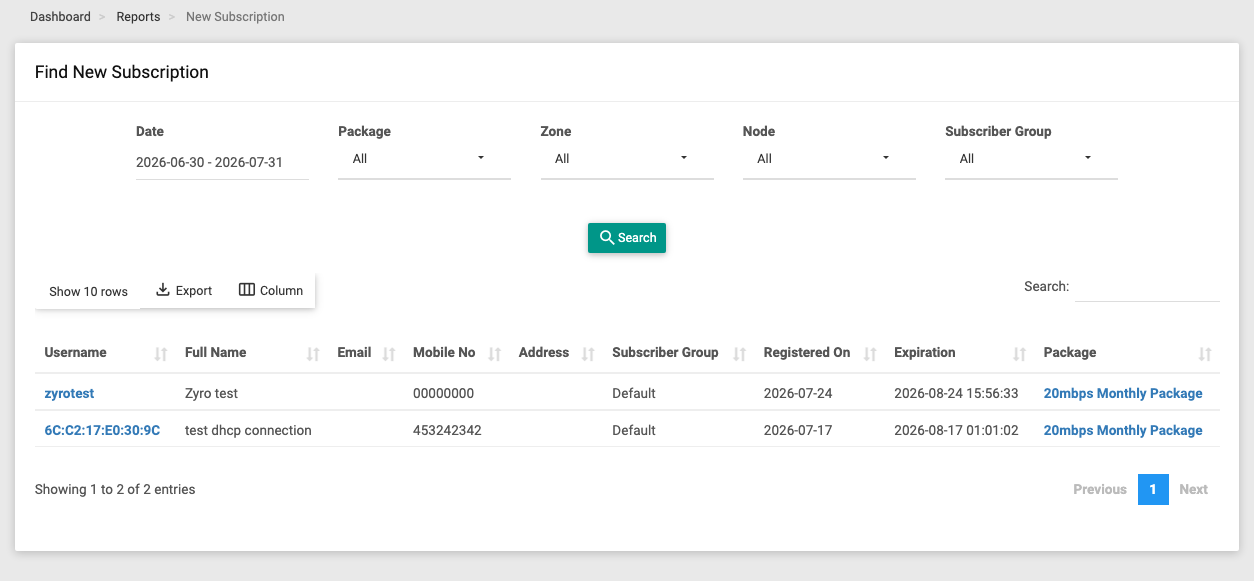
Use it when you want to measure onboarding or see who signed up in a period.
Filters: Date (registration date), Package, Zone, Node, Sub Group.
Key columns: Username, Registered On, Expiration, Package, Registered By (which staff member, or self-signup), plus contact/account columns.
:::note Voucher accounts are excluded. :::
Advance Recharge
Menu: Reports → Advance Recharge
Scheduled, pre-paid future recharges — which customers have a recharge queued to apply later, for what plan and amount, and when.
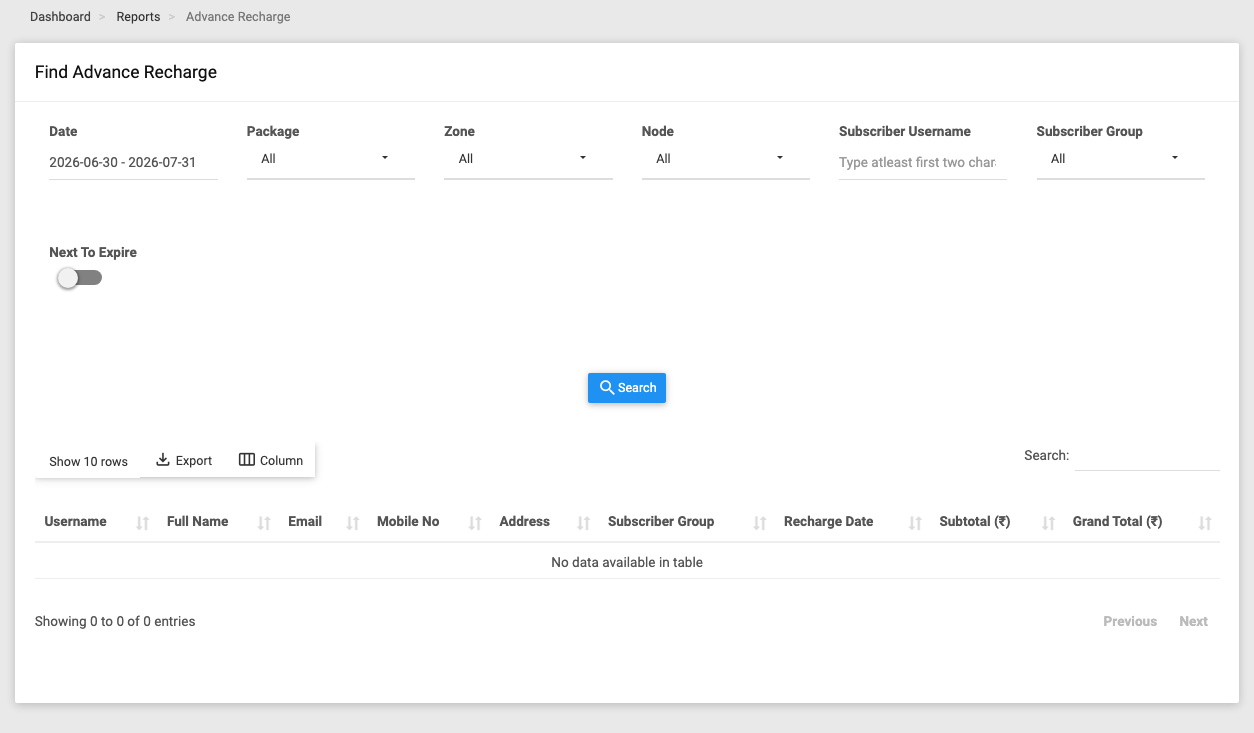
Use it when you want to see upcoming automatic recharges (what will be charged — this is a planning view, not collected money).
Filters: Date (schedule date), Package, Zone, Node, Subscriber Username, Sub Group, and a Next To Expire toggle (show only recharges set to apply on the customer's next expiry, ignoring the date filter).
Key columns: Username, Recharge Date (or a Next Expire badge), Subtotal, Discount, Tax, Grand Total, plus contact/account columns.
A Next Expire entry has no fixed date — it triggers automatically when the customer's current plan expires.
Package History
Menu: Reports → Package History
A history of package changes and recharges applied to subscribers — what happened, when it was scheduled vs applied, and whether it succeeded.
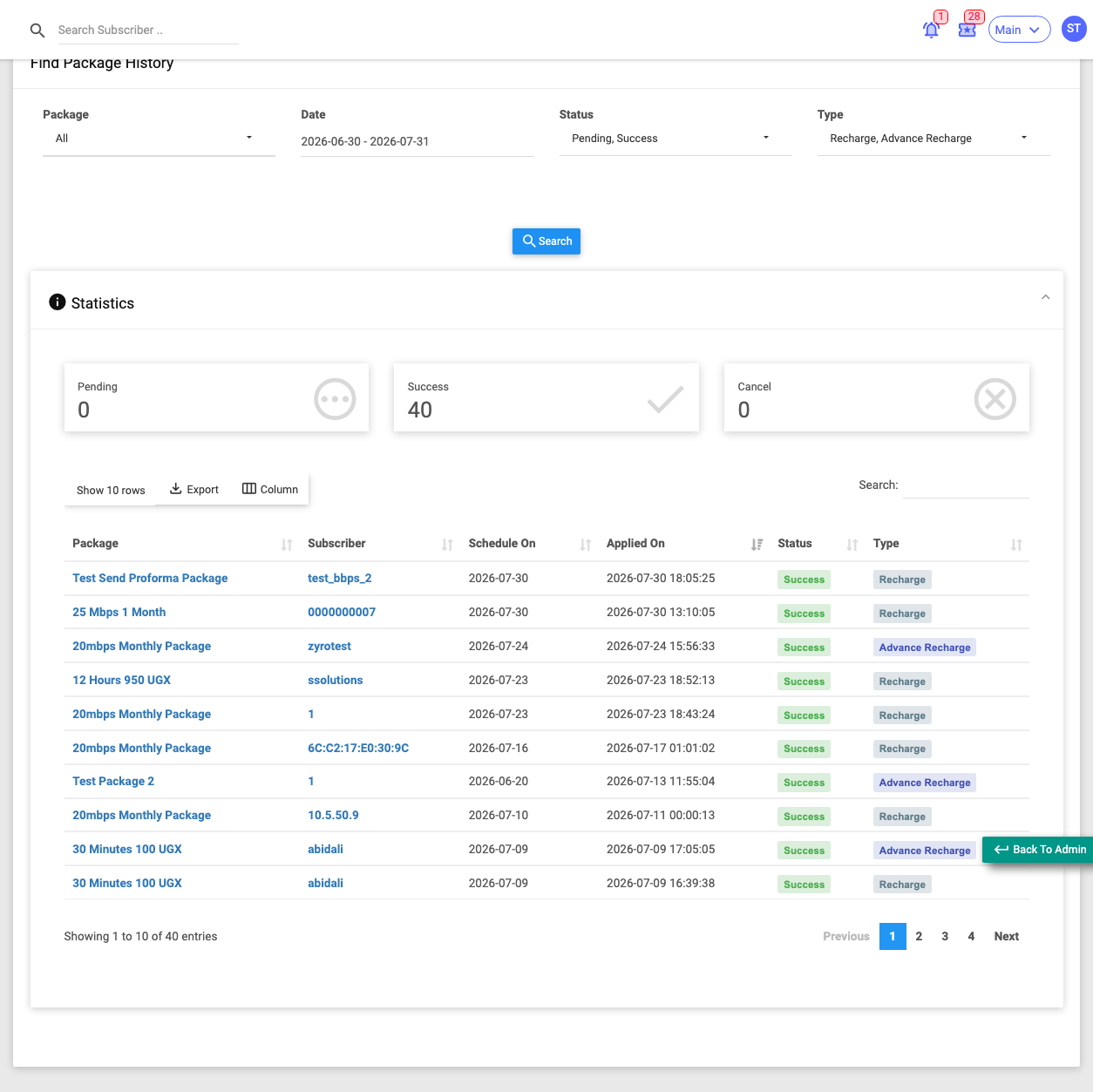
Use it when you want to audit plan migrations or confirm whether a scheduled/advance recharge actually went through.
Filters: Package, Date (applied-on date), Status (Pending / Success / Cancel — Pending + Success by default), Type (Package Change / Recharge / Advance Recharge — Recharge + Advance Recharge by default).
Key columns: Package, Subscriber, Schedule On (when it was queued), Applied On (when it ran), Status, Type, plus contact/account columns.
Summary tiles: Pending, Success, Cancel counts.
Overwrite Package Price
Menu: Reports → Overwrite Package Price
Lists subscribers who have a custom (overridden) package price instead of the standard plan price — a control/audit view to catch special negotiated rates.
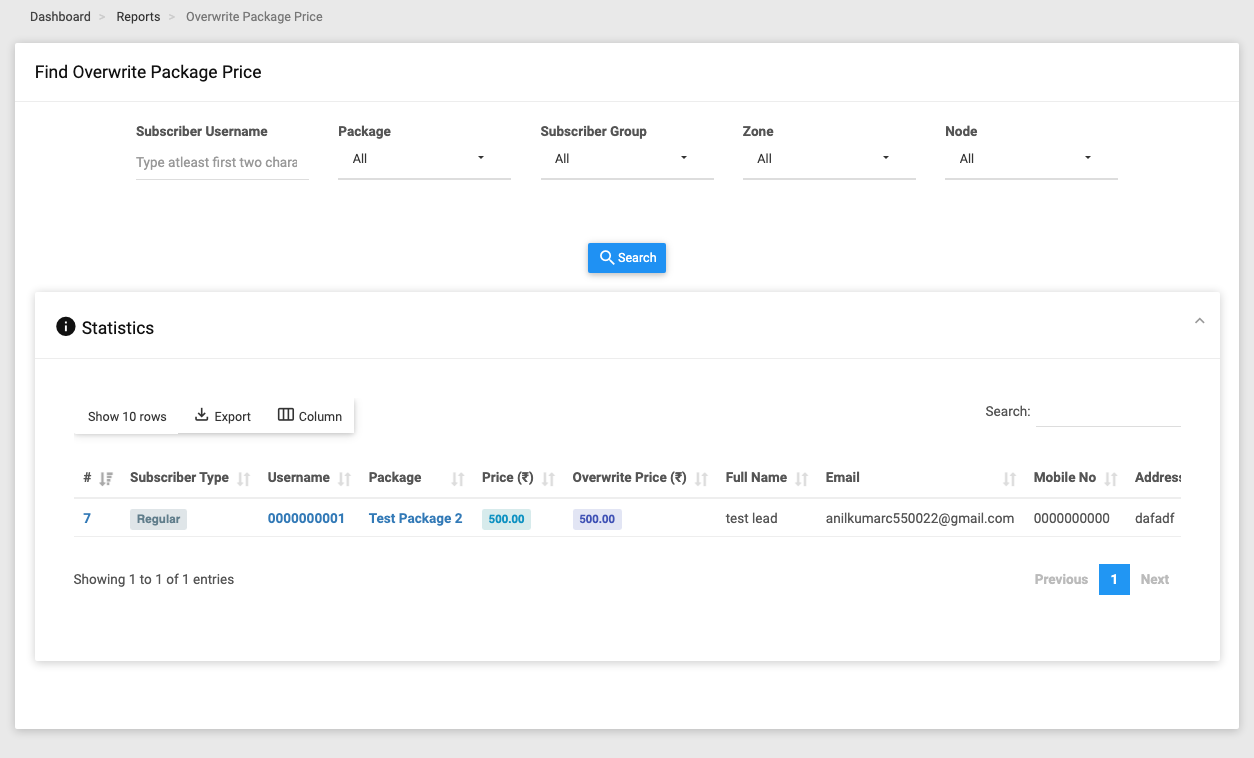
Use it when you want to review who is being charged a non-standard price and by how much it differs from list price.
Filters: Subscriber Username, Package, Sub Group, Zone, Node.
Key columns: Username, Package, Price (the standard list price), Overwrite Price (this customer's custom price), plus contact/account columns. Compare the two price columns to see the discount or premium.
Only lists subscribers explicitly flagged with an overwritten price. Voucher accounts are excluded. This report's table loads immediately.