Subscriber Account Details Reports
These reports slice your subscriber base by a single account attribute — type, wallet, dues, balance, KYC status, or FUP. They share almost the same long list of contact/account columns; each one simply leads with the figure it's about.
All share the standard interface (filter bar → Search → results table with Column chooser and Export). See How every report works.
All of these exclude voucher accounts and deleted subscribers, and are scoped to your site. Money figures are in your site's currency.
Subscriber By Type
Menu: Reports → Subscriber By Type
Breaks your subscriber base down by account type (Regular, MAC, Lease, Voucher) with headline counts, plus a full detail list.
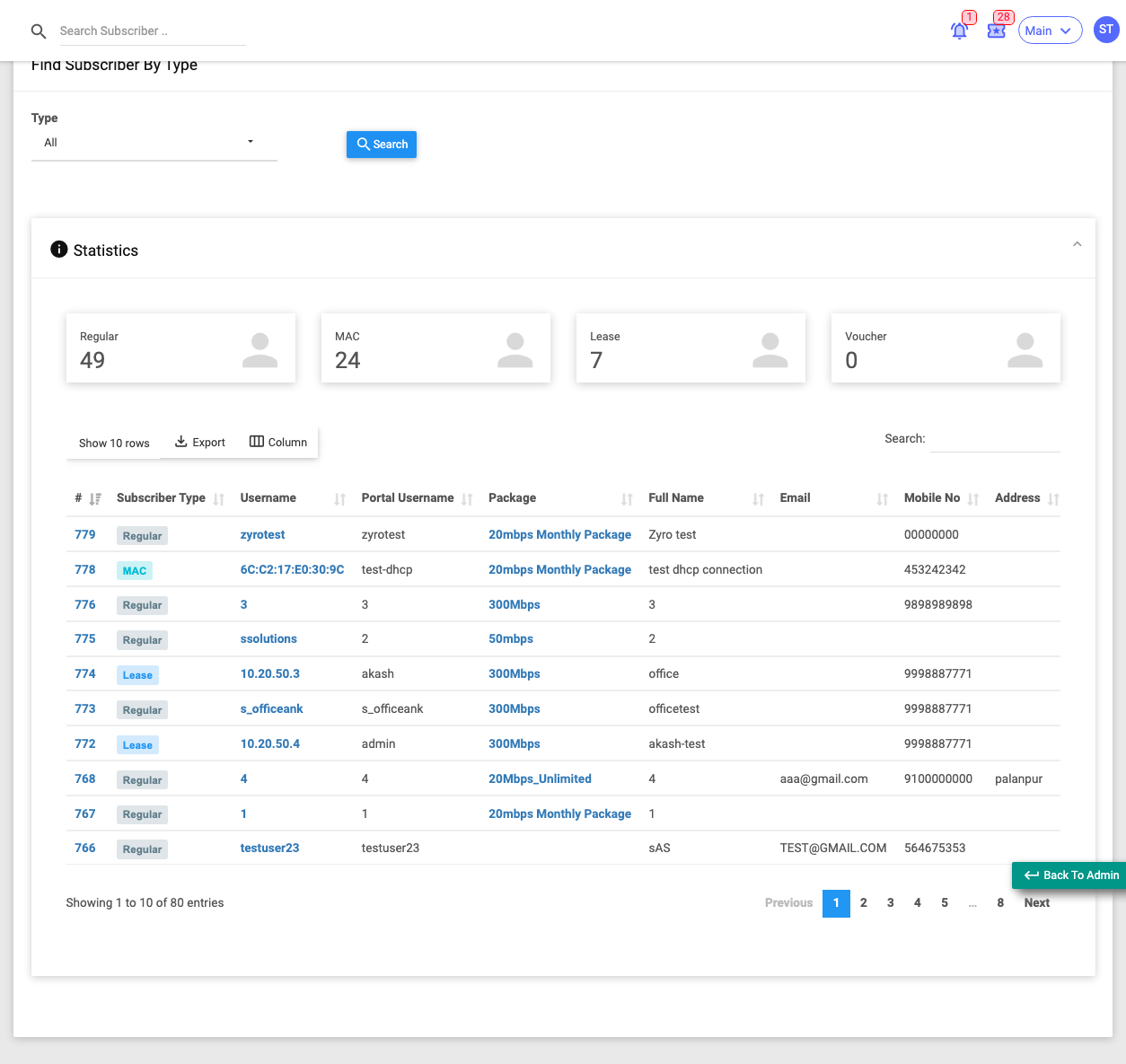
Use it when you want to know how many subscribers of each type you have, and list them.
Filters: Type (All / Regular / MAC / Lease).
Top tiles: Regular, MAC, Lease, Voucher counts.
Key columns: Sub Type, Username, Package, KYC (Yes/No), plus the full contact/account column set.
The count tiles include Vouchers, but the detail list below covers Regular, MAC and Lease accounts only.
Subscriber Wallet
Menu: Reports → Subscriber Wallet
Lists subscribers who hold money in their prepaid wallet (balance greater than zero), and how much.
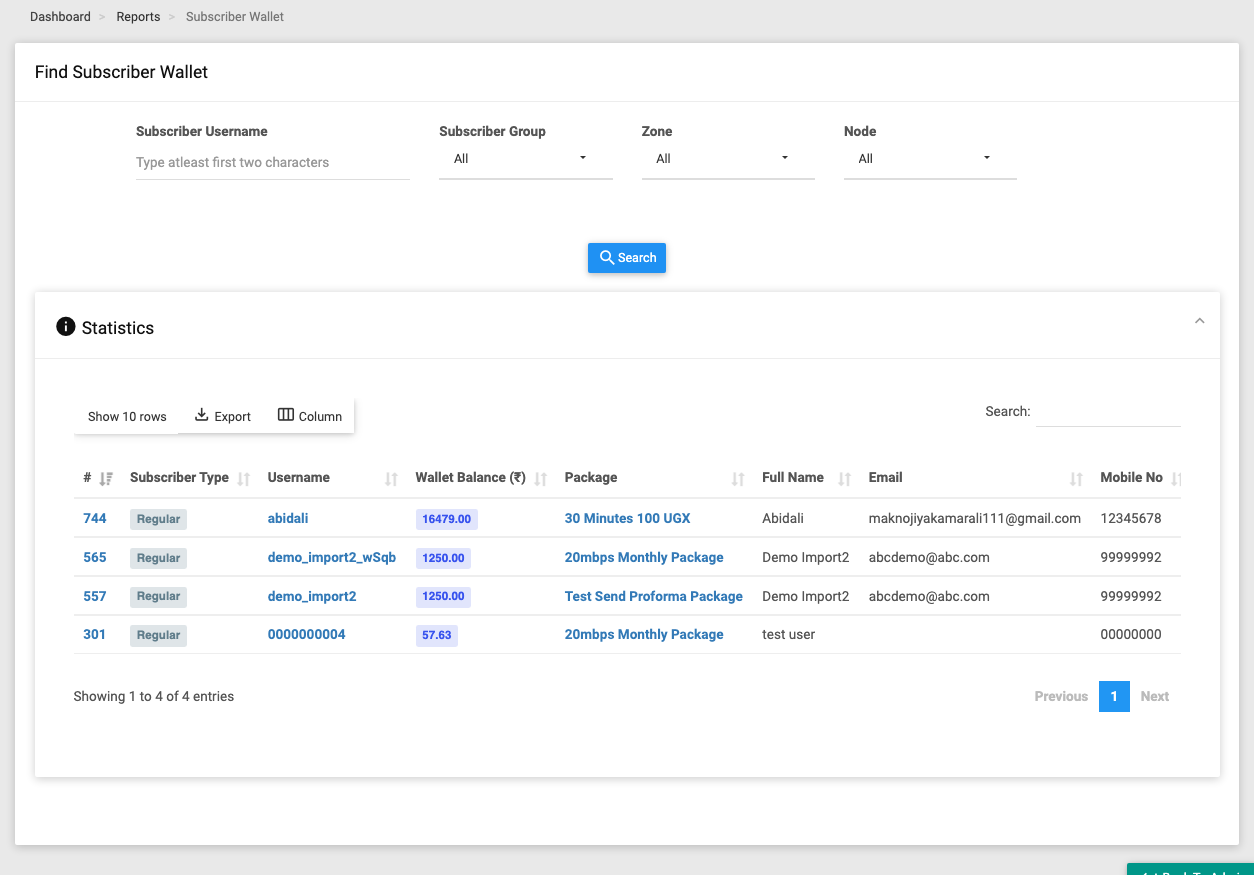
Use it when you want to see which customers have unused wallet credit.
Filters: Subscriber Username, Sub Group, Zone, Node.
Lead column: Wallet Balance, followed by the full contact/account column set.
Subscriber Due
Menu: Reports → Subscriber Due
Lists subscribers who owe money — those with unpaid or partly-paid invoices — with the outstanding amount, due date and how overdue they are.
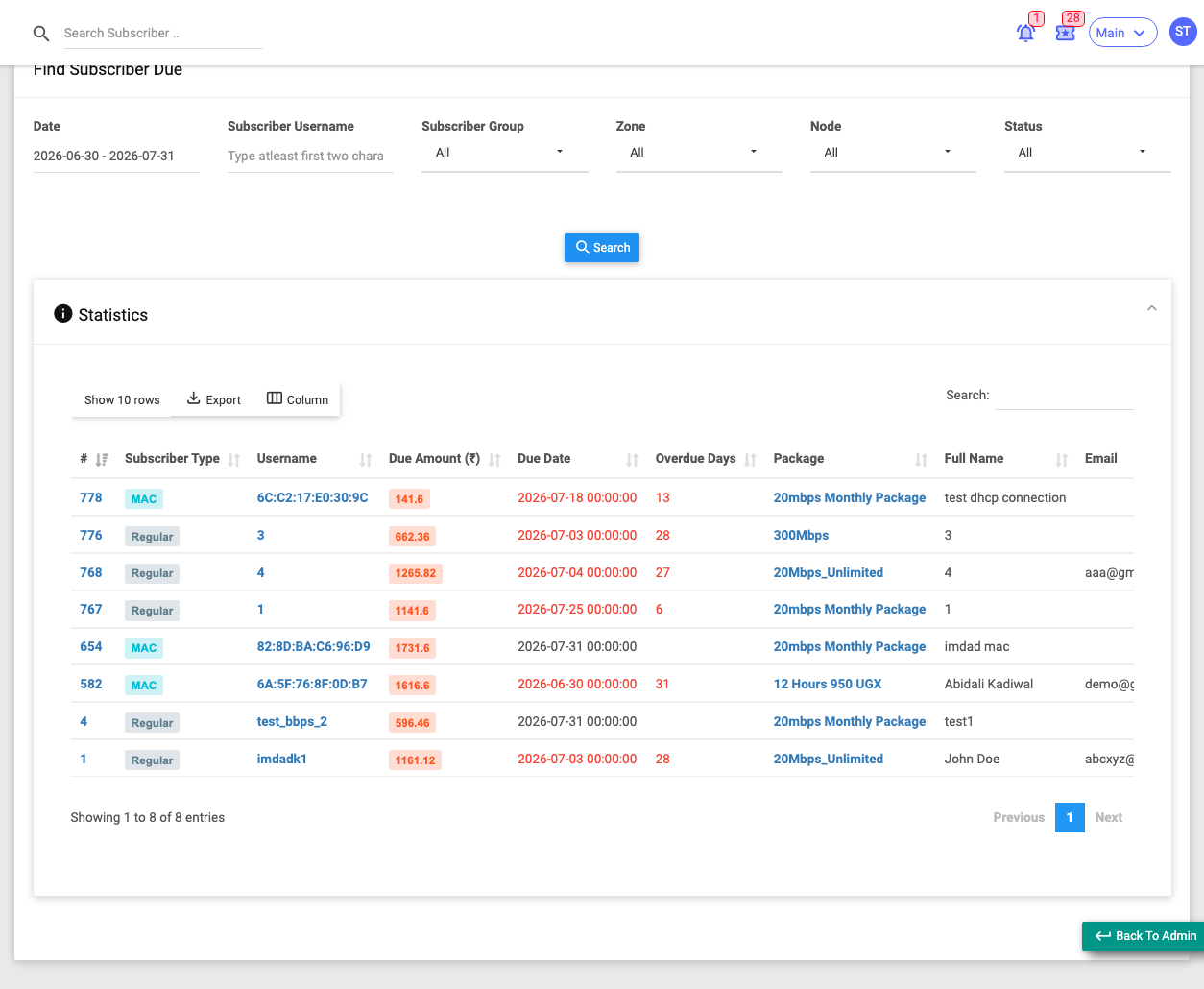
Use it when you want to chase outstanding payments.
Filters: Date (due date), Subscriber Username, Sub Group, Zone, Node, Status (All / Overdue).
Lead columns: Due Amount (billed minus paid), Due Date (red if on/before today), Overdue Days, then the full contact/account column set.
Counts subscribers with at least one open (unpaid) sales invoice. The Overdue filter restricts to accounts already past their due date.
Subscriber Balance
Menu: Reports → Subscriber Balance
Shows each subscriber's account ledger balance (all debits minus all credits) — their net financial standing.
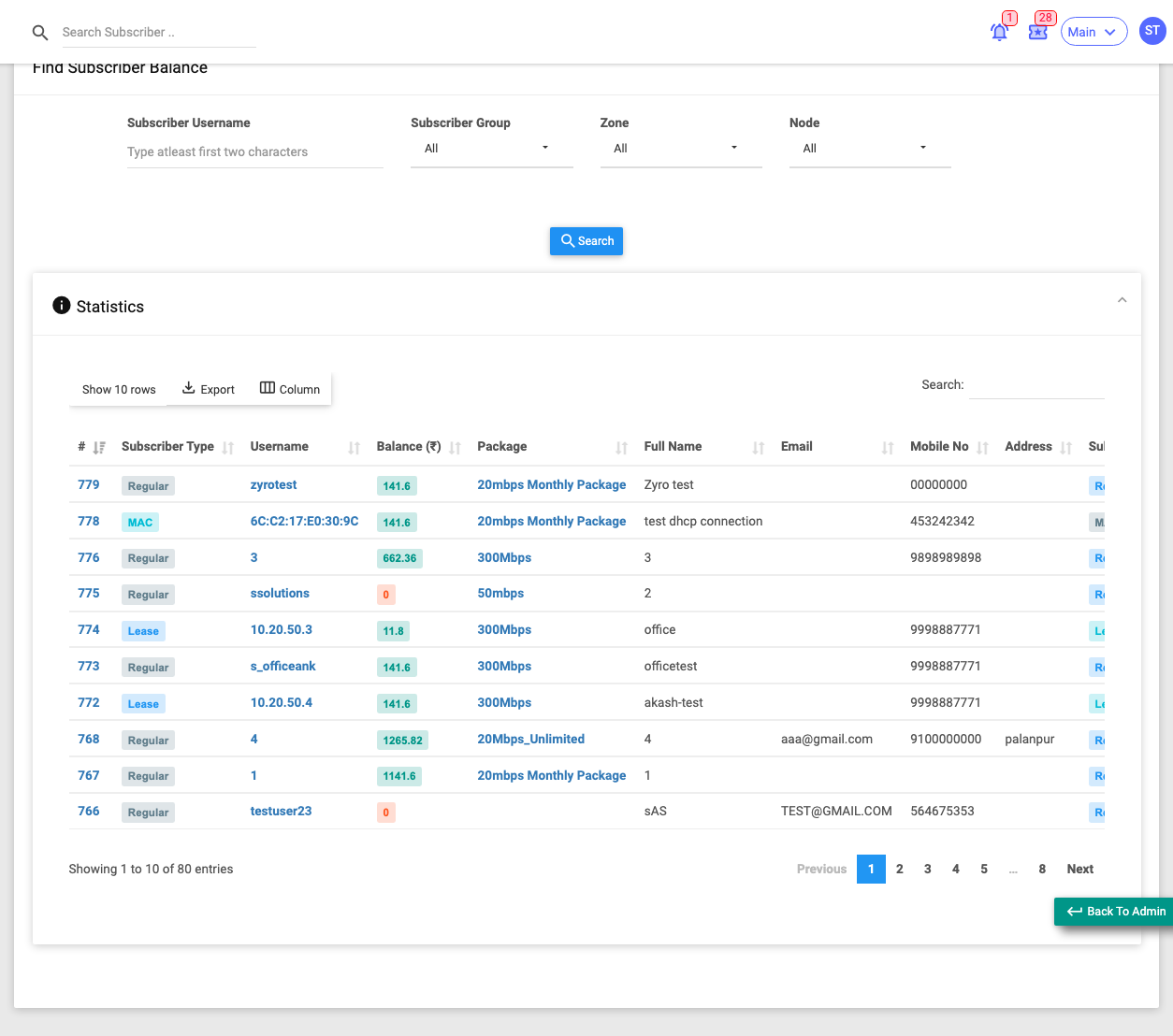
Use it when you want each customer's overall position: do they owe, or are they in credit?
Filters: Subscriber Username, Sub Group, Zone, Node.
Lead column: Balance — green when in credit, orange when owing — then the full contact/account column set.
This differs from Subscriber Due: Due looks only at open unpaid invoices, while Balance is the overall debit/credit ledger position.
Subscriber eKYC
Menu: Reports → Subscriber eKYC
Shows the identity-verification (eKYC) status of subscribers — done, pending, or with mobile/email unverified.
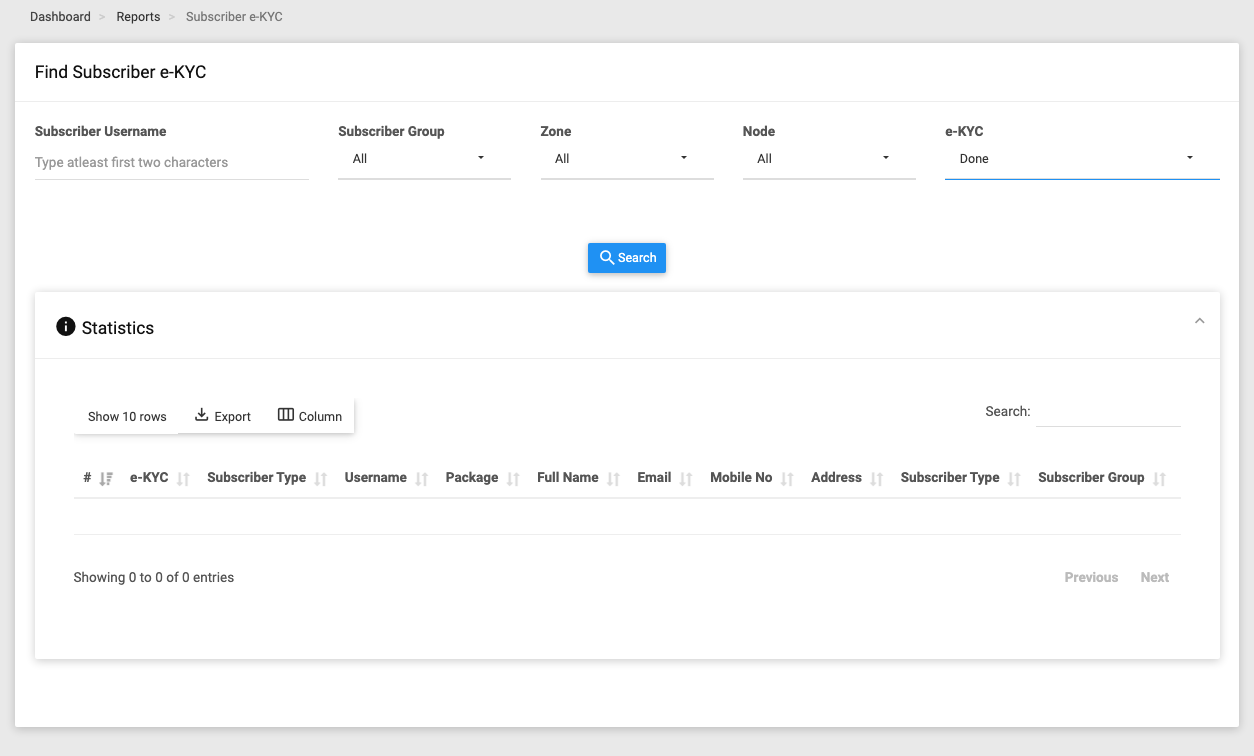
Use it when you need to find customers who still need KYC completed or verified.
Filters: Subscriber Username, Sub Group, Zone, Node, and eKYC (multi-select — Done by default; also Pending, Mobile Number Not Verified, Email Not Verified, Both Not Verified, No Done Yet).
Lead column: eKYC status, then the full contact/account column set.
The eKYC filter accepts several statuses at once. "No Done Yet" matches subscribers with no KYC record at all.
FUP Applied Subscribers
Menu: Reports → FUP Applied Subscribers
Lists subscribers who currently have a Fair Usage Policy (FUP) applied — for example, throttled after crossing a data or time threshold.
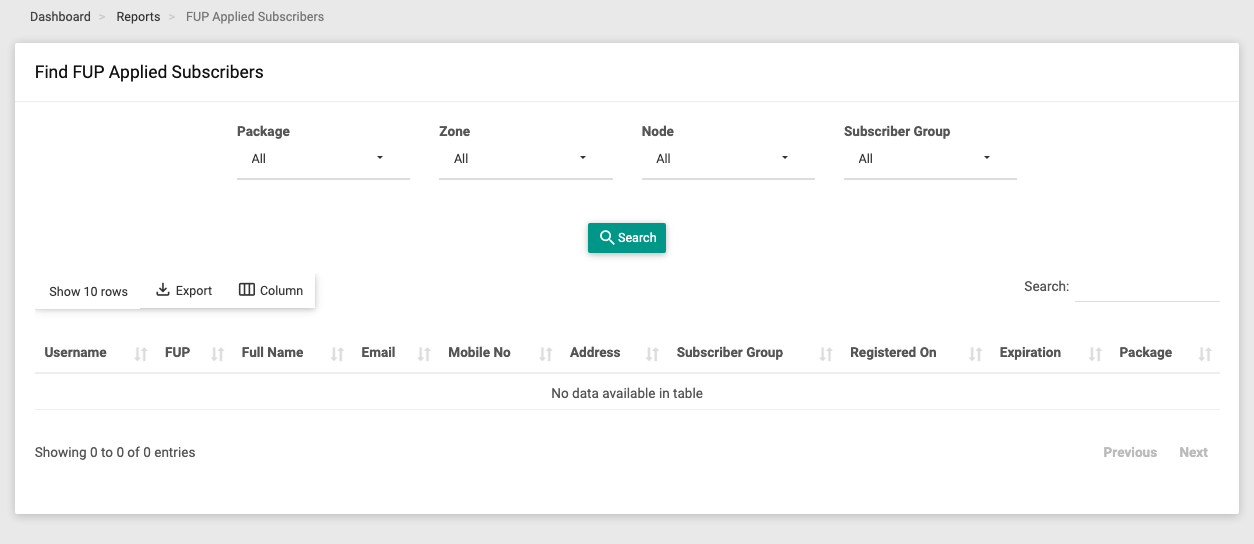
Use it when you want to see who is presently under a FUP restriction, and which policy.
Filters: Package, Zone, Node, Sub Group.
Key columns: Username, FUP (the policy name — hover for its full details: limits, speeds, action, time window, allowed days), Package, plus the full contact/account column set.
Only includes subscribers with an active FUP policy assigned and a package.