Subscribers Overview
Overview
A subscriber is a customer who buys internet from you. The Subscribers module is where you find, create, and manage them. Almost everything you do day-to-day — recharging a plan, taking a payment, suspending a defaulter, resetting a MAC, checking usage — starts here.
The module has four entry points, all reached from Subscribers in the sidebar:
- The subscriber list — the main screen; every subscriber with live status.
- Add Subscriber — create a new subscriber.
- Find Subscriber — an advanced search across dozens of fields.
- Import Subscribers — create many subscribers at once from a spreadsheet.
From the list you open any subscriber's profile, where all their details and actions live.
The single most important thing to understand in this module is Billing & the Subscriber Lifecycle — prepaid vs postpaid, auto-renew, grace/suspension, disconnection and deactivation. Everything else builds on it.
Throughout this module the screenshots use a demo subscriber,
imdadk1(shown as John Doe), so you can follow along with a real example.
Who Can Use This Feature
Front-desk staff, support agents, and managers — anyone who serves customers. Exactly which columns, actions and tabs each person sees depends on their role permissions.
Required Permissions
- Subscriber → List to see the subscriber list.
- Subscriber → Add / Find / Import for those entry points.
- Individual actions (recharge, payment, terminate, etc.) each have their own permission — see the relevant action page.
Navigation
Subscribers
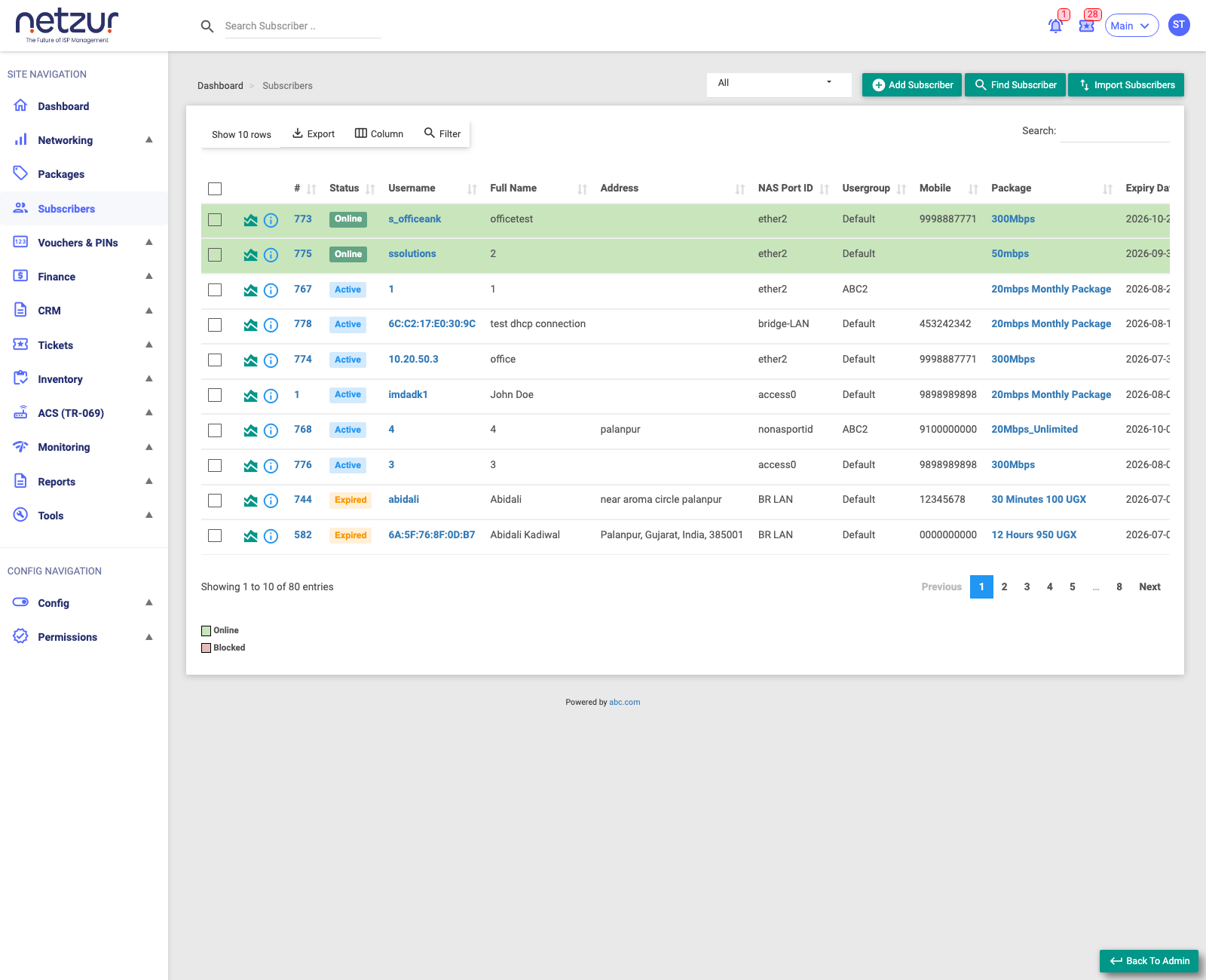
The subscriber list
Each row is one subscriber. The two small icons at the start of a row open that subscriber's usage graph and an info popover; selecting the Username opens the full profile.
Status filter
The dropdown at the top-right filters the whole list by state:
All, Active, Online, Blocked, Enabled, Disabled, No Package, Expired, OTP Unverified, Account Unverified, Suspended, Offline, Active & Offline.
Columns
The list can show a large set of columns (use Column to choose which appear). The common ones:
| Column | Meaning |
|---|---|
| Status | The subscriber's state — Active, Online, Expired, Disabled, etc. |
| Username | The connection login (for MAC subscribers this is the MAC address). |
| Portal Username | The login for the customer self-care portal. |
| Full Name | The customer's name. |
| Email / Mobile | Contact details. |
| Subscriber Code | The unique code for this subscriber. |
| Address | The service address. |
| ONU RX/TX Power | Optical signal levels, for fibre (ONU) customers. |
| NAS Port ID | The port/interface the customer is bound to. |
| User Group | The subscriber's group. |
| Package | The current plan. |
| Expiry Date | When the current plan ends. |
| Zone / Node | The network area/device the subscriber belongs to. |
| KYC | Whether identity documents are verified. |
| Total Usage / Daily Usage | Data consumed. |
| Billing Type | Prepaid or Postpaid (Recurring). |
| Next Bill Date / Last Recharge Date | Billing dates. |
| Last Logoff / Created Date / Created By | Activity and origin. |
| Static IPv4 Address | The fixed IP, if the subscriber has one. |
Row highlighting (shown in the legend below the list): a green row means the subscriber is Online; a red row means Blocked.
List toolbar
Above the list you can:
- Add Subscriber, Find Subscriber, Import Subscribers (top-right).
- Export the list (Copy / Excel / Print), choose Columns, apply a Filter, Search, and set rows-per-page.
Selecting subscribers (bulk actions)
Tick the checkbox on one or more rows to reveal the Action menu, which applies a change to all selected subscribers at once (renew, disable, change package, and many more). See Bulk actions.
Important Notes
- The Status column is live — Online/Offline reflects the current session, while Active/Expired/Disabled reflect the account state.
- A subscriber can be Active but Offline (allowed to connect, just not connected right now).
- What you can see and do is governed by your role — a colleague may see fewer columns or actions.