Terminating & Refunds
Overview
Terminating ends a subscriber's service. Because a customer may have paid for time they won't use, termination asks you how to settle the money — the Invoice Rollback choice. This applies to both prepaid and postpaid subscribers.
For the click-by-click flow see Status Changes → Terminate; this page explains what each settlement option actually does.
The three settlement options
When you Terminate, choose an Invoice Rollback:
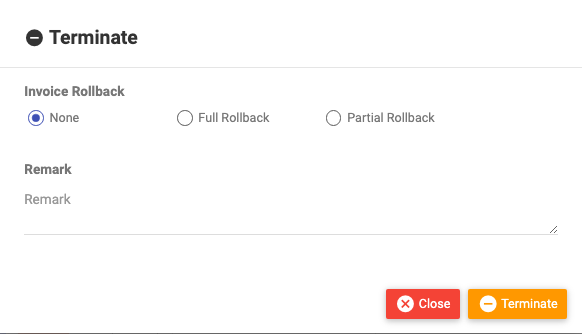
| Option | What it does | Reseller (site) effect |
|---|---|---|
| None | No refund. Service ends; invoices are left as they are. | No wallet change. |
| Partial Rollback | The system calculates the days already used, adjusts the invoice for the unused portion, and refunds that part. | Credits the corresponding balance back to the site wallet (if the site is a reseller). |
| Full Rollback | Full refund to the customer — the invoice is fully reversed. | Credits the full amount back to the site wallet (if the site is a reseller). |
Partial is the fair-usage option (customer paid for a month, used 10 days → refund ~20 days). Full reverses everything. None keeps all money.
When to use which
- None — the customer used the service and there's nothing to return (e.g. end of a fully-consumed prepaid cycle), or your policy is no refunds.
- Partial — the customer is leaving mid-cycle and you refund the unused days.
- Full — the recharge was a mistake, or you're reversing a charge entirely.
Reseller / site wallet
If your site is a reseller, the rollback also credits the site's wallet to match the refund — Partial credits the pro-rated amount, Full credits the whole amount — so the reseller's books stay consistent with what was returned to the customer.
Important Notes
- ⚠ Terminate ends service — for a temporary stop, prefer Disable or Suspend (Status Changes).
- The rollback choice is about money, not access — all three end the service; they differ only in the refund.
- A Partial Rollback cannot be applied to a custom invoice — the system will tell you if that's the case.
- Always record a Remark so the reason and settlement are in the Audit Timeline.
Related Guides
- Status Changes (Terminate, Disable, Suspend)
- Invoices & Payments
- Billing & the Subscriber Lifecycle