Import Subscribers
Overview
Import Subscribers creates many subscribers at once from a spreadsheet — ideal when migrating from another system or onboarding a bulk batch. You upload a file, Netzur shows a preview so you can check it, and then you confirm the import.
Who Can Use This Feature
Administrators doing migrations or bulk onboarding.
Required Permissions
- Subscriber → Import.
Prerequisites
- Your subscriber data in a spreadsheet matching Netzur's sample file layout.
- The NAS (and, for multi-site admins, the site) the subscribers belong to.
Navigation
Subscribers → Import Subscribers
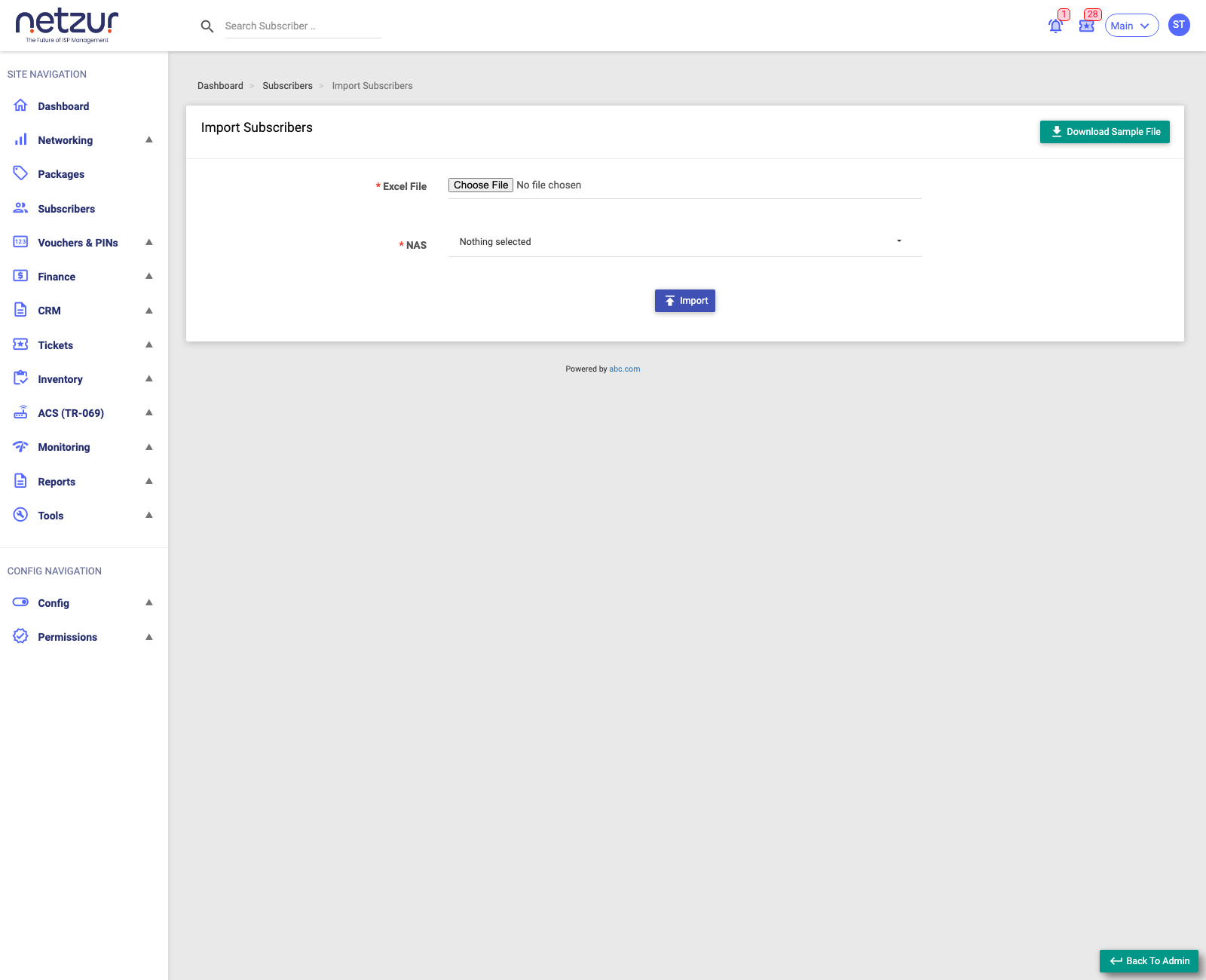
Step 1 — Upload
- Go to Subscribers → Import Subscribers.
- Select Download Sample File and fill your data into that template — its columns are exactly what the importer expects.
- Choose your Excel File (
.csv,.xlsxor.xls). - Choose the NAS these subscribers use — or Allow All NAS. (Multi-site admins also choose the Site.)
- Select Import to move to the preview.
Step 2 — Preview & process
Netzur reads your file and shows a preview table of every subscriber it will create, using the same columns as the sample.
- If any usernames already exist, a Duplicate Usernames table appears showing the old and a suggested new username so nothing is overwritten.
- Check the preview carefully.
- Select Process to Import Subscribers to create them.
The spreadsheet layout
The sample file's columns define what you can import. They include (in the sample's order):
Sub Type, MAC Address, MAC Check, Subscriber Code, Username, Password, Portal Username, Package, Login Limit, Full Name, Company Name, Address, Country, State, City, Zip, Phone No, Mobile No, Email, Enabled, NAS Port ID (+ check), Group, Comment, Alert, Package Group, Latitude, Longitude, IPv4 Mode, Static IPv4 Pool/Address/Expiry, IPv6 Prefix (enable/pool/prefix/expiry), IPv6 Delegation (enable/pool/prefix/expiry), Billing Type, Grace Period, Deactivation Period, Billing Profile, Autorenew (and variants), Package Price, Enable UCP, Data Limit, Uptime Limit, Expiry Date, Due Date, De-activation Date, OTP Verified, Account Verified, Last Logoff, Last Recharged (date/by), Tax No, Wallet Balance, Ledger Balance, Zone, Node, Category, Contract ID/Start/End, Allow All NAS, Created By.
You don't have to fill every column — but keep the column headings and order exactly as the sample, and always start from the downloaded sample rather than building your own file.
What Happens After Importing
Every valid row becomes a subscriber, immediately visible in the list. Rows with duplicate usernames use the suggested new username. You can then recharge/assign packages as normal.
Important Notes
- ⚠ Import creates real subscribers — double-check the preview before processing.
- Match the Sub Type, Package and Group values to ones that already exist in Netzur, or the rows may not import cleanly.
- Use Allow All NAS only if these subscribers really can connect through any NAS.
Common Mistakes
- Editing the sample's column headings or order.
- Importing packages/groups that don't exist yet — create them first.
- Skipping the preview and importing bad data.
Troubleshooting
| Problem | Likely cause | What to do |
|---|---|---|
| File rejected | Wrong format or altered headings | Re-download the sample and re-fill it. |
| Duplicate usernames warning | Those usernames already exist | Accept the suggested new names, or change them in your file. |
| Rows missing after import | Values (package/group/type) didn't match existing records | Correct them in the file and re-import. |