Documents & KYC tab
Overview
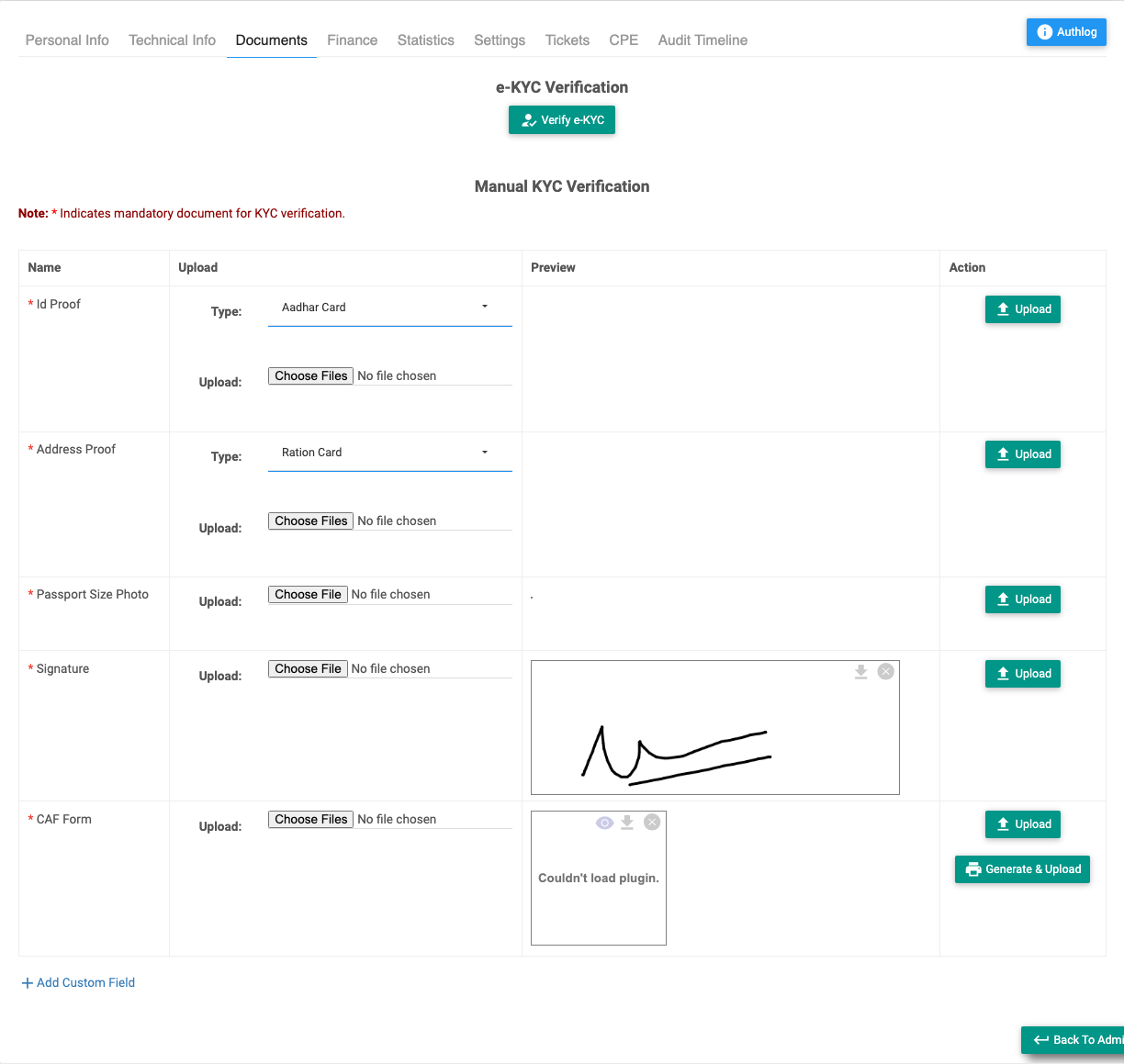
The Documents tab is where you verify a subscriber's identity — both electronically (e-KYC) and by uploading documents (ID proof, address proof, photo, signature, and the CAF agreement). A subscriber's KYC status in the list and header comes from here.
Required Permissions
- Upload permissions per document (Upload ID Proof, Address Proof, Photo, Signature, CAF). e-KYC requires the KYC feature to be enabled.
Navigation
Subscribers → (open a subscriber) → Documents
e-KYC
If e-KYC is enabled, select Verify e-KYC to verify the customer against an official source (Aadhaar, PAN, GST, Voter ID, Driving Licence, Passport):
- Choose the document Type and enter its Number (and DOB for a driving licence).
- Enter the Captcha Code.
- Complete the OTP, or send a DigiLocker link to the customer's email/mobile (Email / SMS / WhatsApp).
Verified results show as read-only cards (name, DOB, address, status). Card actions include Rematch Data, Remove (with a remark), and for DigiLocker, Copy / Send the link again.
⚠ e-KYC contacts an external verification service and may send the customer an OTP or DigiLocker link.
Manual documents
The document table lets you upload and manage files. Rows appear based on your KYC policy; required ones are marked with *.
| Document | Types you can pick | Notes |
|---|---|---|
| ID Proof | Aadhar Card, Voter ID, PAN Card, Driving License, Passport, Other | Image/PDF, multiple. |
| Address Proof | Aadhar Card, Voter ID, Driving License, Ration Card, Electricity Bill, Telephone Bill, Bank Passbook/Statement, Post-Office Passbook, Other | Image/PDF, multiple. |
| Passport Size Photo | — | Image. |
| Signature | — | Image, or draw on the signature pad. |
| CAF Form | — | Upload, or Generate & Upload a filled CAF (see below). Image/PDF. |
| Additional / Custom docs | Free-text type | Any extra document your ISP needs. |
Each row shows a Preview of uploaded files with options to download or delete. Select Upload on a row to save its file(s).
Generate CAF
The CAF Form row offers Generate & Upload — instead of scanning a paper form, Netzur fills a CAF (Customer Application Form) from the subscriber's own details and attaches it. Select Generate & Upload and confirm/complete the fields:
| Field | Description |
|---|---|
| Billing Type | Prepaid / Postpaid (Recurring). |
| Category | Individual / Company. |
| Billing Address / Installation Address | Addresses on the form. |
| Address Type | Home / Office. |
| Plan Type | Broadband / Leaseline. |
| Package Name | The plan. |
| Full Name / Company Name / Phone / Mobile / Email | Customer details. |
| Place / Date | Where and when signed. |
| Signature | The captured signature (from the signature pad). |
| Remark | Audit note. |
The completed CAF is attached to this subscriber's documents.
Verification
Separately from uploading documents, you can set the subscriber's verification flags (some actions, such as Change/Add Package, require the subscriber to be verified first). This is reached from Other Actions ▾ → Verification on the profile:
| Field | Description |
|---|---|
| OTP (display) | The current OTP status. |
| OTP Verified | Mark the mobile OTP verified. |
| Sub Account Verified | Mark the account verified. |
| Remark | Audit note. |
Set these only once you have genuinely confirmed the customer's identity — the KYC / OTP / Account Verified flags shown in the list and header come from here and the documents above.
Important Notes
- The subscriber's KYC flag (list/header) reflects the documents/e-KYC/verification completed here.
- Change/Add Package may require KYC and verification to be complete first.
- Uploaded documents are sensitive personal data — handle per your privacy policy.
Related Guides
- Add a Subscriber (documents at creation)
- Change Package & Price (needs verification)