Site Management
Overview
Site is the heart of the Admin panel — the list of every site (tenant) on your platform and the controls for each one. A site is a self-contained portal with its own subscribers, packages, domain, branding and staff. From here the main administrator creates sites, sets their limits, and opens any site to configure it.
Navigation: Admin panel → Site
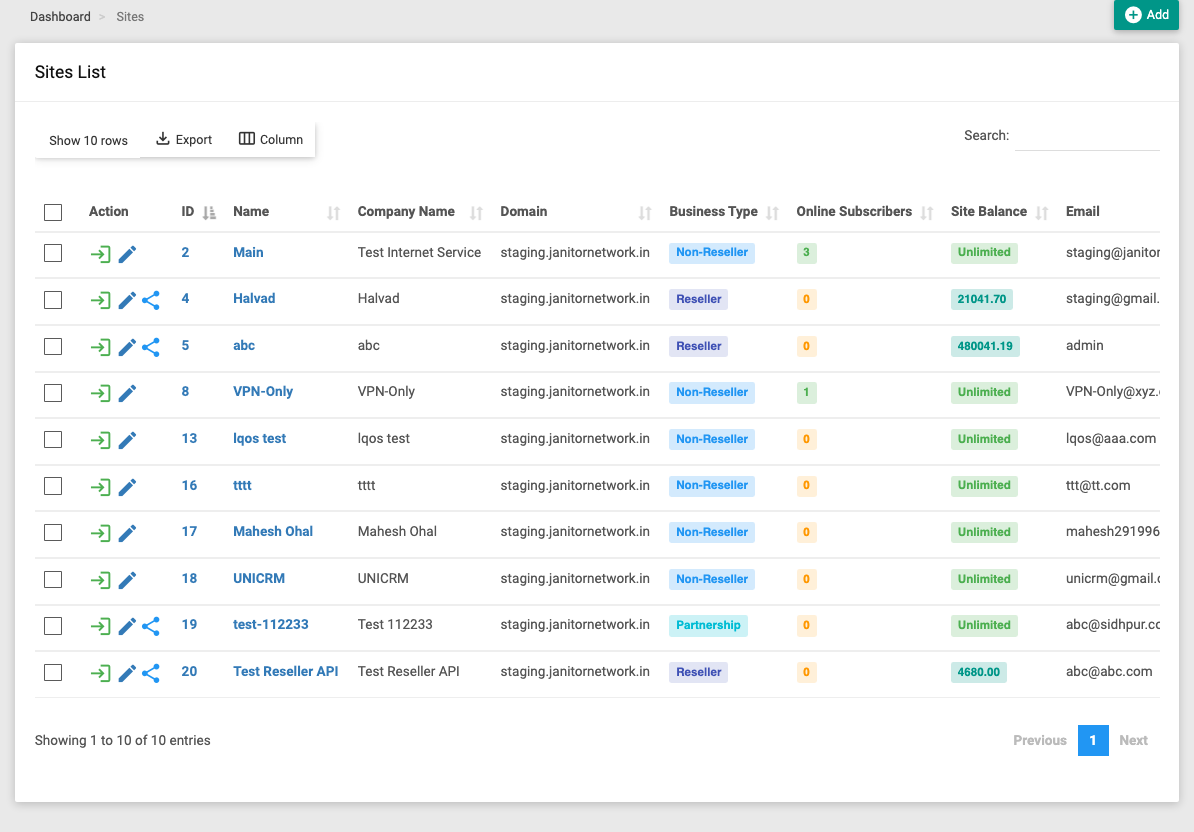
Each row is one site, showing its ID, Name, Company Name, Domain, Business Type, Online Subscribers, Site Balance, contact details, Subscriber/NAS limits, and created/updated stamps. The row's Action links let you:
- Login — sign straight into that site's operator portal.
- Edit — open the site to view and change everything below.
- Share — (reseller/partnership sites) jump to package sharing.
Add (top-right) creates a new site. Tick one or more rows to reveal a bulk Action → Delete.
Business types
Every site is one of three types, which changes how billing and package pricing work between you and the site:
| Type | Meaning |
|---|---|
| Non-Reseller | A site you run directly. |
| Reseller | A partner who buys from you against a prepaid site balance; you top-up or deduct their balance and share packages at a base/site price. |
| Partnership | A revenue-share partner; income is split between the site's share and the admin's share by a partnership rate. |
For exactly how each type handles package sharing, top-up balance, deductions, tax and revenue share — with worked examples — see Business Types & Reseller Billing.
Adding a site
Click Add on the Sites list and fill in the new site's basics — name, domain, company, contact, currency, timezone and country.
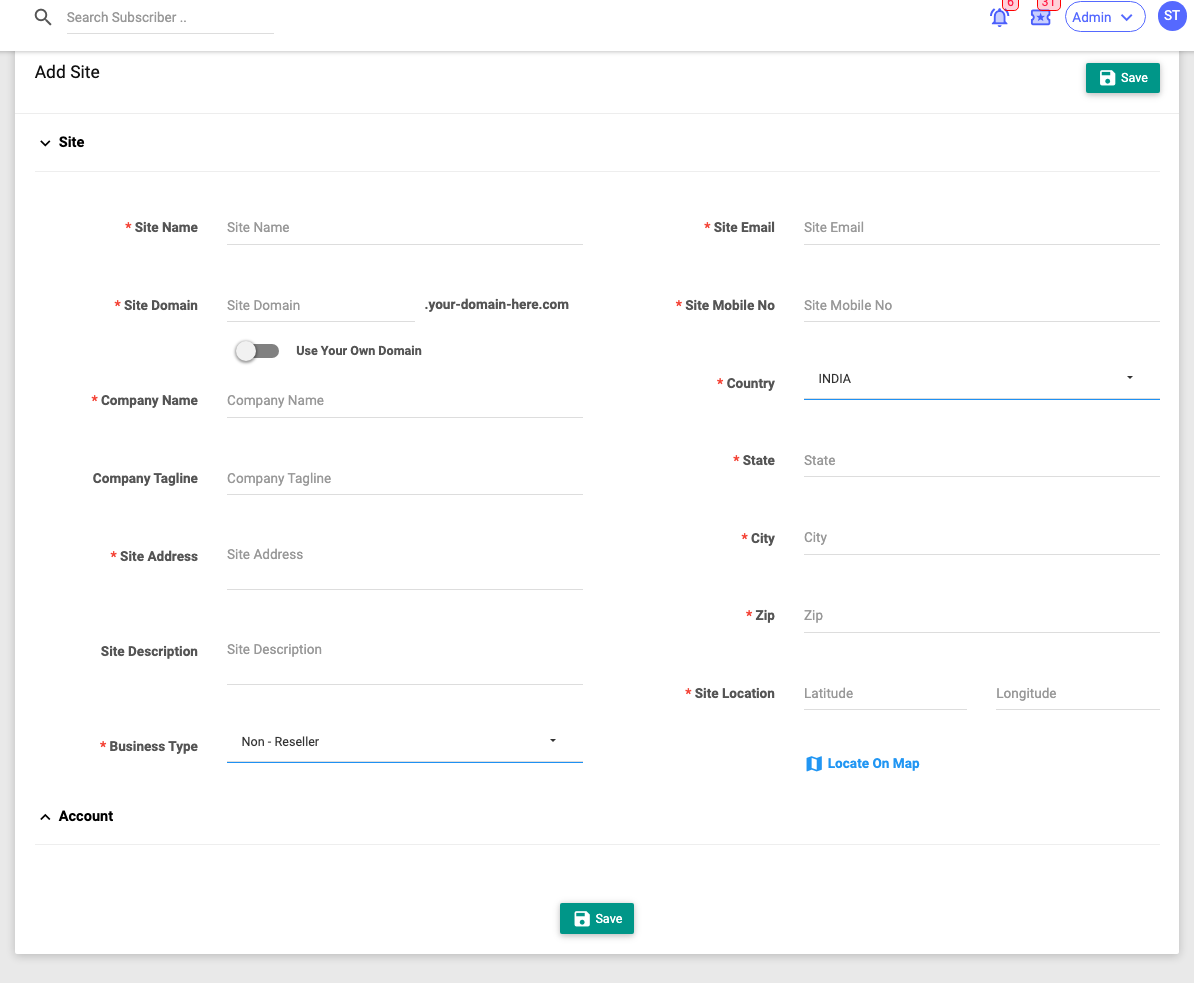
Once created, open the site to complete its setup across the tabs described below.
The site header and actions
Opening a site (via Edit) shows a header summarising it — subscriber counts, logo, company, business type, balance (reseller) or partnership rate, expiry date, and NAS/subscriber limits — followed by a row of administrator actions:
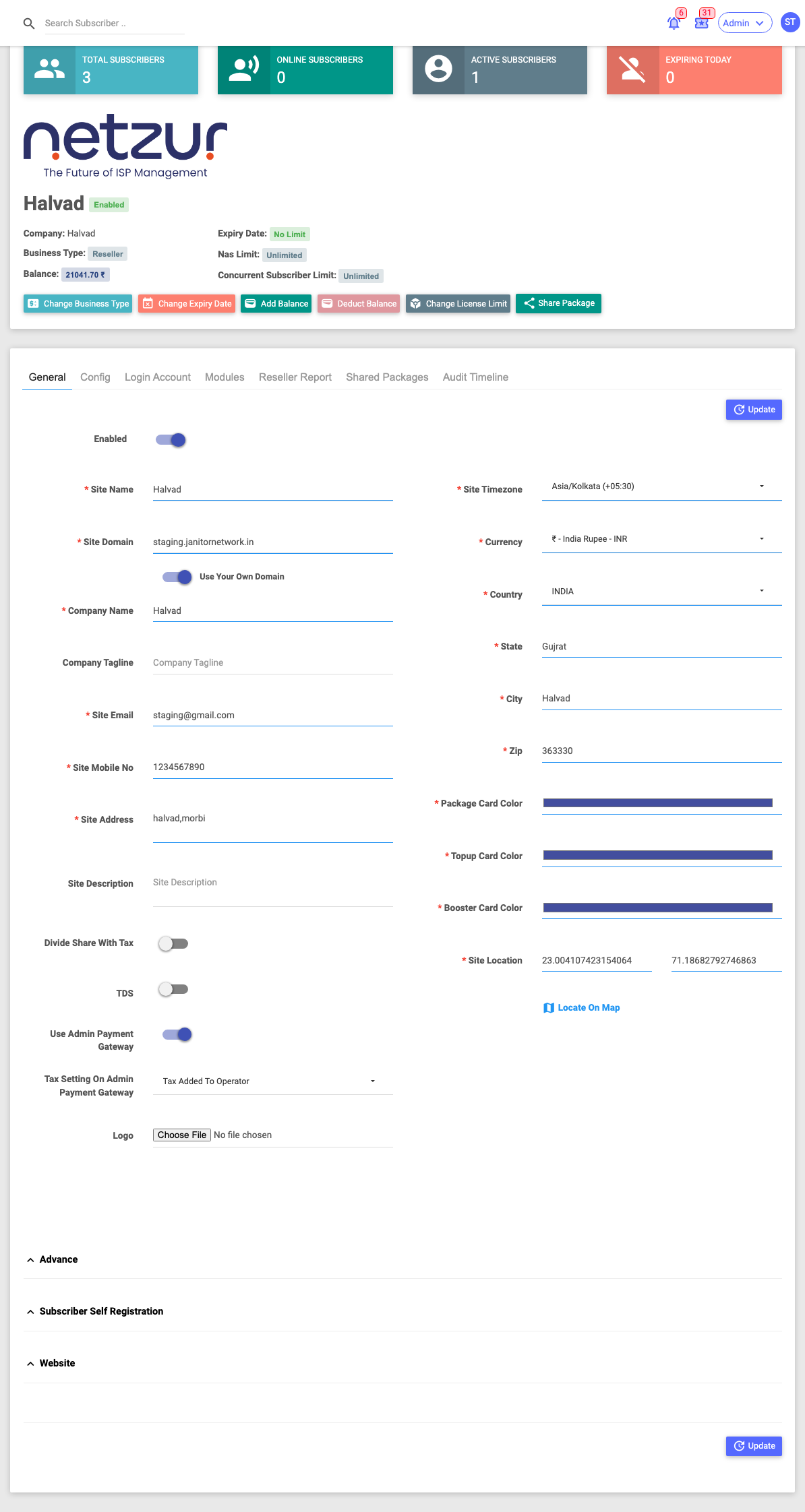
| Action | What it does |
|---|---|
| Change Business Type | Switch the site between Non-Reseller, Reseller and Partnership. Converting into Reseller/Partnership requires mapping each package. |
| Change Expiry Date | Set or clear the date the site itself expires. |
| Change Partnership Rate | (Partnership only) Set the site's revenue-share percentage. |
| Add Balance | (Reseller only) Top up the site's prepaid balance — with amount, payment mode, proof upload and remark. |
| Deduct Balance | (Reseller only) Remove balance from the site. |
| Change License Limit | Cap (or set unlimited) the site's NAS and concurrent subscriber counts. |
| Share Package | (Reseller/Partnership) Share admin packages down to this site. |
| Login to Site | The green button (top-right) — open this site's operator portal. |
:::note Every change is logged Each of these actions asks for a remark and is recorded on the site's Audit Timeline tab, so there's always a record of who changed a site's limits, balance or type. :::
Site tabs
Along the top of an opened site are its tabs. Which tabs appear depends on the site's business type and which modules are enabled.
General
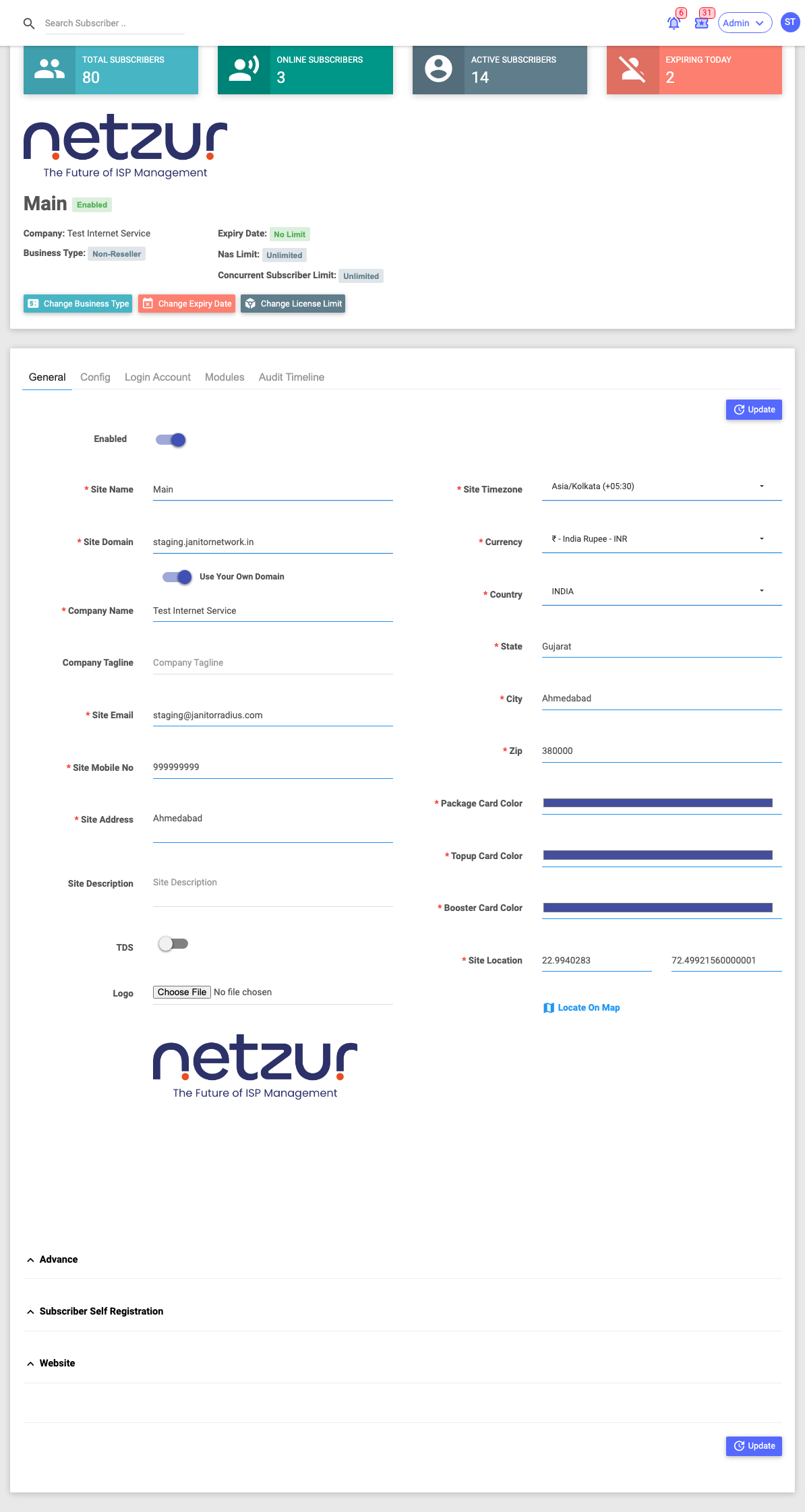
The site's full profile, in three parts:
- Main details — Enabled toggle, Site Name, Site Domain (or Use Your Own Domain), Company Name & Tagline, Site Email/Mobile/Address, Currency, Timezone, Country/State/City/Zip, package/top-up/booster card colours, Site Location (latitude/longitude with Locate On Map), and Logo. Reseller/partnership sites also show tax, TDS and Use Admin Payment Gateway options.
- Advance (collapsible) — voucher & PIN templates, default subscriber verification, subscriber mandatory fields, minimum recharge balance, proforma behaviour, default expiry time, wallet/quantity recharge options, and Map Type (Google Maps key or OpenStreetMap).
- Subscriber Self Registration and Website — enable self sign-up (domain + required fields) and set the public website content (About Us, Terms, Privacy, Refund policy, app links, website template).
Config
Opens that site's own configuration — the same settings as the operator Config module, shown down the left as Billing, KYC, Notifications, Payment Gateways, Subscriber Portal, ACS, Tally, OTT, IPTV and LibreQoS. Use this to configure a site's billing profiles, taxes, notification channels, gateways and integrations without leaving the Admin panel.
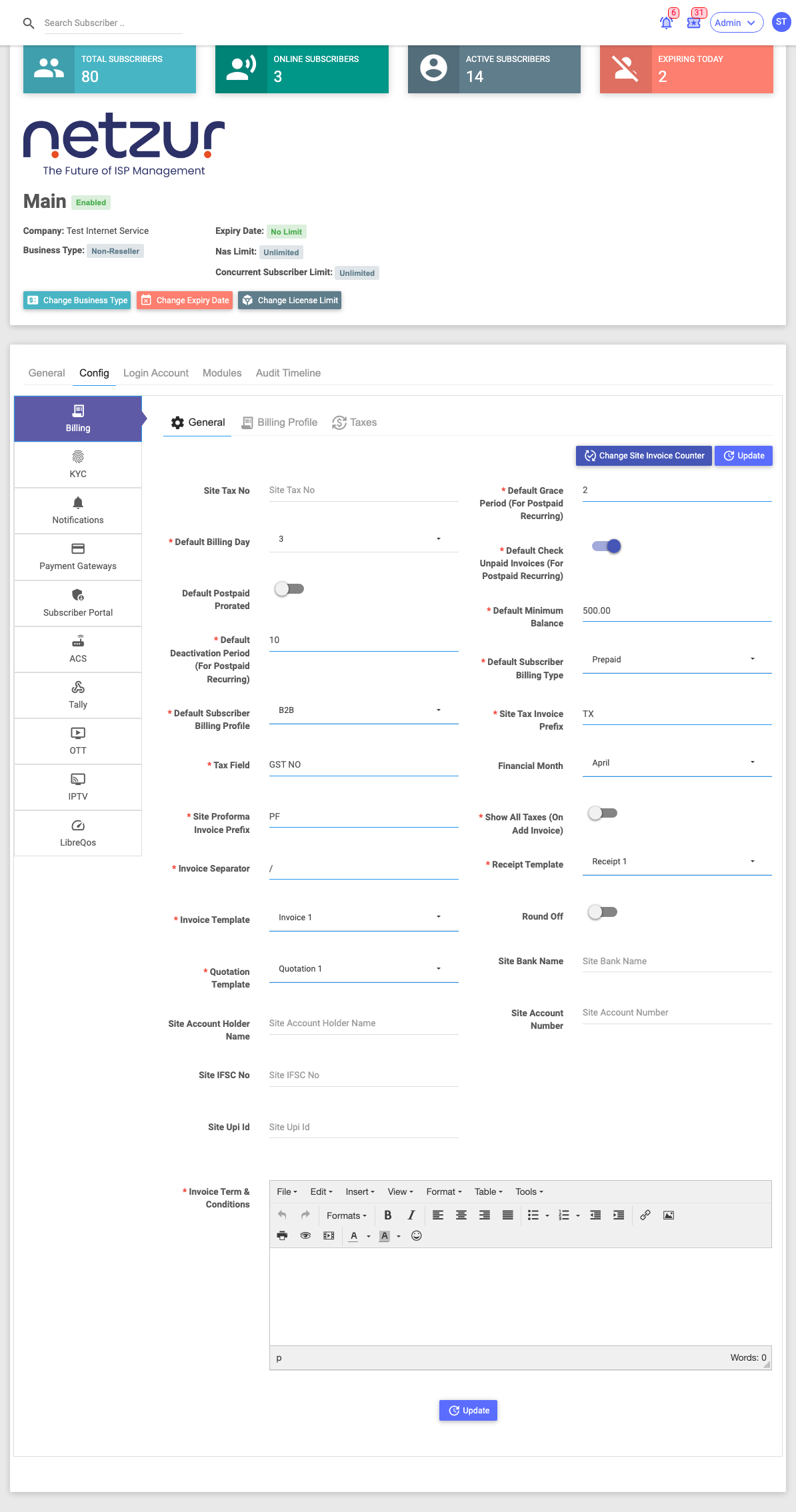
For a field-by-field explanation of each of these, see the Config module — the pages are identical.
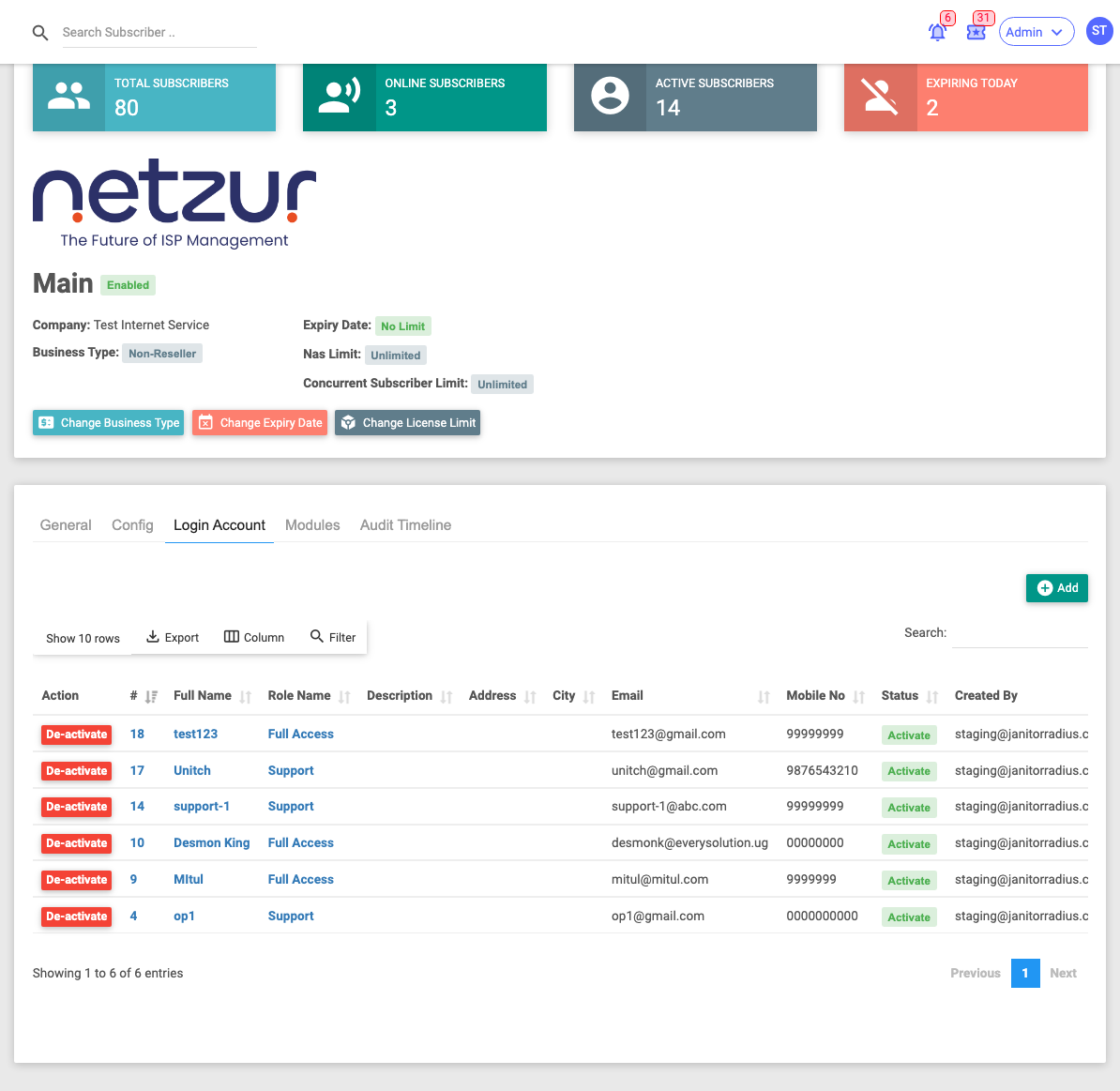
Login Account
The site's operator login accounts — the staff who can sign into that site's portal — with Add to create more. These work exactly like the accounts in the Permissions → Login Accounts guide, but scoped to this one site.
Modules
Per-site feature switches. Only the modules enabled for your platform appear here; toggle each on/off for this site:
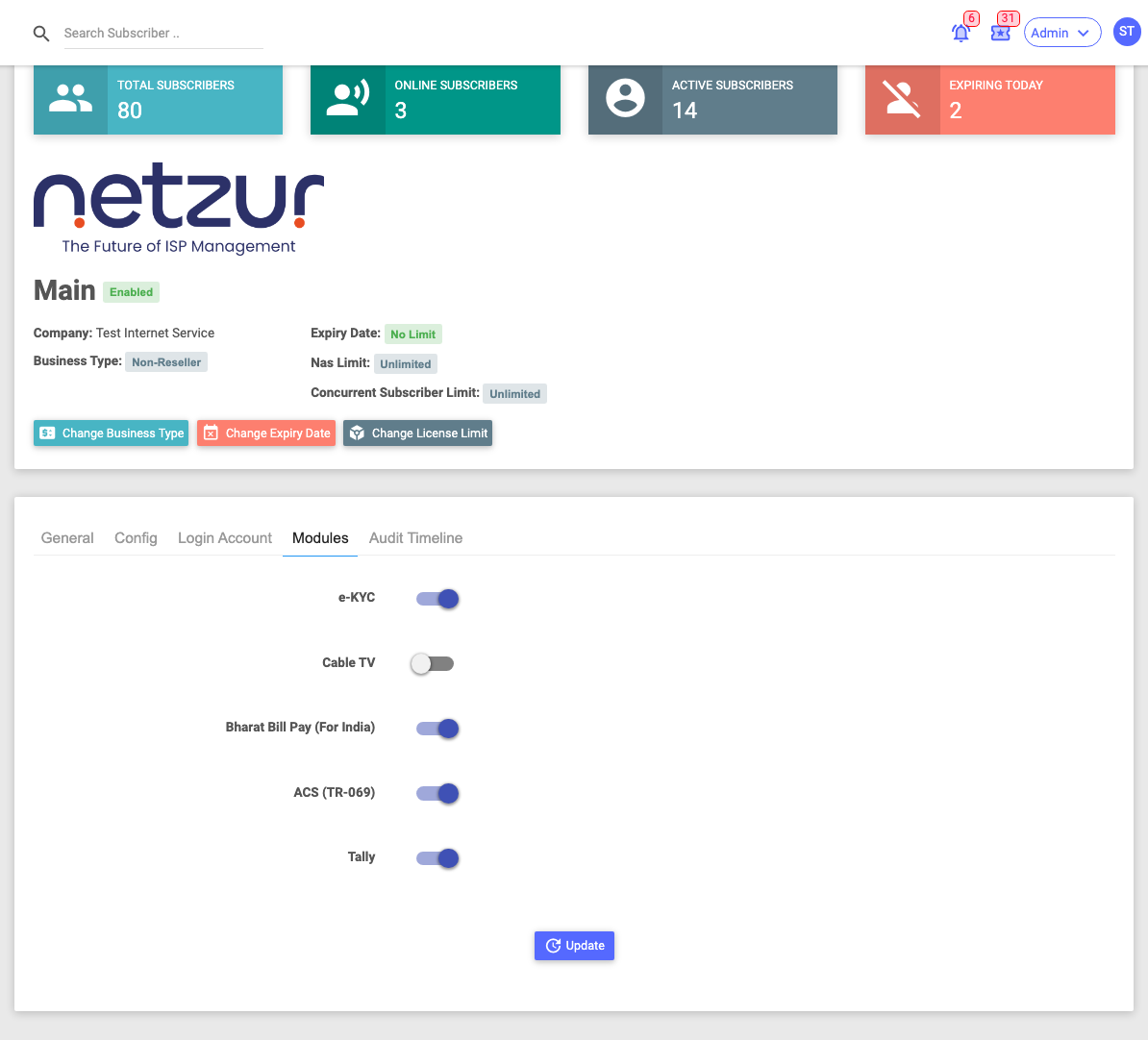
Typical switches include eKYC, CATV, Bharat Bill Pay (for India), ACS (TR-069), Tally, WhatsApp Built-in and SMS Built-in. Turning one off hides that feature for the site.
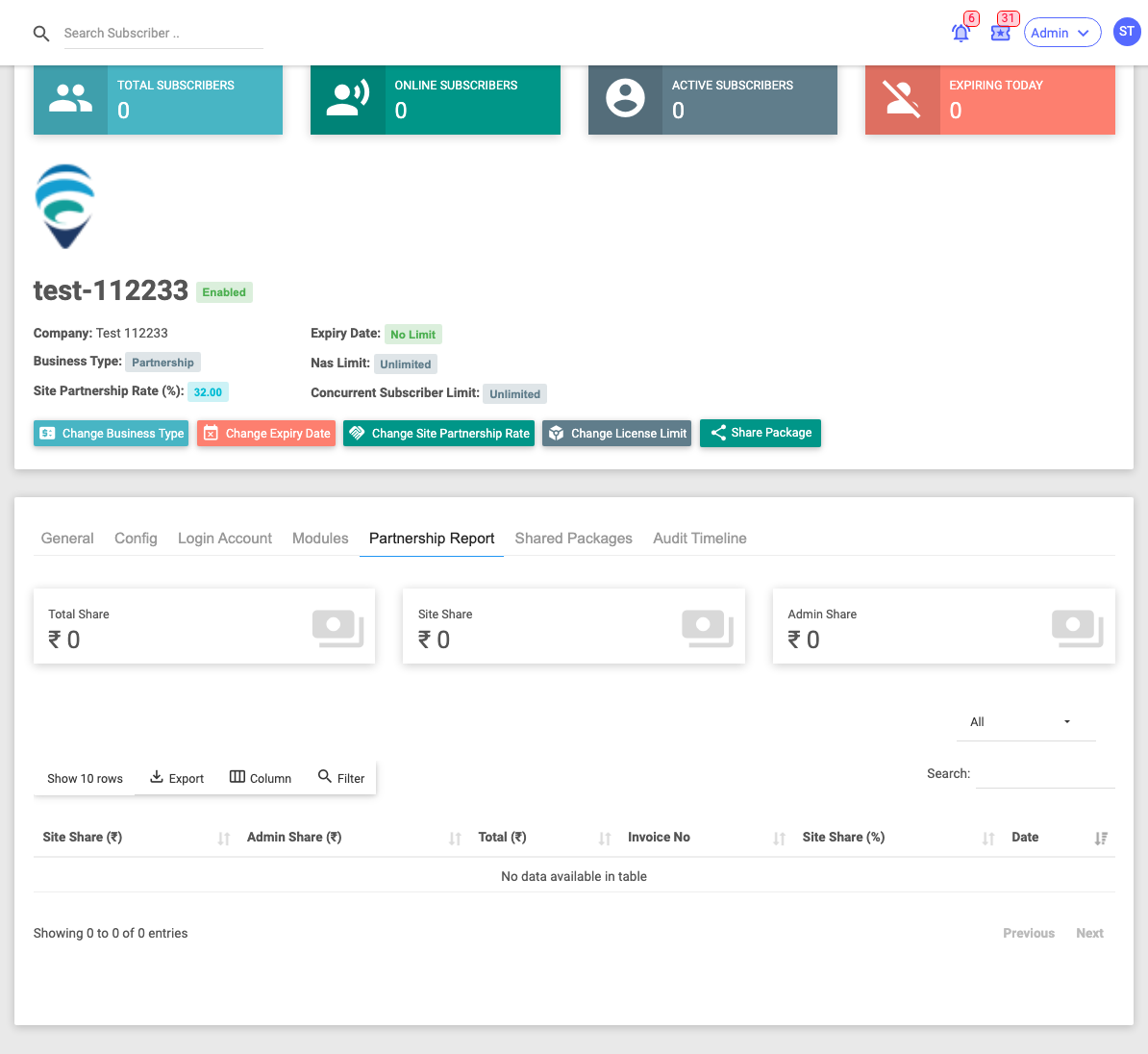
Reseller Report / Partnership Report
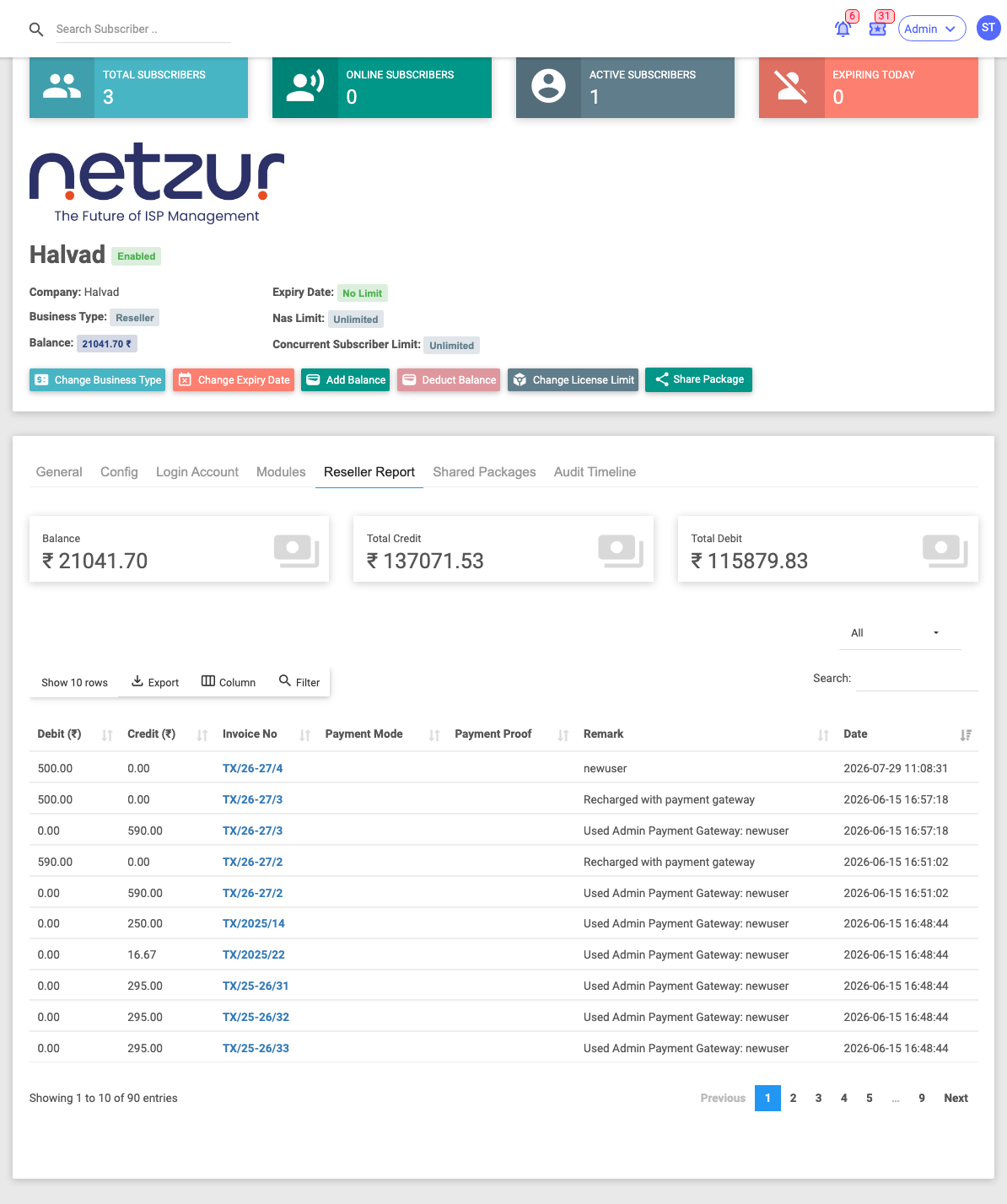
This tab appears only for reseller and partnership sites and shows the money ledger between you and the site.
-
Reseller Report — the site's Balance, total Credit and Debit, and a dated ledger of every top-up/deduction (amount, payment mode, proof, remark), filterable by month.
-
Partnership Report — Total Share, Site Share and Admin Share, with a per-invoice breakdown of how each payment was split.
Shared Packages
(Reseller/Partnership sites) The packages you've shared down to this site, with each one's Base Price, Site Price and Subscriber Price plus its speed, data, FUP and other plan details. Use Share Package (in the header) to add more.
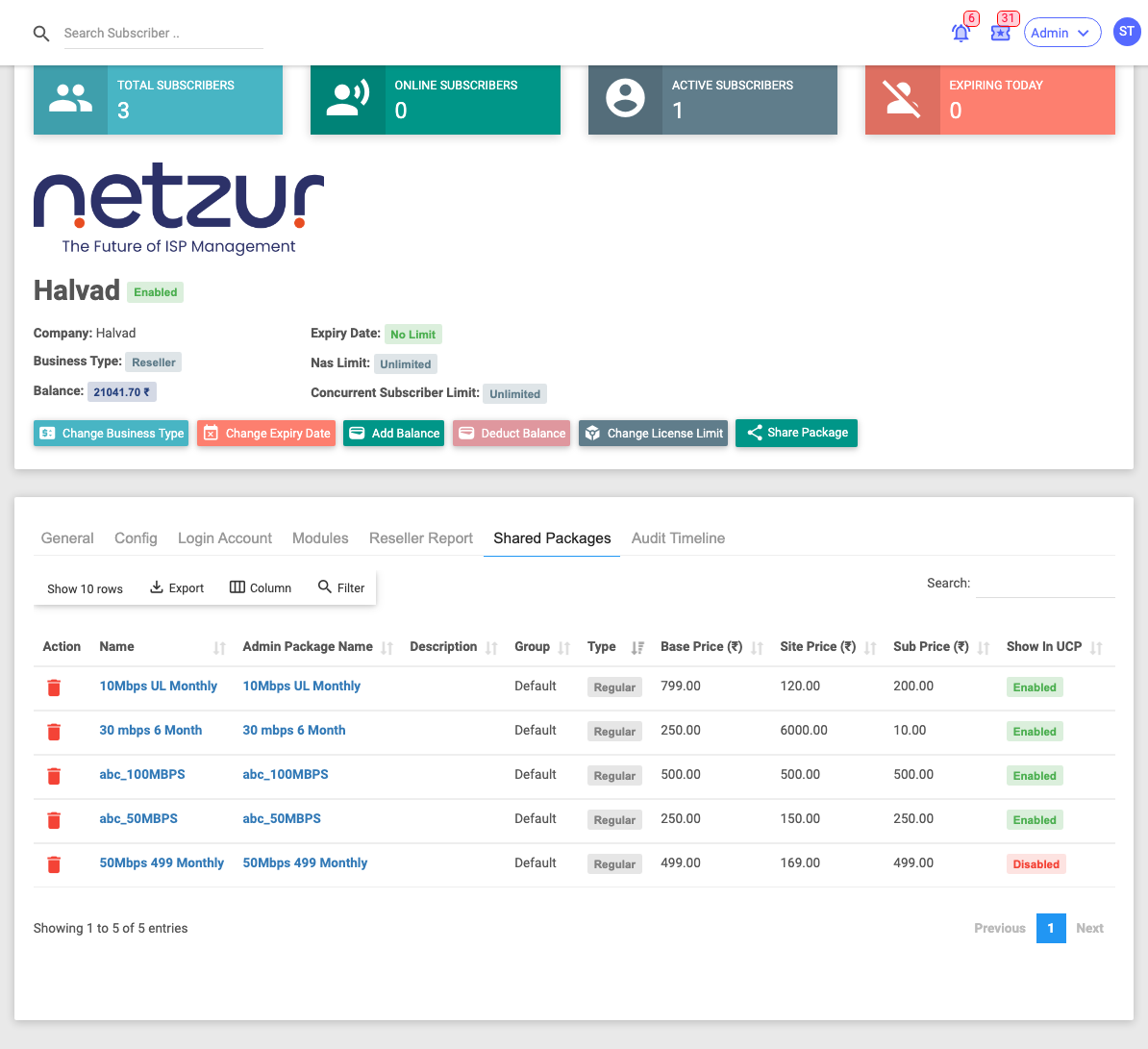
See Business Types & Reseller Billing → Sharing packages to a reseller for what Base / Site / Subscriber price each mean and how they drive the reseller's cost and margin.
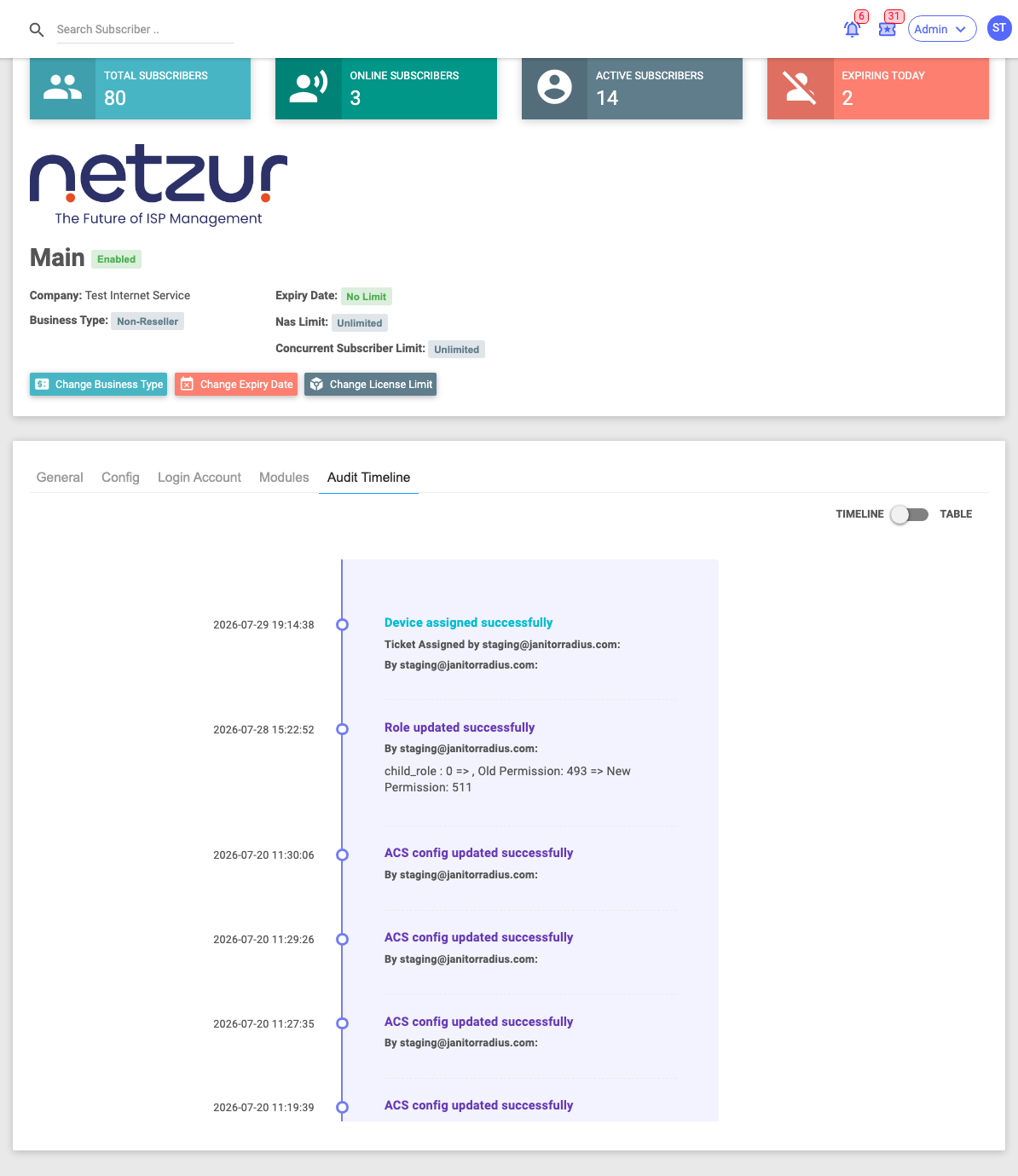
Audit Timeline
A dated history of changes made to this site — business-type switches, expiry/limit changes, balance movements and setting edits — each with the administrator and remark.
Related Guides
- Super Admin overview
- Business Types & Reseller Billing — package sharing, balances, deductions, tax and revenue share
- Config — the settings behind each site's Config tab
- Permissions → Login Accounts
- System