System
Overview
The System menu is where the main administrator watches the health of the server and looks after backups and licensing. It sits at the bottom of the Admin sidebar and has three pages: Dashboard, Backup and License.
:::note Availability The full System menu (Dashboard and Backup) is available to the main administrator on self-hosted (on-premises) installations, where Netzur runs on your own server. On cloud-hosted plans you'll typically see only the License page. :::
Dashboard
A live view of the server, refreshing every few seconds.
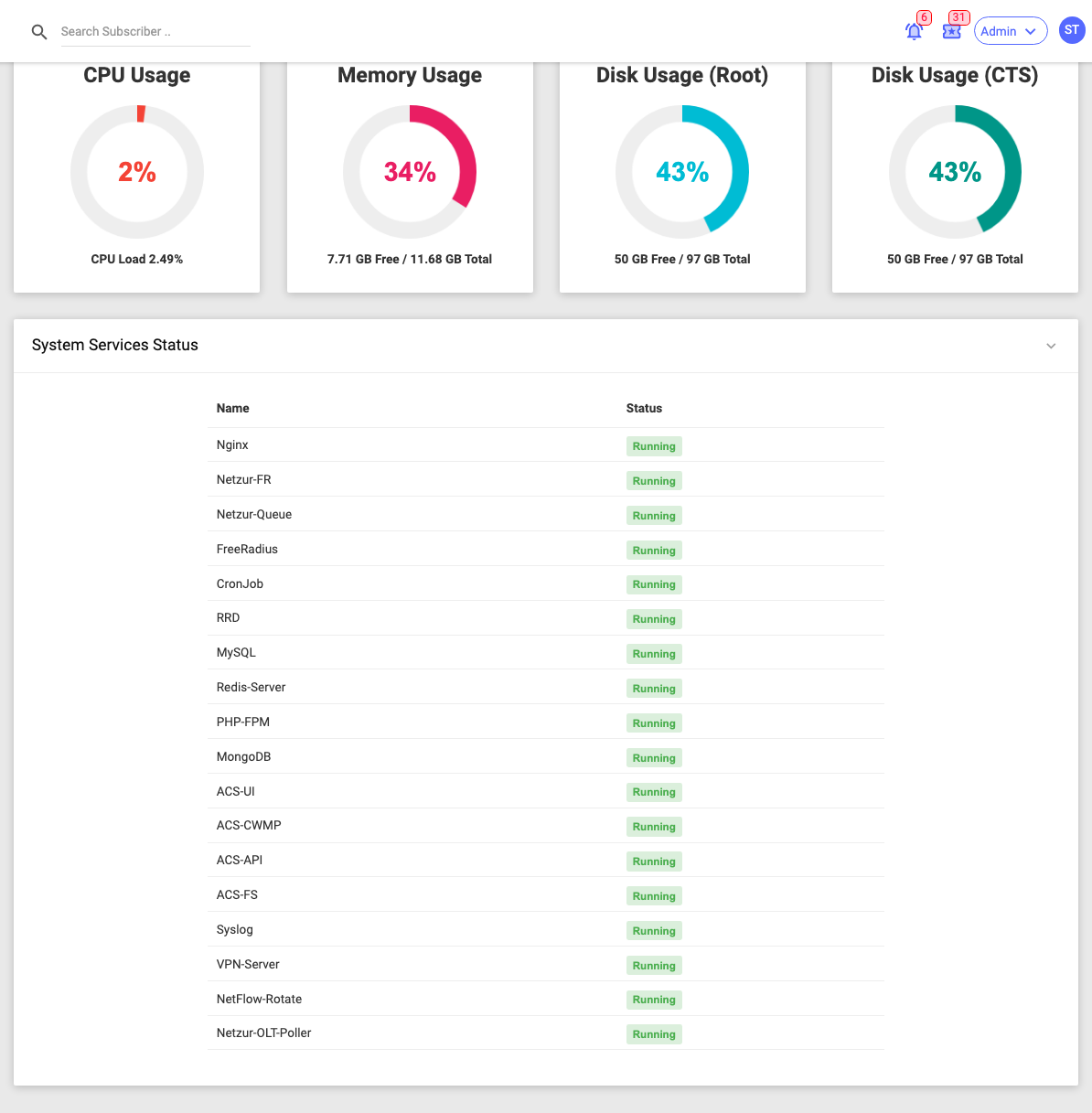
- CPU Usage — current processor load.
- Memory Usage — RAM in use, with free/total GB.
- Disk Usage (Root) and Disk Usage (CTS) — space used on the system and data disks, with free/total GB.
- System Services Status — each core service (web server, RADIUS, database, queue, cron, ACS, and so on) shown as Running or Not Running.
Use this page to confirm the platform is healthy at a glance — high disk or memory usage, or a service showing Not Running, is a sign to investigate.
Backup
Configure how the system backs itself up, and trigger an immediate backup. Three tabs:
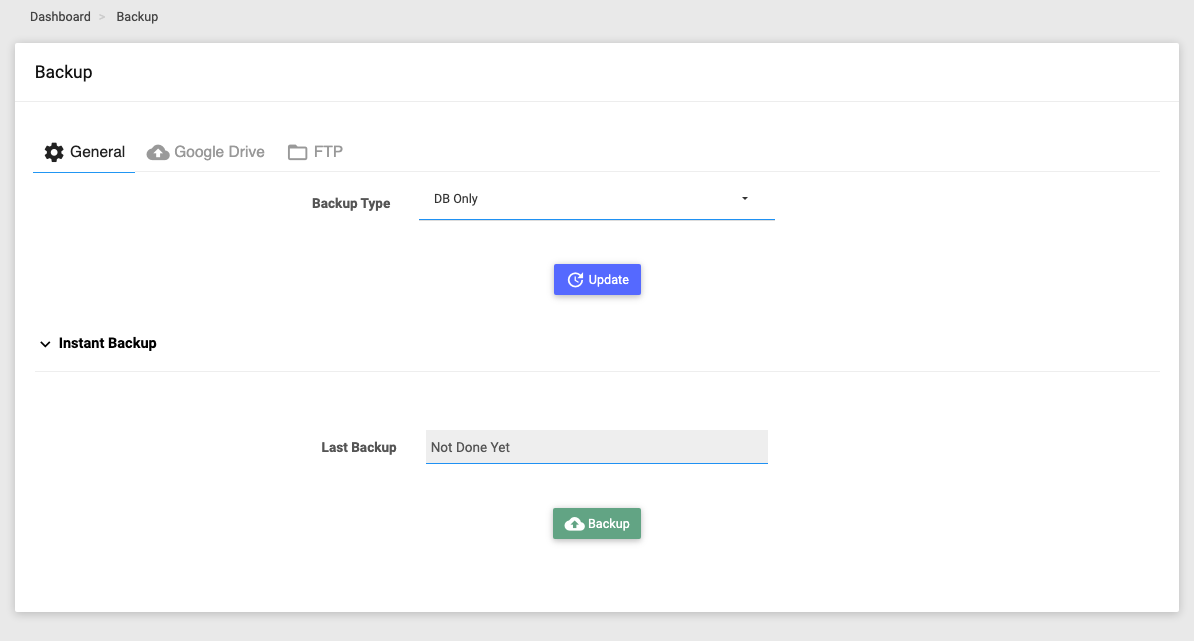
General
- Backup Type — what each backup contains:
- DB Only — the database alone.
- DB and App — database plus application files.
- DB and App (without RRD) — as above but excluding the graphing (RRD) data, for a smaller file.
- Instant Backup — shows the Last Backup time and a Backup button to run one now. When it's ready, a Download button appears.
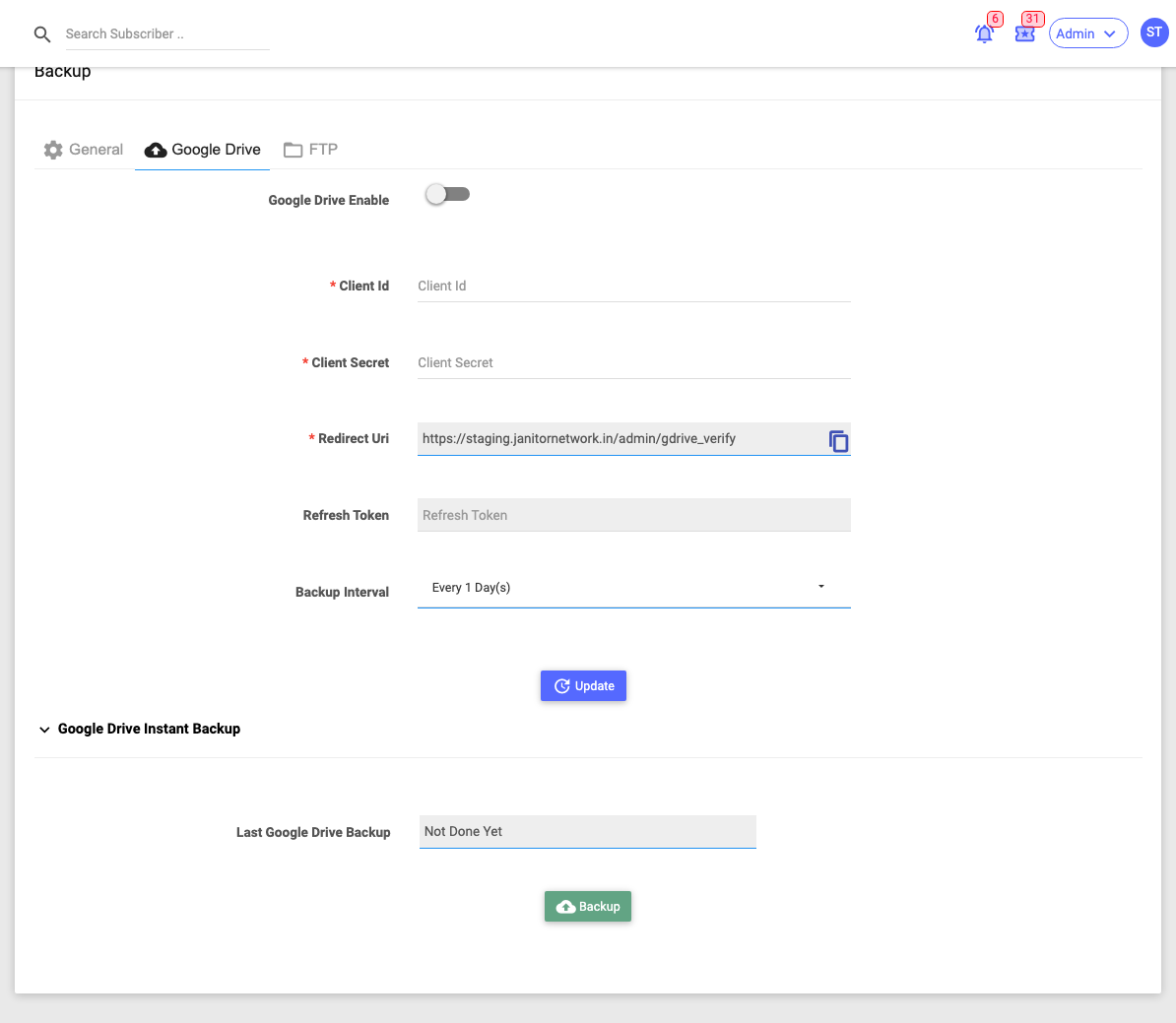
Google Drive
Turn on Google Drive Enable, then enter your Client ID and Client Secret, copy the shown Redirect URI into your Google project, and Verify to link the account. Set a Backup Interval (every N days). The Google Drive Instant Backup panel shows the last Drive backup time and a Backup button to upload one now.
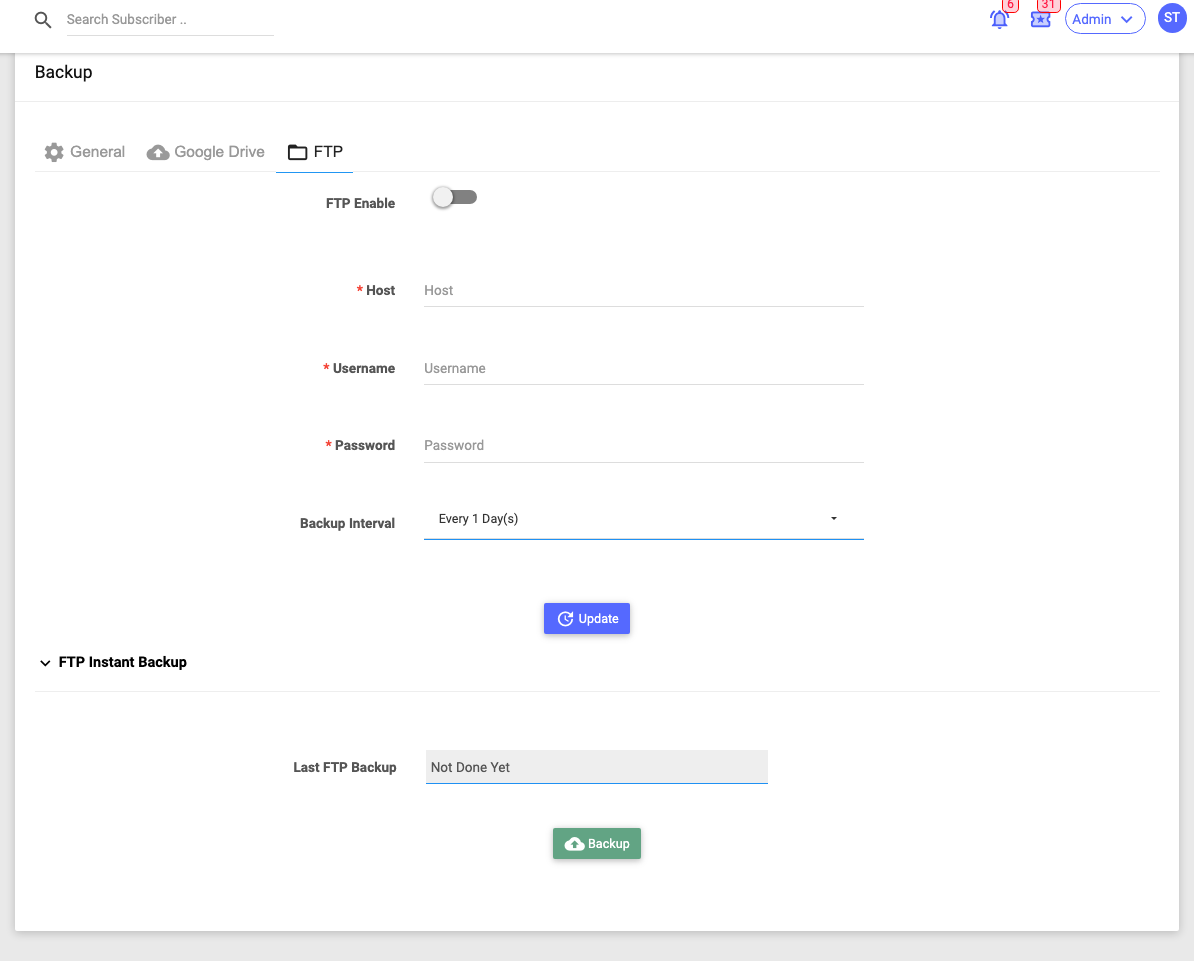
FTP
Turn on FTP Enable, then enter the Host, Username, Password and a Backup Interval. The FTP Instant Backup panel shows the last FTP backup time and a Backup button to upload one now.
:::caution Keep your backup credentials safe Google Drive keys and FTP passwords let others reach your backups. Treat them like any other secret, and prefer a dedicated backup account with limited access. :::
License
Your Netzur license and its limits.
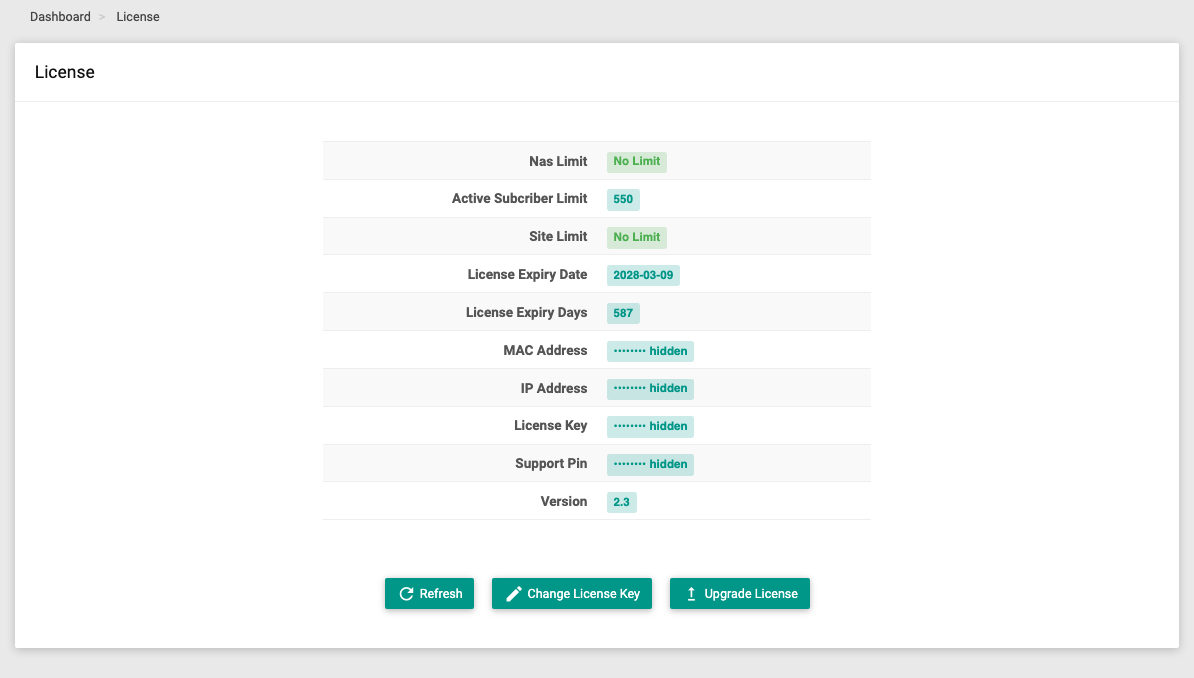
| Field | Meaning |
|---|---|
| NAS Limit | Maximum NAS devices allowed (or No Limit). |
| Active Subscriber Limit | Maximum active subscribers allowed. |
| Site Limit | Maximum number of sites allowed. |
| License Expiry Date / Days | When the license expires, and days remaining. |
| MAC Address / IP Address | (Self-hosted) The server the license is bound to. |
| License Key | (Self-hosted) Your license key. |
| Support PIN | (Self-hosted) The PIN to quote when contacting support. |
| Version | The installed Netzur version. |
Buttons at the bottom let you Refresh the license from the licensing server, Change License Key, or Upgrade License (opens the upgrade page).
The License Key, MAC/IP Address and Support PIN identify your installation — keep them private and share the Support PIN only with official support. (These are hidden in the screenshot above.)