Ticket Dashboard
Overview
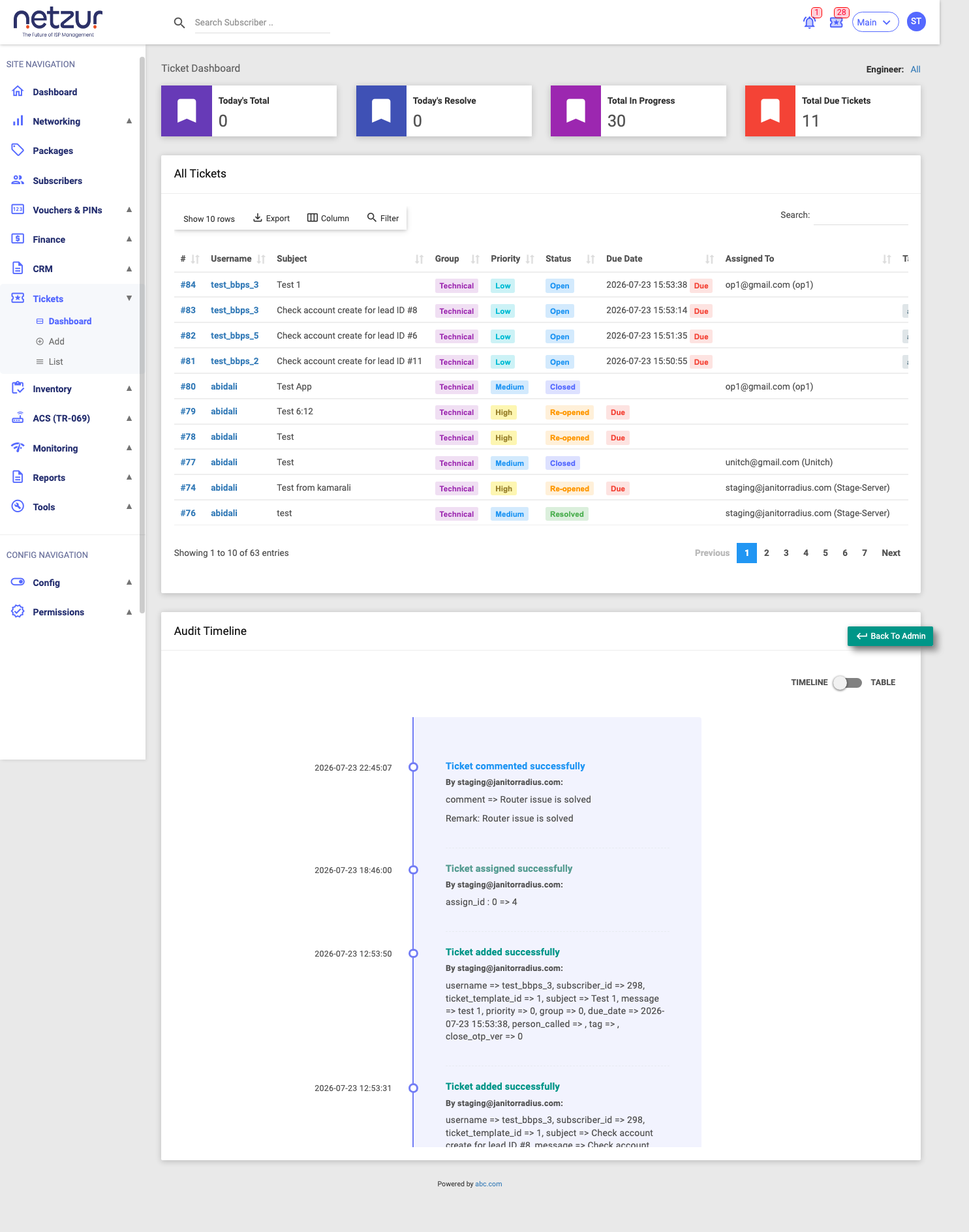
The Ticket Dashboard is the landing screen for support. It shows the day's ticket workload as stat tiles, a live list of the tickets you need to act on, and an Audit Timeline of recent ticket activity. There are two versions of the screen depending on your permissions.
Who Can Use This Feature
Support staff and their managers.
Required Permissions
- Other Dashboard → Ticket Dashboard.
- Ticket → Show All Tickets decides which version you see (below).
Navigation
Tickets → Dashboard
Two versions
| You see… | If you… |
|---|---|
| Personal dashboard — only your tickets | are a regular agent (no Show All Tickets). |
| Manager dashboard — with an Engineer picker to view any agent, or All | have Show All Tickets (or are an admin login). |
The stat tiles
| Tile | Shows |
|---|---|
| Today's Total | Tickets created today. |
| Today's Resolve | Tickets resolved today. |
| Total In Progress | Tickets not yet closed. |
| Assigned To Me (Opened) | Open + re-opened tickets on your plate. |
| Total Due Tickets | (Manager "All" view) overdue tickets across the site. |
On the personal dashboard the tiles count only your tickets. On the manager dashboard they count the selected engineer's tickets, or the whole site when All is chosen.
The ticket list
A single table of the tickets that need attention, with columns #, Username, Subject, Group, Priority, Status, Due Date, Assigned To and Tags (a red Due badge marks overdue tickets). Its heading tells you what it's showing:
- Assign To Me (Opened) — your (or the selected engineer's) open + re-opened tickets.
- All Tickets — every ticket for the site (manager "All" view).
Click a ticket's # to open it. Use Filter to search by Group, Priority, Status or any column, and Export to copy/Excel/print.
The Engineer picker (manager view)
On the manager dashboard, the Engineer dropdown lets you switch the whole screen between:
- All — site-wide totals and every ticket.
- Self — your own dashboard.
- Any staff member — that person's tickets and totals.
The Audit Timeline
A running feed of recent ticket activity — comments, re-assigns, resolves, closes and re-opens — colour-coded by action, showing who did what and when. A TIMELINE / TABLE toggle switches between the visual feed and a sortable table.
Important Notes
- All figures are for your site, and (on the personal view) only your tickets.
- The dashboard is where you start your day; open a ticket to actually work it — see Working a Ticket.