The Ticket List
Overview
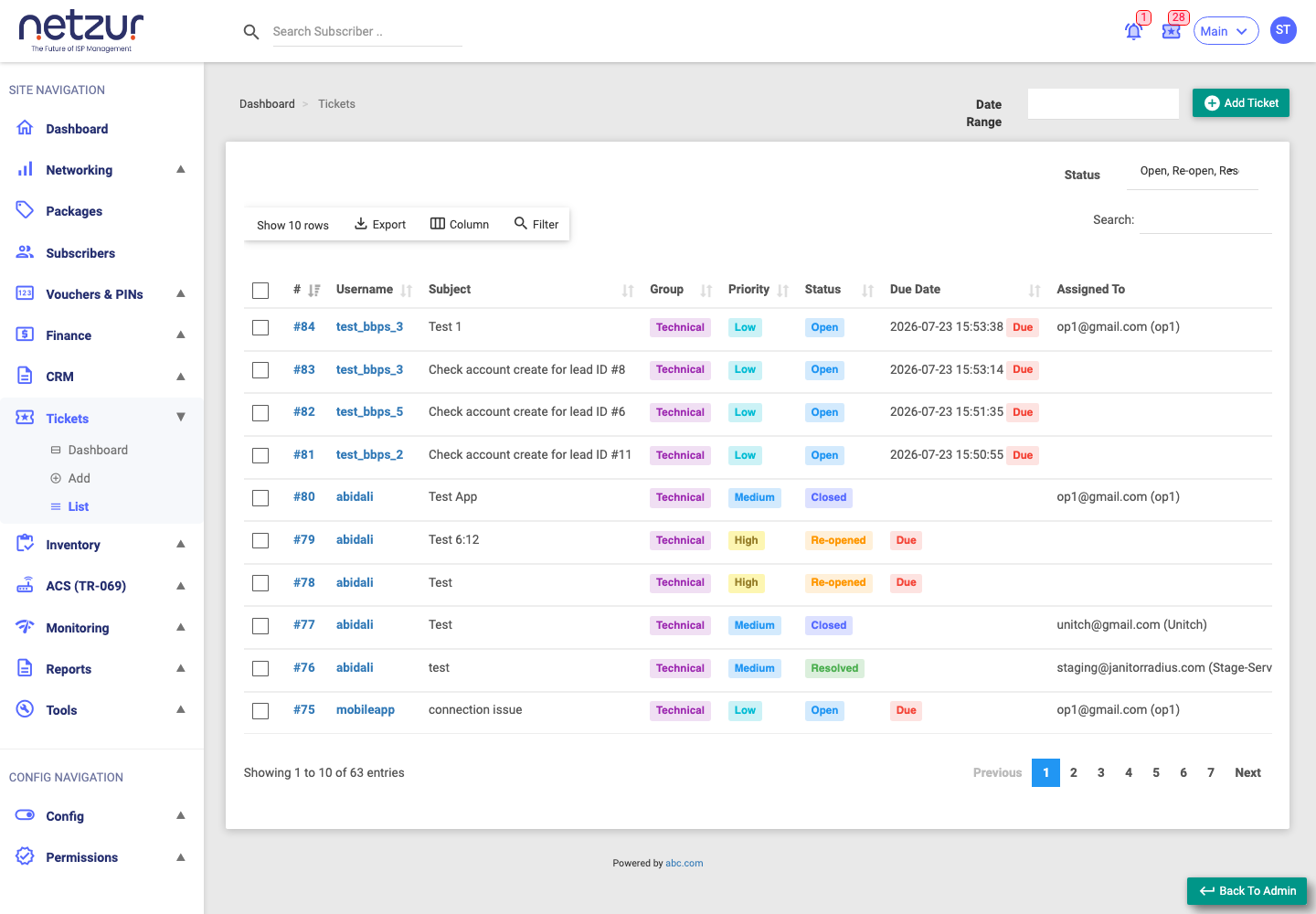
The Ticket List shows every ticket for your site (or just the ones assigned to you), with filters to find what you need. Click any ticket to open its workspace.
Who Can Use This Feature
Support and sales staff.
Required Permissions
- Ticket → List; Ticket → Show All Tickets to see everyone's tickets; Ticket → Delete for the bulk delete.
Navigation
Tickets → List
What you can see
- With Show All Tickets, you see all the site's tickets.
- Without it, you see only tickets assigned to you.
The columns
| Column | Meaning |
|---|---|
| # | Ticket number — click to open it. |
| Username | The subscriber (links to their profile). |
| Subject | The ticket title. |
| Group | Technical or Sales. |
| Priority | Low / Medium / High / Urgent. |
| Status | Open / Re-opened / Resolved / Closed. |
| Due Date | When it's due — a red Due badge marks overdue, unresolved tickets. |
| Assigned To | Who's handling it. |
| Tags | Any labels. |
More columns (subscriber name, mobile, email, address, zone, node, group, audit fields) are available via the Column button.
Filtering
- Status (top-right) — a multi-select to show only Open / Re-open / Resolve / Close tickets. Your choice is remembered next time.
- Date Range — filter by when tickets were created.
- Filter button — per-column search boxes.
- Search — the global search box.
Deleting tickets
Tick one or more rows and choose Action → Delete. This removes the selected tickets after a confirmation.
Tickets that were auto-generated by a lead can't be deleted — they belong to that lead's onboarding.
Important Notes
- Opening a ticket takes you to the workspace, where all the actions (comment, resolve, close, etc.) live.
- The Status filter is the quickest way to focus on open work vs. finished tickets.