Find PINs
Overview
Find PINs searches your recharge PINs by precise criteria — to check whether a specific PIN has been used, find all PINs in a series, or pull redeemed/unredeemed PINs in a date range.
Who Can Use This Feature
Support and counter staff.
Required Permissions
- PIN → Find.
Navigation
Vouchers & PINs → PINs → Find Pin
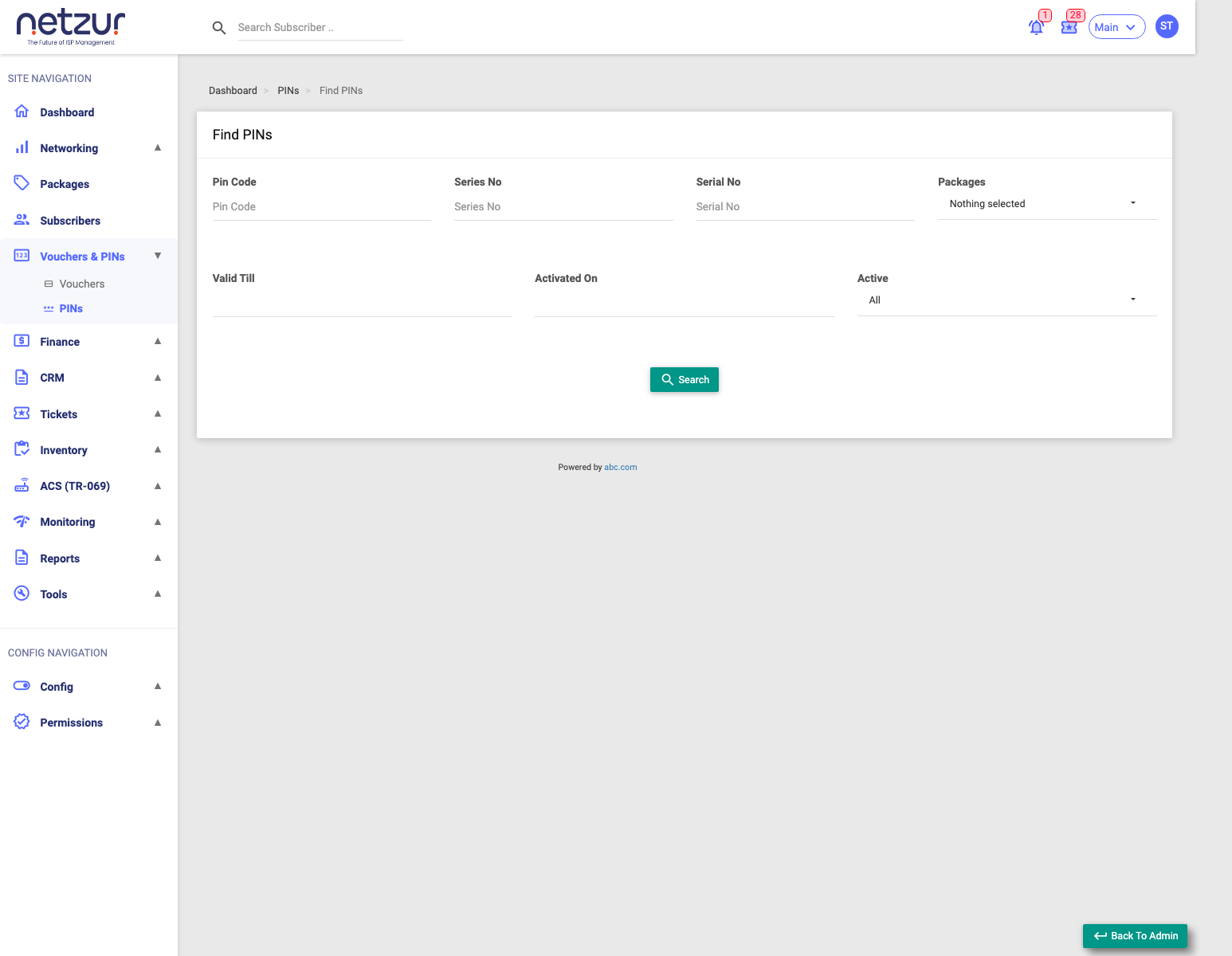
How to Use
- Go to PINs → Find Pin.
- Fill in only the filters you need (blank filters are ignored).
- Select Search. The matching PINs appear below.
Search Filters
| Filter | Matches |
|---|---|
| Pin Code | A specific PIN code. |
| Series No | All PINs in a batch. |
| Serial No | A PIN's serial/reference number. |
| Packages | PINs carrying a specific package. |
| Valid Till | A date range for the redeem-by date. |
| Activated On | A date range for when PINs were redeemed. |
| Active | All, Used, or Unused. |
The results
The results table shows each matching PIN — Pin Code, Series No, Status, Valid Till, Mobile No and Packages. Use it to confirm a customer's PIN status, or Active → Unused to find PINs still available to sell.
Important Notes
- A Used PIN can't be redeemed again — the results show its status so you can tell a customer whether their code is still valid.
- Blank filters are ignored — start broad, then narrow.