Add a Voucher Series
Overview
This generates a batch of vouchers at once — you choose how many, which package they carry, and how they log in, and Netzur creates that many ready-to-use voucher accounts under one series number.
Who Can Use This Feature
Hotspot operators and resellers.
Required Permissions
- Voucher → Add.
Prerequisites
- A package exists for the vouchers to carry.
- You know the hotspot login URL customers will use (required).
Navigation
Vouchers & PINs → Vouchers → Add Voucher
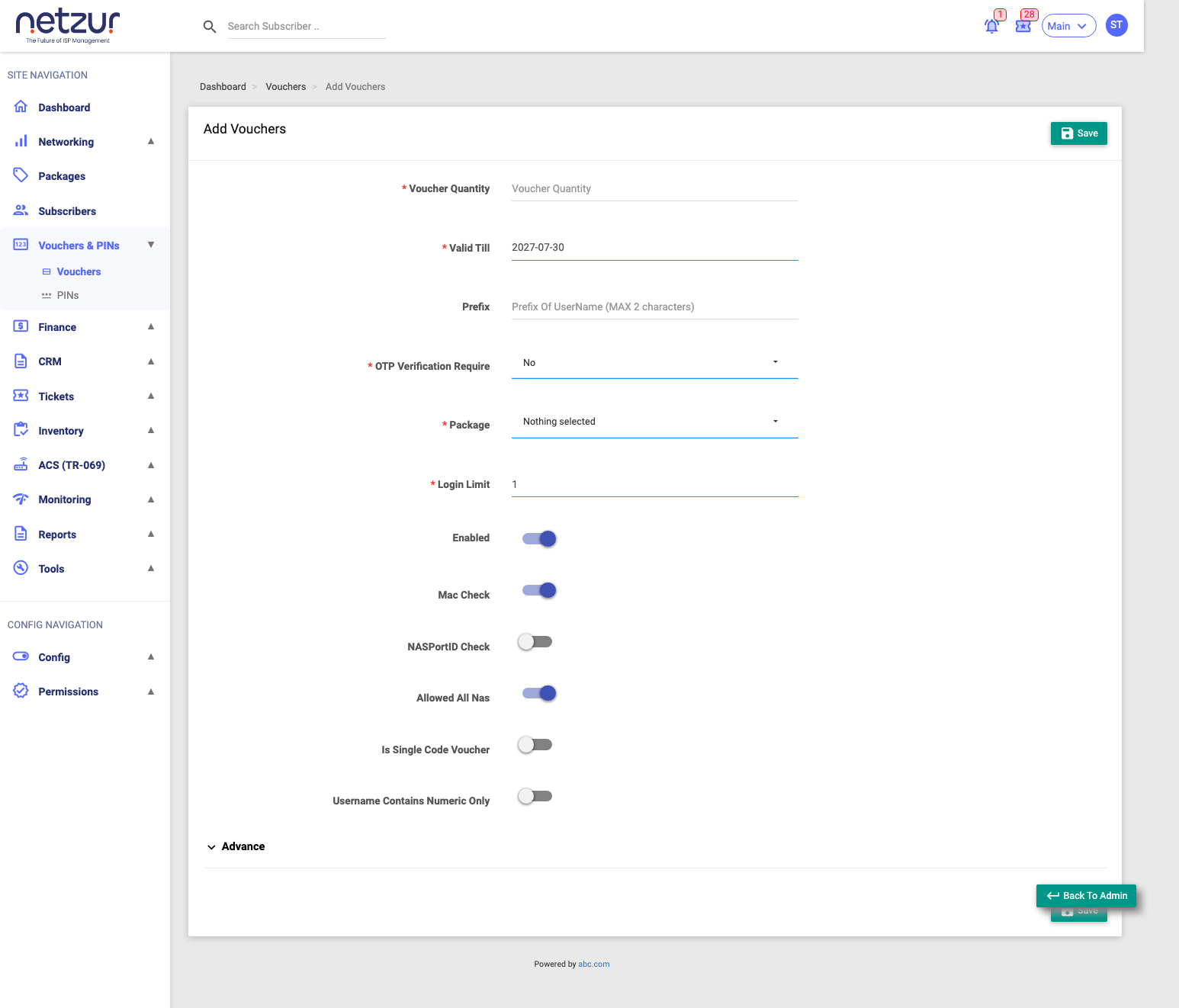
Step-by-Step Instructions
- Go to Vouchers & PINs → Vouchers and select Add Voucher.
- Enter the Voucher Quantity (how many to generate).
- Set Valid Till (deadline to use them — defaults to one year out).
- Choose the Package the vouchers grant.
- Set the Login Limit (simultaneous sessions per voucher).
- Set OTP Verification Require, and the toggles you need (MAC Check, single-code, numeric-only, etc.).
- In Advanced, set the Hotspot Login URL (required).
- Select Save. The batch is created and appears as a new series.
Field Reference
| Field | Required | Description |
|---|---|---|
| Voucher Quantity | Yes | How many vouchers to generate (each becomes one account). |
| Valid Till | Yes | The last date the vouchers may be used. |
| Prefix | No | Up to 2 characters added to the front of each generated username. |
| OTP Verification Require | Yes | Whether a user must verify by OTP before the voucher works. |
| Package | Yes | The plan each voucher grants. |
| Login Limit | Yes | How many devices can use one voucher at the same time (default 1). |
| Enabled | No | Whether the generated vouchers are active. |
| Mac Check | No | Lock each voucher to the first device that uses it. |
| NAS Port ID Check | No | Enforce the bound port/interface. |
| Allowed All NAS | No | Let vouchers connect through any NAS; turn off to pick specific NAS. |
| Select NAS | If not all-NAS | The NAS device(s) vouchers may use. |
| Is Single Code Voucher | No | Log in with one code instead of a separate username + password. |
| Username In Numeric Only | No | Make the generated usernames digits-only. |
| Hotspot Login URL (Advanced) | Yes | The captive-portal page customers log in on. The QR code printed on each voucher is generated from this URL, with the voucher's own login embedded — so scanning it opens the login page already signed in. |
Voucher Quantity vs Series No: you type the quantity; the series number is assigned automatically (e.g.
250001). Generated usernames are random (with your optional prefix), or a single code if you chose Is Single Code Voucher.
What Happens After Saving
The series is created with that many voucher accounts (all Inactive until used). You can now print them or view the vouchers in the series. For resellers, your site balance is debited by the package price × quantity.
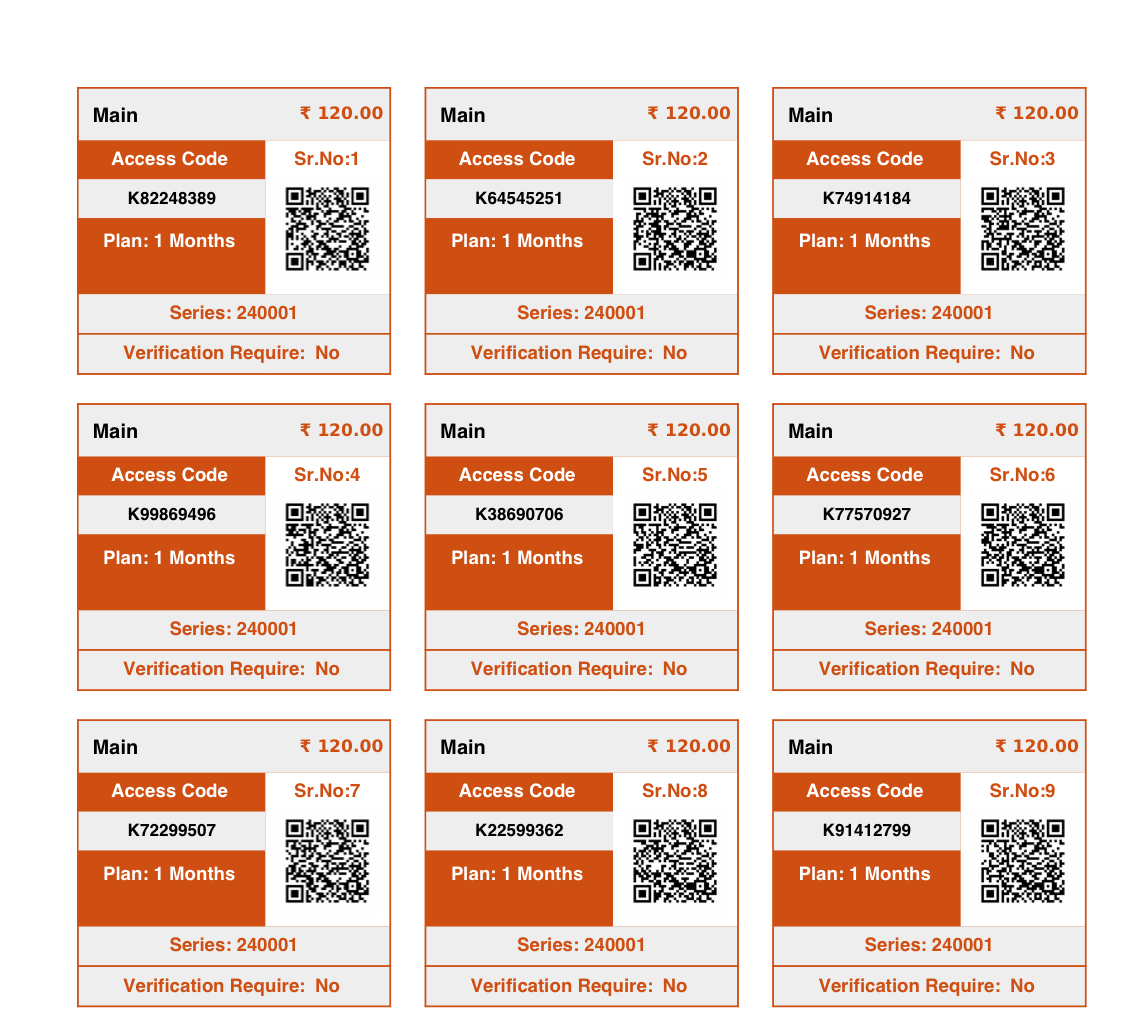
Each printed voucher card shows the access code, price, plan, series number, and a QR code generated from the Hotspot Login URL (with that voucher's login embedded) — customers scan it to reach the login page already signed in:
Important Notes
- The Hotspot Login URL is mandatory — it tells customers where to log in and is printed on the cards.
- Is Single Code Voucher suits simple hand-out codes; leave it off for username+password vouchers.
- Very large batches: keep the quantity sensible (the form is intended for batches, not tens of thousands at once).
Common Mistakes
- Forgetting the Hotspot Login URL (Advanced) — the form won't save without it.
- Choosing the wrong Package, so vouchers grant the wrong plan.
- Setting Login Limit too low/high for how the customer will use them.